Conversation List
Gen 3 SimpliSafe® Overview
A powerful home security system built for the unexpected
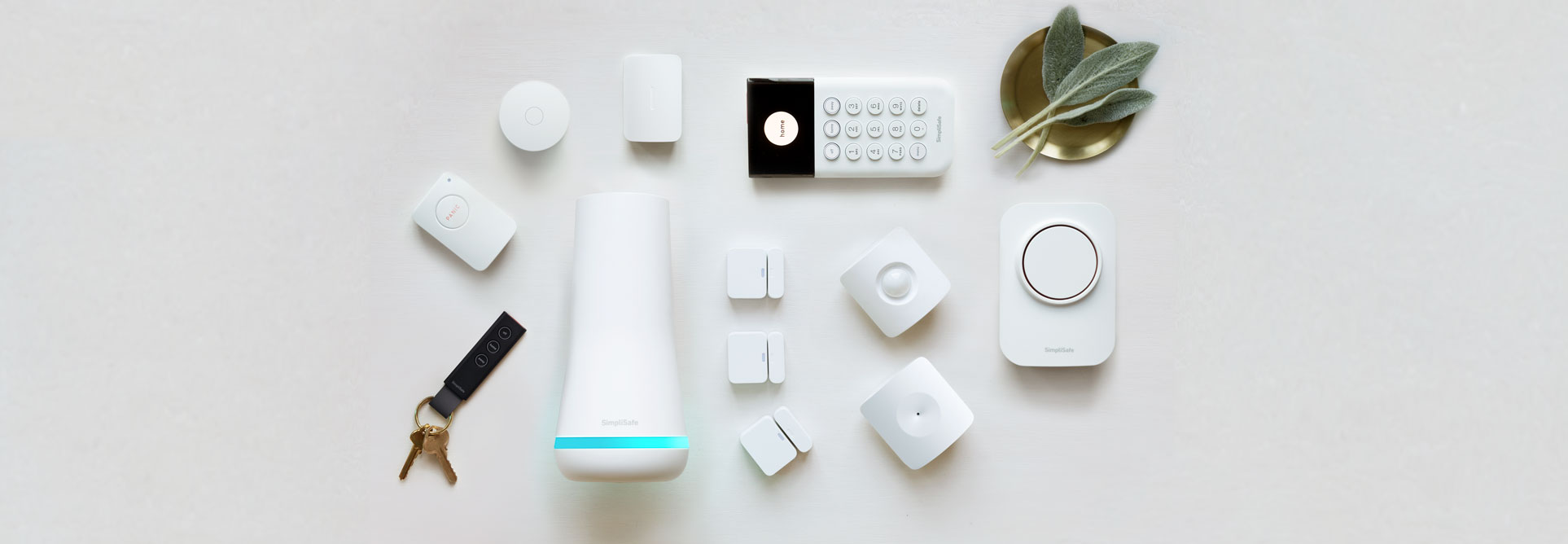
The Gen 3 SimpliSafe® system is our upgraded DIY security system, with new features added to provide home and business owners peace of mind. This third-generation of our security system is Wi-Fi compatible, has more than double the components of the Original SimpliSafe® system, and its revamped design makes it easier to blend in with your home or business. We are constantly providing updates to ensure your system is always prepared to protect your property.
With a built-in network backup connection* to our monitoring center and 24-hour backup batteries, our latest system ensures you’re always protected, even if you lose power. You can also connect your system to Wi-Fi as a second communication channel. This Wi-Fi connection will allow you to manually update your Base Station and Keypad when updates are available.
*Built-in network backup connection is only available with a professional monitoring subscription.
24/7 Professional Monitoring
We strongly recommend that you subscribe to professional monitoring, for an extra layer of security and peace of mind. SimpliSafe® has many monitoring centers around the US and UK that are open 24 hours a day, 365 days a year, so you can be confident whether you are at work or going to sleep that your home is protected. With residential and business plans such as, Pro Plus, Pro, Core, or Self-Monitoring with Camera Recordings, you can choose to be notified immediately via email, text message, and smartphone push notifications for any events your system detects.
Still uncertain about professional monitoring? If you have not activated your system, we list out the steps in the article How do I Activate Monitoring?
A Range of Settings to Personalize Your System
You can change your system-wide and device settings through the SimpliSafe® Mobile App and Keypad’s menu. Settings range from the type and frequency of notifications you receive, siren volume, device sensitivity, and more!
To learn more about updating your system’s settings, see our article Base Station and System Settings. For more on updating device settings, visit the Device and Sensor Settings article.
Once installed, you can use your Keypad to test your system. After your system has been tested, you will be able to subscribe to professional monitoring.
To troubleshoot your system, you can use the search bar at the top of this page. If you are unable to find your answer, please contact our Support team for additional help!
Help Center Article
•
Base Station
No White Light During Initial Base Station Setup
Once the battery tab is removed from the Base Station and you have plugged it into a known working wall outlet, you should see the white searchlight come on to indicate the device has power. In the event that you are not seeing a white light, resetting the Base Station should get things working again.
Before Getting Started
You’ll need to have a Phillips head screwdriver available to complete these steps.
How to Reset the Base Station
Unplug the Base Station from power by removing the cable from the bottom of the Base Station
Wait at least 60 seconds
OR until the SimpliSafe® Mobile App states “Power Outage” in the timeline
Using a Phillips head screwdriver, remove the screw on the bottom of the Base Station
Take off the bottom cover to expose the battery compartment
Remove a single battery from the Base Station, wait 60 seconds, and reinsert the battery
Plug the Base Station back into power
After 60 seconds, a “Power Restored” message should populate on the timeline within the SimpliSafe® Mobile App
Next, arm your system to Home mode, then disarm it by setting it to Off
This will ensure that the message clears from the mobile app and test that your system is properly arming and disarming itself
Watch this video to learn how to reset your Base Station
Help Center Article
•
Base Station
Base Station Light Won't Turn Off
The Base Station will display different LED light colors to give you important information about your system at a glance.
If you do not want your Base Station’s light on, you can turn it off using either the SimpliSafe® Mobile App or Keypad.
Using the SimpliSafe® Mobile App
Open the SimpliSafe® Mobile App on your smartphone or tablet
Select the My System gear from the navigation menu at the bottom of the screen
Select Base Station Settings
Choose Status Lights
Toggle Base Station Light off
Press Save in the upper right corner of the screen to save this setting
Using the Keypad
Press the Menu button on your Keypad
Enter your Master PIN
Select System Settings
Scroll down to Base Station Light and turn the setting off
Is the Base Station’s light still on?
If, after turning the Base Station Light setting off, you still see an LED light illuminated, that may indicate that the Wall Power Light setting is still on. When on, the back half of the Base Station’s light remains lit while actively receiving power from the power adapter.
If you do not want the Wall Power Light on, you can turn it off using the SimpliSafe® Mobile App or Keypad
Using the SimpliSafe® Mobile App:
Open the SimpliSafe® Mobile App on your smartphone or tablet
Select the My System gear from the navigation menu at the bottom of the screen
Select Base Station Settings
Choose Status Lights
Toggle Wall Power Light off
Press Save in the upper right corner of the screen to save this setting
Using the Keypad:
Press the Menu button on your Keypad
Enter your Master PIN
Select System Settings
Scroll down to Wall Power Light and turn the setting off
Was there recently an alarm?
After an alarm, the light on the Base Station will be a solid red to alert you of the alarm event. You can clear the red light by taking the following steps:
Using your Keypad, press the Off button to disarm your system
Press the right arrow button on the Keypad
An error should appear; select clear to close out the warning message
Once done, this should clear the error message displayed on the Keypad and reset the red LED on the Base Station
Related Article
Help Center Article
•
Base Station
Base Station Battery Failure
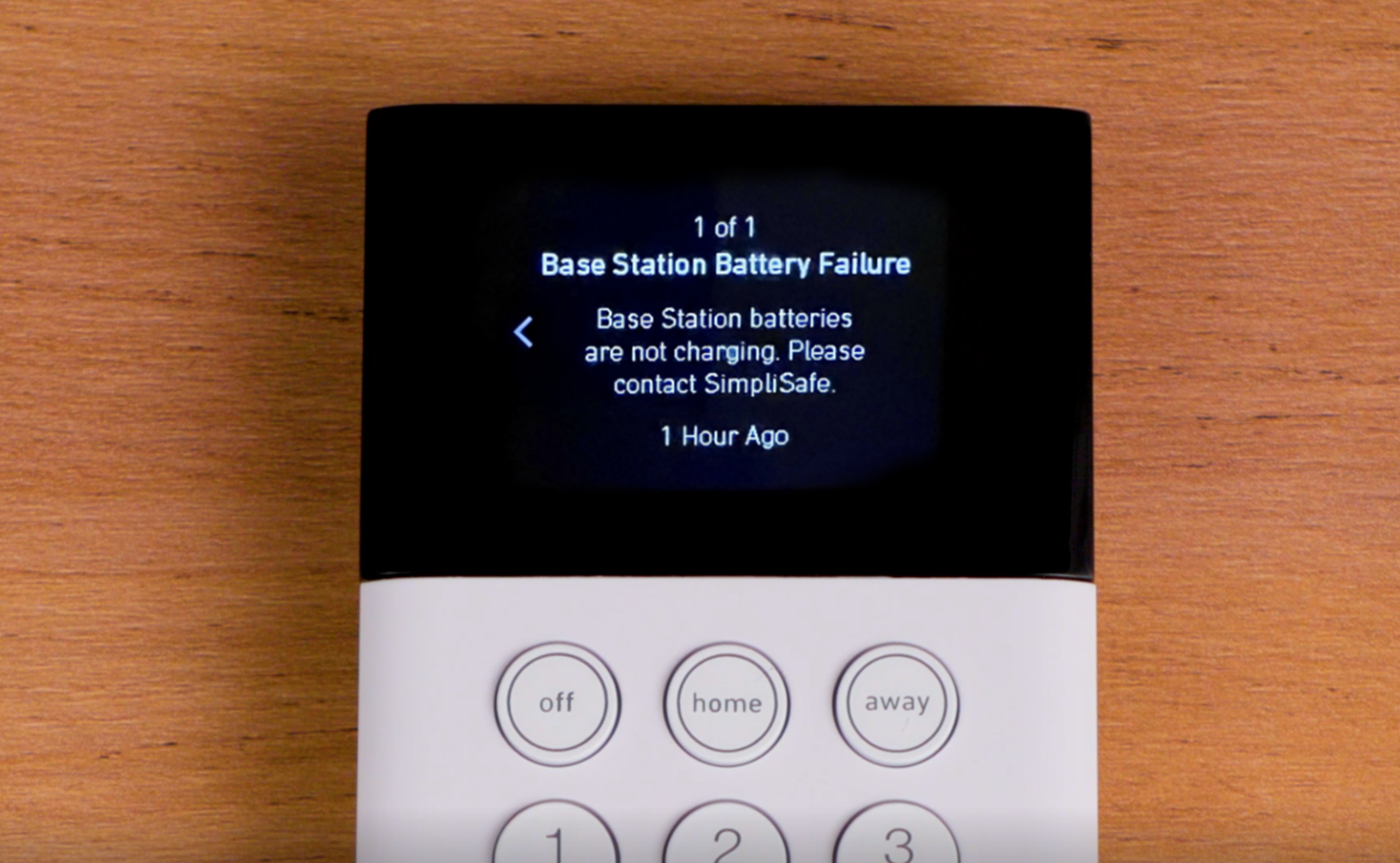
Your Base Station comes pre-installed with 4 NiMH (nickel-metal hydride) rechargeable batteries, which are kept charged by your Base Stations. These batteries should never be replaced with alkaline type batteries over the lifetime of your Base Station.
If there is a technical issue with the batteries, or if the Base Station is having trouble keeping them charged, you may receive a Keypad warning or Base Station announcement to notify you of the problem.
To resolve this issue:
Open the battery compartment on the bottom of the Base Station using a Phillips head screwdriver
Confirm that your Base Station is using 4 NiMH rechargeable batteries
Alkaline batteries should never be used in the Base Station
Check the batteries and compartment for any signs of corrosion
If you spot any signs of corrosion on the batteries or within the compartment, our Support team can assist you further
If there are no signs of corrosion, you will need to replace the batteries with 4 NiMH rechargeable batteries that meet the requirements of 1.2V and 1300 mAH
Once you have your replacement batteries, use the steps outlined in our How to Replace Base Station Batteries article
Help Center Article
•
Base Station
Why is the Base Station Beeping?
With the Base Station firmware update 2.10, we’ve introduced a way to make sure your system is in good shape with Trouble Signals. Trouble Signals are a three-tone warning sound that will emit from your Base Station, accompanied by a flashing yellow light, also known as the Trouble Light. When this is present, you’ll see a box appear on your Keypad with ⚠ (warning sign - triangle with an exclamation point) in it, notating that an issue is occurring with your system.
These changes are part of the UL-985 Standard for Household Safety and may be required in your area - depending on local laws and regulations.
If you are hearing the Trouble Signal or seeing the Trouble Light, your system could be having issues with one of the following:
Products are either Not Responding or marked as Offline within the SimpliSafe® Mobile App
Smoke, CO, and Smoke & CO Detectors have a malfunction and/or low sensitivity is being reported.
Our support team can assist you further with these issues
Smoke, CO, and Smoke & CO Detectors have a tamper switch that is not held down
A No Link To Dispatcher error may be reported by your Keypad. Use the steps outlined in this article to resolve the issue.
RF Interference may be detected. Use the steps outlined in this article to resolve the issue.
How To Modify the Trouble Signal Tone
You can turn off the trouble signal at any time using the SimpliSafe® Mobile App or your Keypad.
Please note that turning the trouble signal off does not address the underlying issue being reported by your system.
You will want to identify and address the root cause of the issue at a time that is convenient for you.
Using the SimpliSafe® Mobile App
Open the SimpliSafe® Mobile App on your smartphone or tablet
Select My System from the bottom navigation menu
Select Base Station Settings
Choose Audio Alerts
Under Trouble Signal, select your desired volume
Press Save in the upper right corner to save this change
Using the Keypad
Press the Menu button on your Keypad
Enter your Master PIN
Select System Settings
Choose Trouble Signal, and then your desired volume
How To Modify the Trouble Signal Light
Using the SimpliSafe® Mobile App
Open the SimpliSafe® Mobile App on your smartphone or tablet
Select My System from the bottom navigation menu
Select Base Station Settings
Choose Status Lights
Toggle the Trouble Light on or off
Press Save in the upper right corner to save this change
Using the Keypad
Press the Menu button on your Keypad
Enter your Master PIN
Select System Settings
Choose Trouble Light, and then toggle the setting on or off
Identifying the Root Cause of the Trouble Signal
We strongly recommend you address the error that caused the Trouble Signal to sound in the first place. The Trouble Signal is meant to alert you to a problem with your system, and turning the signal off will still allow the problem to continue.
Diagnosing the Problem Using the SimpliSafe® Mobile App:
Open the SimpliSafe® Mobile App on your phone or tablet
Tap on Overview from the bottom navigation bar
Pull down from the top of the screen where it says “Overview” until you see a spinning circle
Once the circle stops spinning, you will see a summary of the system error(s)
Select “Learn More” to see a summary of the issue and which product(s) are impacted
You can learn more about the issue by searching the Help Center with the error messaging provided in the app, or by tapping on Troubleshoot
Diagnosing the Problem Using the Keypad:
Using the Keypad, locate the warning symbol with a number below it on the right side of the Keypad
Press the Keypad screen to the right to select the warning symbol
Read the message for a summary of the issue with your system
If there is more than one message, press down on the screen to read every message
Help Center Article
•
Base Station
How to Change the Base Station Siren Duration
This setting adjusts the length of time that your Base Station (and Auxiliary Siren) will sound in the event of an alarm. The default for this setting is 4 minutes, but it can be set anywhere between 30 seconds and 8 minutes through the SimpliSafe® Mobile App, Keypad, or Online Account.
SimpliSafe® Mobile App:
Navigate to the My System gear on the bottom of the screen
Select Base Station Settings
Choose Alarm Siren
Select Alarm Siren Volume and drag the slider to your desired volume.
Once you have selected your desired volume, be sure to press Save in the upper right corner of the screen
Keypad:
Press Menu on your Keypad
Enter your Primary PIN
Choose System Settings
Select Siren Duration and adjust the setting, as needed
SimpliSafe® Online Account:
Log into the SimpliSafe® Online Account using the browser of your choice
Select System from the left-hand navigation bar
Under Additional Settings locate Siren Duration
Use the drop-down menu to adjust the volume for your Siren Duration
Be sure to click on Save Changes at the bottom of the screen before exiting
Help Center Article
•
Base Station
How To Change The Base Station's Siren Volume
The Base Station’s siren has four volume settings: Off, Low, Medium, and High, and by default it is set to High. You can change the siren’s volume using the SimpliSafe® Mobile App, Online Account, or Keypad by taking the following steps:
SimpliSafe® Mobile App:
Navigate to the My System gear on the bottom of the screen
Select Base Station Settings
Scroll down to Alarm Siren Volume and drag the slider to your desired volume
SimpliSafe® Online Account:
Log into your SimpliSafe® Online Account using the browser of your choice
On the left-hand side of the screen, click on System
Under Additional Settings on the right-hand side of the screen, navigate to Siren Volume
Select your desired volume.
Keypad:
Click the Menu button on the bottom left corner and enter your Master PIN
Scroll down to System Settings and select Siren Volume
Select your desired volume
Help Center Article
•
Base Station