Conversation List
OhmKat Installation Guide
Overview
OhmKat is a 3rd party supplier of Built in Transformer Power Supplies and Wireless Digital Chimes to support the SimpliSafe Video Doorbell pro.
The OhmKat Power Supply provides a DIY installation alternative, ensuring the Video Doorbell Pro is accessible to all SimpliSafe customers. It is simply a case of plugging in the power supply to a nearby outlet, and doesn't require a certified electrician to install.
Customers can chose to add the wireless digital chime that simply slots into the power supply set up. The OhmKat Wireless Chime has a choice of 37 different tones/melodies.
OhmKat products do not work in conjunction with any existing hard wired setup.
You can purchase this product online or through one of our expert sales agents.
Installation
Setting up the OhmKat Power Supply:
Thread the power cable through the back of the doorbells mounting plate, and then place the two ends of the split red & blue connection under the screws. Once the exposed wire is making sufficient contact, then begin to tighten the screw (Note: there is no requirement in which screw you should install red/blue wired.)
Connect the transmitter as seen in the installation diagram
Plug the chime receiver into an outlet within 50 feet of the transmitter, and then plug in the the Ohmkat power supply.
Give the doorbell some time to power on. The button will light up orange while it is booting up, then turn to white when ready to set up in the SimpliSafe app.
Open the SimpliSafe app, press on the hamburger menu in the top right, and then select “Add Device or Camera”
Then proceed to select Video Doorbell from the options, and follow the on screen instructions.
Once installation is completed, press the doorbell button. I chime should be heard from the doorbell itself, as well as the chime receiver. (Note: if the chime receiver fails to chime, relocate the chime receiver closer to the transmitter)
Setting up the Wireless Chime & Receiver:
While plugged in, change the volume and chime tune on the chime receiver as desired. These are the first and second buttons respectively.
Press and hold the volume button on the chime receiver. You will hear two beeps. The receiver is now in pairing mode.
While still holding the volume button, ring the doorbell three times quickly. You should hear one beep from the chime receiver. This indicates successful pairing. Release the volume button.
Your chime is now paired. Ring the doorbell to test.
Pairing additional Wireless Chimes:
You can pair up to 10 chimes to a single transmitter.
Plug in the second non-paired receiver into a outlet. With the transmitter plugged in at the split connection, do the following:
Press and hold the volume button. (Do not hold it for more than 5 second or all pairing will be deleted.)
Then simultaneously press the doorbell button three times quickly in succession so that the transmitter sends a pairing communication to the receiver. You should hear the chime ring. As soon as the chime rings release the volume button. Just make sure that in the SimpliSafe app the chime setting is on.
Repeat no. 3 if not successful. Once it rings, it is paired.
Once paired both receivers will ring when the bell is pressed. Repeat the process for any
Troubleshooting:
Help Center Article
•
OhmKat
OhmKat Power Supply Troubleshooting
Overview
All OhmKats feature a patented OTPT (One Touch Power Test) technology that allows you to self test them for their full operational capability.
Troubleshooting
While the Ohmkat Power Supply is plugged in, an Amber light will illuminate on the adaptor to indicate power. Remove the OhmKat wires from behind the doorbell, and touch the two wires together. (Don't worry - you won't be shocked).
Keep the wires connected whilst you confirm the amber light on the transformer has dimmed to approximately 20% brightness.
If the light dimmed, this confirms the OhmKat Power Supply is working as expected.
Connect the power supply back the Video Doorbell Pro.
If the Video Doorbell Pro does not power back on follow these steps.
Related Articles:
Help Center Article
•
OhmKat
How to Reorder Cameras in the SimpliSafe® App
An exciting feature of the SimpliSafe® App is the ability to reorder your list of cameras in the Cameras tab in the app. This is helpful if you want to see your cameras in alphabetical order, or organised in any specific way.

To Reorder Your Cameras in the SimpliSafe® App:
Open the SimpliSafe® App on your phone or tablet
Select Cameras from the navigation bar on the bottom of the screen
Tap on the reorder icon on the upper right corner of the screen

Press and hold a camera to drag and reorder it
Follow step 4 again for any other cameras you want to reorder
*Note: This feature is only to reorder your cameras in the SimpliSafe® app. Changing the order of your sensors is currently not supported.
Help Center Article
•
Outdoor Camera Series 2 UK
Video Doorbell Pro Motion Detection
All SimpliSafe® Video Doorbell Pros use both video analytics and passive infrared (PIR) to detect motion in its field of view. Our granular motion detection options allow you to better control the quantity and types of notifications you get by customizing your activity zones, motion types, and sensitivities. The camera has a 120 degree field of view and a motion detection zone of 90 degrees from left to right, downward, and straight out.
When motion is detected, the doorbell will issue a notification to alert you. If you are subscribed to our Self Monitoring with Camera Recordings or Pro Premium monitoring plans, the Video Doorbell Pro will also record the event. If you are not subscribed to either of those plans, you will still be able to live stream the event through your Video Doorbell Pro.
Activity Zones
During the daytime, your Video Doorbell Pro can ignore parts of its view that you don’t want to be notified about, like busy streets or sidewalks.

Motion Type
You can set your Video Doorbell Pro to one of two different motion settings, All Motion or People Only.
When set to All Motion, the Video Doorbell Pro will notify you when it senses any motion moving across its field of view. But when set to People Only mode, the Video Doorbell Pro will only notify you when it detects people-shaped objects.
Sensitivity
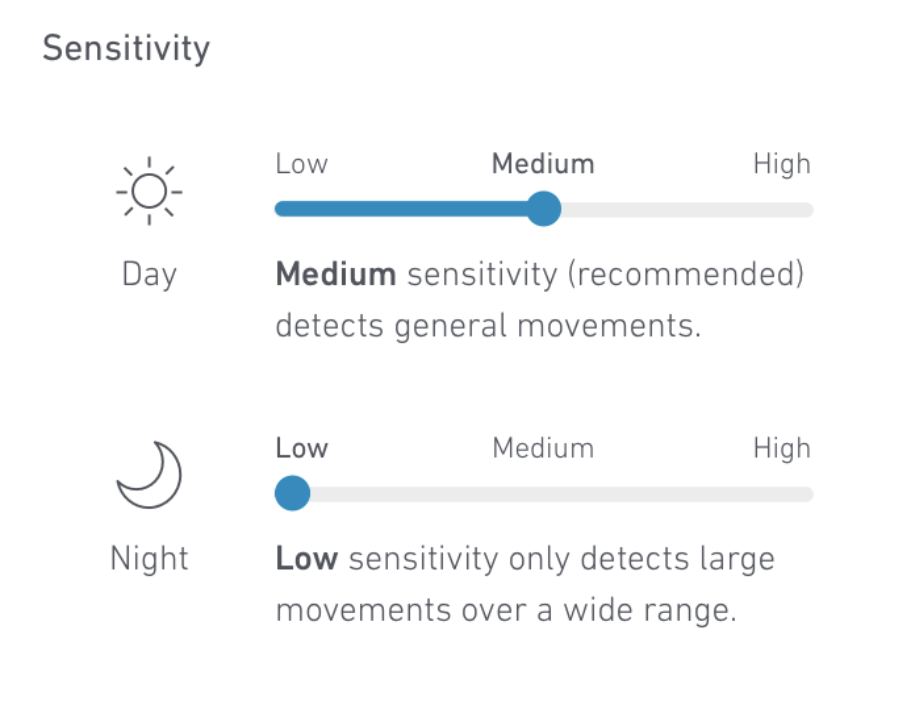
You can separately set daytime and nighttime sensitivity for more granular control using the options below:
High: High Sensitivity detects any motion, which may cause frequent alerts
Medium (recommended): Detects general movements
Low: Only detects large movements over a wide range
How to Enable These Features
Open the SimpliSafe® Mobile App on your smartphone or tablet
Select My System from the navigation bar at the bottom of the screen
Choose Camera Settings
Select the Video Doorbell Pro that you would like to change the settings for
Choose Motion Detection
You can learn more about changing your Video Doorbell Pro’s motion detection settings here.
Need More Help?
If your Video Doorbell Pro is powered up, but has stopped detecting motion or recording, see the Video Doorbell Pro Stopped Working article for more information. If you are receiving too many notifications from your Video Doorbell Pro, please visit our Too Many Motion Alerts From Video Doorbell Pro article.
Help Center Article
•
Video Doorbell Pro
How to Download Recordings From Your Camera
Video clips from SimpliSafe® cameras can be downloaded to your mobile device using the SimpliSafe® Mobile App. Recordings are available with select monitoring plans.
Please note that if your camera name contains an apostrophe, this may limit your ability to download recordings. We recommend changing your camera’s name to exclude the use of an apostrophe before attempting to download any recordings.
How to Download
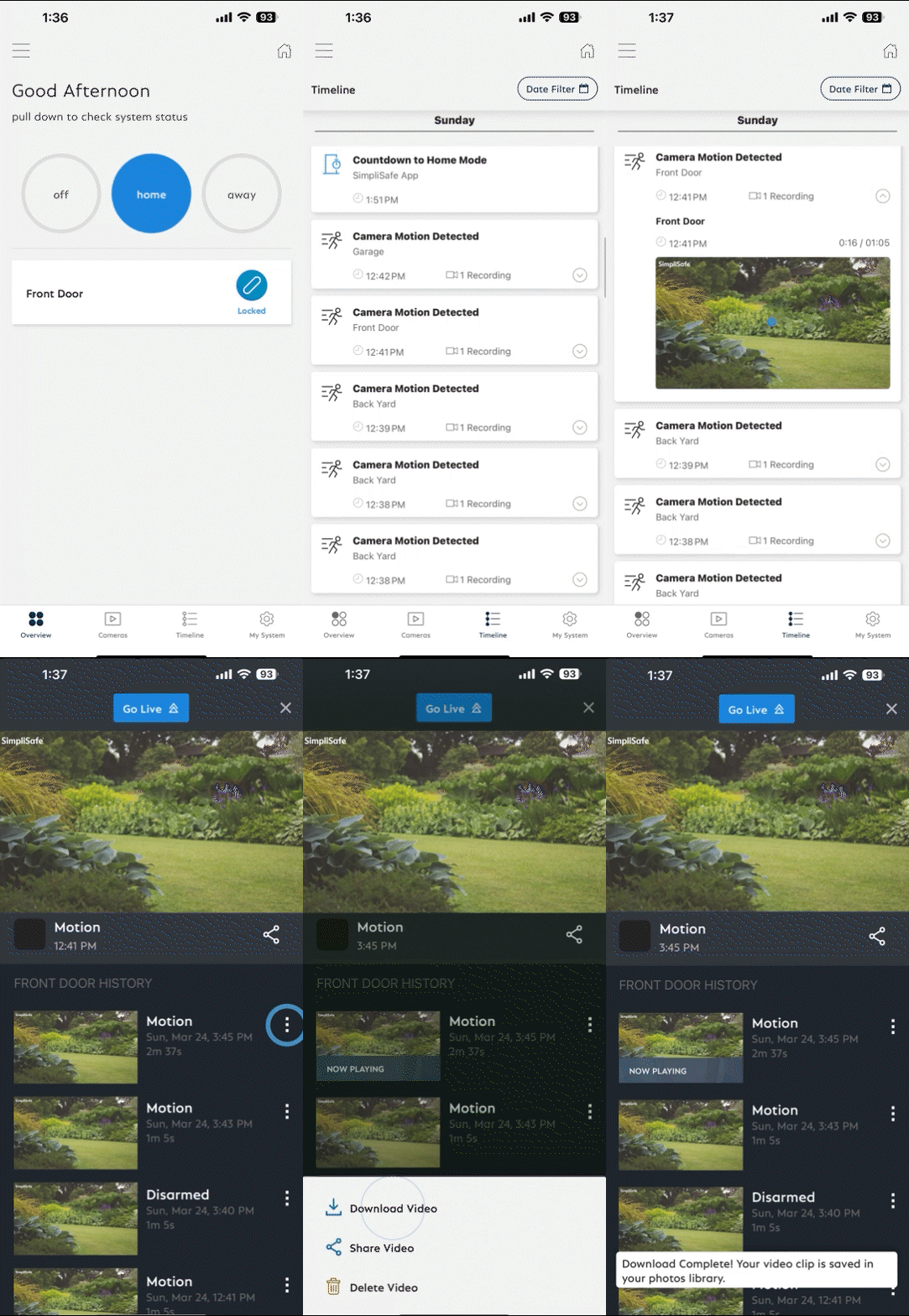
In the SimpliSafe® App, tap on Timeline from the bottom navigation bar
Swipe up and down through the Timeline and find the event whose clip you wish to download
Tap on the event and then tap on the video preview within the event
Tap the three-dot icon next to the recording and then choose Download Video
The clip will be saved to your phone
To access saved videos, go to your phone’s camera roll
How to Download Recordings Using the SimpliSafe® Online Account
Log into the SimpliSafe® Online Account using the browser of your choice
Select Timeline from the navigation menu on the left side of the screen
If you do not see the navigation menu, click the three-bar icon on the top left corner of the screen to reveal it
Scroll through the Timeline and find the event with the video clip you wish to download
Tap on the event and then tap on the video on the right side of the screen
Tap the download icon on the bottom right side of the video player
The clip will be saved to your computer
To access saved videos, go to your downloaded files in your computer
Is a Timestamp Included?
When you download a video from your timeline, the date and time that the recording was filmed is found at the end of the file name.
To find the timestamp, take the following steps:
Open your camera roll
Select the recording you downloaded
Tap the i icon on the bottom of the screen to display the video’s file name
This step may vary depending on your mobile device
At the end of the file name, you will see the date and time the recording was filmed
Note: the time stamp will be written in numbers, displayed as MM/DD/YYY_HH/MM/SS. So for a recording filmed on August 21, 2024 at 2:31:21 PM, the timestamp will be displayed as: 08212024_023121PM.


Help Center Article
•
Cameras
Why Can’t I Initiate a Live Stream of my Video Doorbell From the SimpliSafe® App?
The Video Doorbell Pro utilises Wi-Fi to communicate with your SimpliSafe® system. If your Video Doorbell Pro is not livestreaming, there may be an underlying connection issue that needs to be addressed.
Use the Connection Check in the SimpliSafe® App
The Video Doorbell Pro has the ability to run a connection check between it and your network to see if there are any improvements that can be made to its Wi-Fi connection.
How to Run a Connection Check:
Open the SimpliSafe® app
Tap My System from the navigation menu on the bottom of the screen
Select Camera Settings
Choose your Video Doorbell
Select Connection Check and follow the on-screen instructions to test your signal strength and upload speeds
Using your results, you can improve your Video Doorbell Pro’s connection with the tips below.
Camera Requirements:
Signal strength should be above -55dBm. A lower number means a greater connection between your camera and router.
If you have a low signal strength, you can try to troubleshoot your Wi-Fi network and improve your signal strength.
Upload speed needs to be above 2Mbps for 720p video
If your upload speed is below 2Mbps, you may need to contact your Internet Service Provider (ISP) to upgrade your internet package.
Check Your Phone or Tablet’s Connection
Sometimes if the device you are trying to view a livestream on has a weak Wi-Fi or cellular connection, that can lead to issues loading a livestream. Check your device’s connection, and if it is weak try loading the live stream from another device or on the SimpliSafe® Online Account.
Help Center Article
•
Video Doorbell Pro
Can't Initiate Live Stream From Within the SimpliSafe® App
If you are unable to initiate a live stream from within the SimpliSafe® Mobile App or Online Account, there are a few steps you can take to try and get things running again.
Using the Connection Check Tool
The Connection Check Tool for Cameras is a great way to better understand your signal strength and upload speed from the router to where your camera is located.
To use the Connection Check Tool:
Open the SimpliSafe® Mobile App on your phone or tablet
Choose My System from the bottom navigation bar
Select Camera Settings
Choose your camera from the list of available cameras
Under “Connection” select “Connection Check”
Tap “Start Connection Check” to find your camera’s connection strength
What do my Results Mean?
A good signal strength and/or upload speed means that there is a strong connection between your camera and Wi-Fi network.
A fair or poor upload speed means that you’ll want to reduce your camera’s video resolution. You can do this within the Camera Settings page for your camera in the SimpliSafe® Mobile App.
Open the SimpliSafe® Mobile App on your phone or tablet
Choose My System from the bottom navigation bar
Select Camera Settings
Choose your camera from the list of available cameras
Tap on Video Quality
Choose a lower resolution
Select SAVE in the upper right corner to save your selections
It may also be necessary to upgrade your Internet package with your Internet Service Provider (ISP) to improve upload speeds. We recommend reaching out to your ISP to learn more about their offerings.
A fair or poor signal strength means your camera may be too far away from your Wi-Fi router. We recommend moving them closer, if possible. If not, you can opt to install a Wi-Fi extender to help bridge the network connectivity gap between the two. You can also move SimpliSafe® to a dedicated network or guest network to alleviate congestion. To learn more about setting up a dedicated or guest network, contact your Internet Service Provider (ISP) or consult with your router’s manual.
Still Need Help?
Don't hesitate to contact our support team for additional troubleshooting or assistance. We're here to help!
Help Center Article
•
Cameras