Conversation List
Maximising the Battery Life of the Outdoor Security Camera Series 2
The Outdoor Security Camera Series 2 has a battery life of up to 3 months, depending on settings and usage. To help maximise the life of the camera’s battery, we recommend making the following adjustments to its settings and location.
Camera Location
Your camera is activated by a motion sensor for accurate alerts. If your camera is in the vicinity of a high-traffic area, like a busy road or pavement, the motion sensor will be triggered more frequently for unnecessary movement, which can cause the battery to drain.
If your camera is in a high-traffic area:
Reposition the camera so its field of view does not include the busy road or pavement. You can also set up Activity Zones to avoid monitoring these areas.
Make sure that there are no tree branches or large plants obstructing the camera’s view.
Be sure to mount your camera 6-8 feet above the ground, with the lens facing downward at a 30-degree angle.
Camera Settings
There are multiple settings that can be adjusted to help extend the battery life of your camera. To access these settings in the SimpliSafe® Mobile App:
Select My System from the navigation bar at the bottom of the screen
Choose Camera Settings
Select your Outdoor Camera Series 2
Battery-saving Settings:
Lower your camera’s motion sensitivity settings to Medium or Low - this will impact how frequently the camera is triggered.
Enable People-Only motion detection to ensure your camera only captures humans, and is not unnecessarily triggered by other moving objects or animals.
Set up Activity Zones to control the areas that the camera will monitor. This is helpful if there is a high-traffic zone in the view that you do not need to monitor.
Use Standard Night Vision instead of the Spotlight feature.
Charge the Camera’s Battery Fully
Charge it Completely
If the battery for the Outdoor Camera Series 2 isn’t completely charged, it will give the appearance of draining quickly. The camera’s battery takes up to 6 hours to charge completely. When the battery is charging, you will see a blinking white light. You’ll know that the battery is fully charged once all 3 lights are illuminated and no longer blinking.
Use the Correct Power Adapter
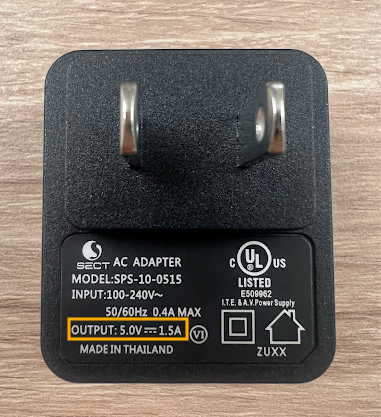
The battery for the Outdoor Camera Series 2 requires a USB power adapter with an output of 5.0V, 1.5A+. Failure to use the correct power adapter can result in the battery not charging completely.
A list of power adapters that fit this requirements are:
The SimpliCam® Wired Indoor Security Camera’s adapter
The Smart Alarm Wireless Indoor Security Camera’s adapter
Most iPhone adapters
Most Android adapters
If you don’t know the output of your power adapter, most models will have it printed on the device itself - as seen in the image below.
If you are using the correct power adapter, make sure that you are plugging it into an outlet directly in a wall. Using a USB power strip or USB power hub may not supply efficient power to charge the battery.
Help Center Article
•
Outdoor Camera Series 2 UK
Outdoor Camera Power Cable Specifications
The Outdoor Camera Power Cable is a great way to keep your Outdoor Camera powered at all times. The Outdoor Camera Power Cable is 25 feet long and is IP65 water-resistant cable. The Outdoor Camera Power Cable comes with cable clips that can be applied to a clean surface with the built-in adhesives, or permanently attached to that surface using screws. We recommend a 5/64” drill bit to adhere the cable clips to a surface when not using the adhesive option.
When the Outdoor Camera is plugged in with the power cable, you’ll see faster live streams and enjoy pre-roll recordings with Performance Mode.
Need to purchase an Outdoor Camera Power Cable? You can find it available for purchase on our website.
Help Center Article
•
Cameras
Performance Mode for Cameras
When connected to a continuous power source, the Outdoor Camera and Smart Alarm Wireless Indoor Security Camera can enter performance mode.
When performance mode is enabled for a camera, the camera will remain awake allowing for faster live streams versus battery power. This feature is available to the Outdoor Camera and Smart Alarm Indoor Camera when running firmware version 1.20 or higher, and occurs automatically when the camera is plugged into a power source and it has at least 90% charge. If your camera battery ever drops below 70%, your camera will automatically exit performance mode to conserve battery.
Performance mode also allows the cameras to begin recording* while it determines whether or not the observed motion event was a person or another object (such as a passing car, a tree blowing in the wind, or an indoor pet). This allows for more complete recordings of motion events delivered to your timeline in the SimpliSafe® Mobile App.
*Requires a monitoring plan with recordings.
Help Center Article
•
Cameras
How to Reorder Cameras in the SimpliSafe® App
An exciting feature of the SimpliSafe® App is the ability to reorder your list of cameras in the Cameras tab in the app. This is helpful if you want to see your cameras in alphabetical order, or organised in any specific way.

To Reorder Your Cameras in the SimpliSafe® App:
Open the SimpliSafe® App on your phone or tablet
Select Cameras from the navigation bar on the bottom of the screen
Tap on the reorder icon on the upper right corner of the screen

Press and hold a camera to drag and reorder it
Follow step 4 again for any other cameras you want to reorder
*Note: This feature is only to reorder your cameras in the SimpliSafe® app. Changing the order of your sensors is currently not supported.
Help Center Article
•
Outdoor Camera Series 2 UK
Too Many Motion Alerts From the Outdoor Security Camera Series 2
If you find that your Outdoor Security Camera Series 2 is detecting motion and you’re receiving too many notifications or alerts, there are some recommended placement and settings changes you can make to reduce the number of notifications.
Adjust the Placement of the Camera
If your Outdoor Camera Series 2 is facing a high-traffic area like a busy street or pavement, we recommend angling the camera down to remove this area from its field of view, as seen in the image below.

Change the Camera’s Settings
If you cannot change the angle of the Outdoor Camera, there are settings you can adjust in the SimpliSafe® Mobile App to minimise the amount of motion it detects.
Sensitivity
By default, the Outdoor Camera’s sensitivity is set to High, but you can adjust this setting to Medium or Low to limit the number of motion events you receive.
You can adjust the sensitivity of your Outdoor Camera by taking the following steps:
SimpliSafe® Mobile App:
Open up the SimpliSafe® Mobile App on your mobile device or tablet
Tap Cameras on the navigation bar at the bottom of the screen
Select the gear icon in the top right corner to open Camera Settings
Choose the Outdoor Camera you’d like to adjust
Tap Motion Detection
Under Sensitivity, move the slider to Low
Tap Save in the top right corner to save this change
SimpliSafe® Online Account:
Log into your SimpliSafe® Online Account using the browser of your choice
If you manage multiple properties, choose the location you wish to update from the list by clicking on the Base Station Serial Number or Property Address
Select Devices from the navigation bar on the left side of the screen
Select the camera you want to update
A pop up menu will appear on the right hand side of the screen
Scroll down to Motion Sensitivity and move the slider to Low
When you are done, click Save Changes on the bottom of the pop up to save your selections
Motion Detection Type
The Outdoor Camera has two motion detection options: All Motion and People Only. When set to All Motion, the camera will record any motion it senses - which may cause excess motion events. However, if the camera is set to People Only it will only respond to people-shaped objects.
To minimize the amount of motion your Outdoor Camera detects, you can change its motion setting to People Only by following these steps:
Open up the SimpliSafe® Mobile App on your mobile device or tablet
Tap Cameras on the navigation bar at the bottom of the screen
Select the gear icon in the top right corner to open Camera Settings
Choose the Outdoor Camera you’d like to adjust
Tap Motion Detection
Under Motion Type, select People Only
Tap Save in the top right corner to save this change
Activtiy Zones
By setting up Activity Zones, you can block unnecessary sources of motion from the camera’s view, like tree branches, sidewalks, or busy streets.
To create Activity Zones, take the following steps:
Open up the SimpliSafe® Mobile App on your mobile device or tablet
Tap Cameras on the navigation bar at the bottom of the screen
Select the gear icon in the top right corner to open Camera Settings
Choose the Outdoor Camera you’d like to adjust
Tap Motion Detection
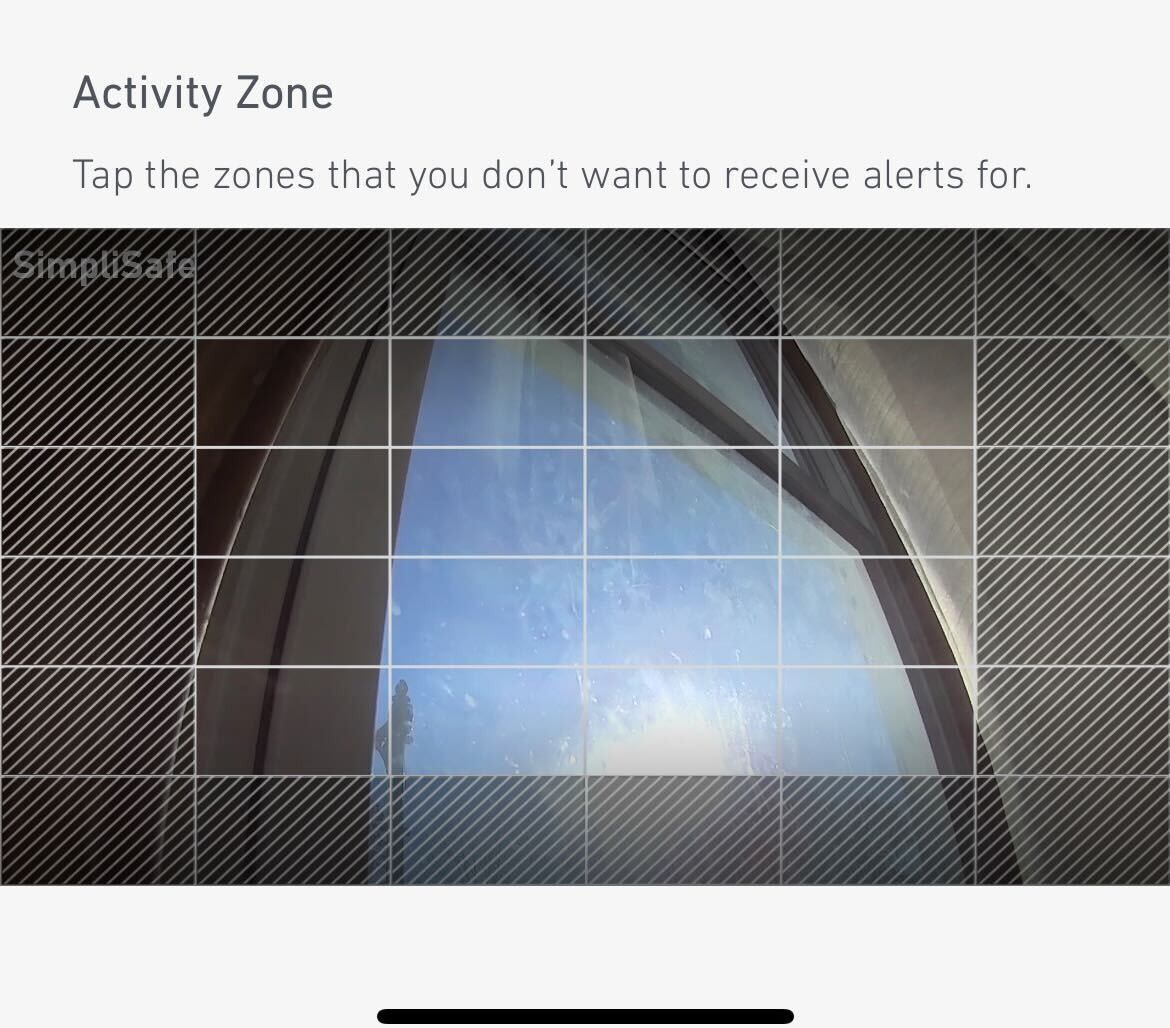
Under Activity Zone, tap the boxes in the frame where you do not want your camera to record
Tap Save in the top right corner to save this change
Additional Troubleshooting
If you’re still getting too many motion alerts when your camera is set to People Only mode, we recommend trying the following tricks:
Change your camera’s motion detection setting to All Motion
Turn your camera’s sensitivity down to Medium or Low
Set up Activity Zones around the perimeter of the camera’s field of view, as seen in the image below
Still Need Help?
If you’ve taken the steps above and your Outdoor Camera is still detecting excess motion, we recommend contacting our support team for further assistance.
Help Center Article
•
Outdoor Camera Series 2 UK
How to Find the MAC Address of a SimpliSafe® Device
In some instances, you may need to add the MAC Address of a SimpliSafe® product to your network’s allow list or firewall in order for it to connect to Wi-Fi. A MAC Address is a unique, 12-character alphanumeric attribute that is used to identify individual electronic devices on a network.
Only the Base Station and the Cameras will provide a MAC Address, as they connect to Wi-Fi. Other SimpliSafe® products connect to the Base Station using Radio Frequency (RF).
Note: If you have MAC Address filtering enabled on your network, you may need to temporarily disable it while setting up your camera, to allow it to connect. You’ll be able to determine the MAC Address to add to your allow list once the device is connected.
Base Station
For the Base Station, you will need to use your Keypad to locate its MAC Address.
Press Menu on your Keypad
Enter your Primary PIN
Using the arrow keys, select System Settings
Then choose Diagnostics
Use the right arrow and toggle to the Wi-Fi screen, where the MAC Address will be listed
Cameras
You can locate the MAC Address of a SimpliSafe® Camera using the SimpliSafe® Mobile App.
Open the SimpliSafe® Mobile App on your phone or tablet
Choose My System from the bottom navigation bar
Select Camera Settings
Tap on the Camera you wish to find the MAC Address for
Scroll to the bottom of this screen. Your Cameras MAC Address will be listed in the MAC Address field.
Help Center Article
•
Cameras
What does “Camera Connection Dropped” mean?
A "Camera Connection Dropped" error means that during a live stream, SimpliSafe® stopped receiving video from the camera. This is often the result of poor internet connectivity between the camera and the router, causing the camera to be unable to upload video for viewing as fast as it is recording.
The video that your camera has already recorded but not yet been able to stream is stored in the camera's own internal memory. However, the camera’s memory is limited and may eventually be insufficient to hold the video backlog. If the camera's memory becomes full before it can upload the recordings, the video stream will end.
For more information on how to strengthen your camera's connection, please refer to the How to Improve Wi-Fi Signal Strength and How to Improve Upload Speed articles in the Help Centre.
Help Center Article
•
Cameras