Conversation List
What is the Difference Between Battery Power and Performance Mode for the Outdoor Security Camera Series 2?
Your Outdoor Security Camera Series 2 comes with a rechargeable battery that lasts up to 3 months, depending on placement or usage. You may also purchase an outdoor power cable to allow your camera to stay awake and active, so that it may enter Performance Mode. This feature allows you to enjoy faster live streams and also begins recording the moment a motion event is observed while AI determines if the event was a person or another object (such as a passing car, a tree blowing in the wind, or an animal).
Battery Only Mode
Performance Mode
Power Source
Battery (Up to 3 months)
Wired
Motion Type
User Controlled
(Default: People Only)
User Controlled
(Default: People Only)
Motion Sensitivity
User Controlled
(Default: High)User Controlled
(Default: High)Night Vision
User Controlled
(Default: On)User Controlled
(Default: On)Spotlight
User Controlled
User Controlled
Video Quality
User Controlled
(Default: 1080p)User Controlled
(Default: 1080p)Siren
User Controlled
(Default: On)User Controlled
(Default: On)Mic & Audio
User Controlled
(Default: On)User Controlled
(Default: On)Status Light
User Controlled
(Default: On)User Controlled
(Default: On)Help Center Article
•
Outdoor Camera Series 2 UK
How to Rename a SimpliSafe® Camera
There may be a point where you need to rename a camera for your SimpliSafe® System. Renaming a camera can be done easily through the SimpliSafe® Mobile App, but you can also rename a camera using your Web App. You can select a name from the list of prepopulated names within the SimpliSafe® Mobile app, or choose your own custom name. If using a custom name, we recommend avoiding the use of apostrophes within the camera name - as this can impact the ability to download recordings.
The following article will walk you through these steps for each platform so you can pick whichever one is easiest for you.
SimpliSafe® Mobile App:
Open the SimpliSafe® Mobile App on your phone or tablet
Navigate to the Cameras tab
Click on the Gear Icon in the upper right corner for Camera Settings
Tap on the Camera you wish to edit
Press the pencil icon next to your Camera to enter the editor
Choose from the list of preset names or select Custom Name to type in your own name
Depending on your device, you may also need to tap SAVE before exiting to save your selections
Web App:
Log in to the Web App using the browser of your choice on a computer
Select your property from the list on the Account Overview page, if applicable
Choose Devices from the left-hand navigation menu
Click on the Camera you wish to edit
A pop-up will appear to the right of your browser
Select the pencil icon next to your Camera’s name
Enter the new name you wish to use in the field
Select the check mark when done
Be sure to click on Save Changes from the bottom of the pop-up before exiting to save your selection
Help Center Article
•
Cameras
What does “Unable to Stream Video” mean?
What it Means
An "Unable to Stream Video" error means that the app was unable to download and display the streamable video. As this is likely an issue on the app end, our team is notified of these errors and investigates promptly to ensure your video is back up for streaming as soon as possible. You can try streaming this video again later.
Is There Anything I Can Do?
As mentioned above, this is likely due to an error on our end. However, in the meantime you can also check your Wi-Fi connectivity strength and speed as that can affect your camera's ability to stream and record video. This article explains the difference between connection strength and speed, as well as how to make sure both are working as they should to support your SimpliSafe system.
If the issue persists, please contact out customer support team. We'll be happy to help!
Help Center Article
•
Cameras
How to Reset the Outdoor Security Camera Series 2
If your Outdoor Security Camera Series 2 ever encounters an error that can’t be fixed through normal troubleshooting, performing a factory reset* of the camera may be necessary.
To factory reset your Outdoor Camera:
Ensure the camera is within 30 feet of the Base Station
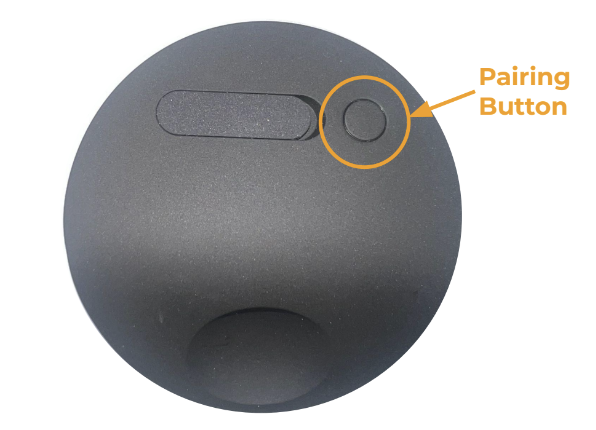
Locate the pairing button on the back of your Outdoor Camera
This is the smaller, circular button on the back of the camera
Press and hold the pairing button firmly, using both thumbs if possible, for 30 seconds - or until the camera chimes. You will hear the BS announce “Camera removed”
If the camera does not chime at any point during the 30 seconds of pressing the button, let go and press and hold the button again for another 30 seconds
When you release the button, the camera should reboot and begin to flash white
For some cameras you may also notice it make a sound
Once the factory reset is complete, you will need to add it to your system again using our Installation Guide.
If you cannot set up your Outdoor Camera after performing a factory reset on it, please contact our support team for additional troubleshooting.*Please note that you cannot reset the Outdoor Camera remotely. You must be physically at the location of your system and with your camera to reset it.
Help Center Article
•
Outdoor Camera Series 2 UK
Outdoor Security Camera Series 2 Settings & Customisations
The Outdoor Security Camera Series 2 has a variety of settings that can be customised, such as Night Vision, Motion Detection, Video Quality, and more!
Using the SimpliSafe® Mobile App:
Open the SimpliSafe® Mobile App on your phone or tablet
Choose My System from the bottom navigation bar
Select Camera Settings
Choose your Outdoor Security Camera Series 2 from the list of available cameras
Motion Detection
Motion Detection settings control how your camera will respond to motion events, such as someone walking in its view, or a car driving by.
In this menu, you can toggle motion events and notifications on and off. You can also use the slider to choose the sensitivity of motion detection. We typically recommend setting this to medium. You can also set it to People Only or All Motion to better filter motion events.
Activity Zones allow you to exclude certain areas from motion events, which is good if you live near a busy pavement or street.
Video Quality
Video Quality manages what quality of your streams and recordings will be at. For the Outdoor Camera Series 2, you can adjust this to 1080p, 720p, or 480p. The higher the stream, the more bandwidth it will use on your network. So if you’re having trouble streaming at 1080p, you can try lowering the quality to troubleshoot on your end.
Night Vision
The Night Vision setting allows you to see potential intruders or threats in the dark, by using infrared to capture video. You can also opt to use the Spotlight feature, which shines a light to capture video in color rather than night vision’s black-and-white scheme.
Flip Image 180
This option is available should you mount your Outdoor Security Camera Series 2 upside down. Mounting your camera upside down will decrease the distance that it picks up motion by halving it. Specifically, upside down Outdoor Cameras will be able to pick up motion within 15 feet of the camera, as opposed to 30 feet when mounted in a normal orientation.
Mic & Audio
The Mic & Audio setting allows you to hear audio from your camera and also allows you to initiate two-way communication when viewing live streams.
Siren
The Outdoor Camera Series 2 comes with a whopping 90dB built-in siren to relay active alarms across your system.
Status Light
The Status Light for your camera will show you that the camera is online and functioning, at a quick glance.
Help Center Article
•
Outdoor Camera Series 2 UK
How to Remove a Camera from your SimpliSafe® System
You can remove a camera from your system in a few easy steps within the SimpliSafe® Mobile App.
We recommend that you download recordings from your system's timeline before removing the camera from your system, to ensure you preserve any video you may need in the future.
Remove a Camera from the SimpliSafe® Mobile App:
Open the SimpliSafe® Mobile App on your phone or tablet
Choose My System from the bottom navigation bar
Select Camera Settings
Tap on the camera you wish to remove from the list of available cameras
Scroll down and choose X Remove Camera
Help Center Article
•
Cameras
How to Recharge the Outdoor Security Camera Series 2 Battery
The Outdoor Security Camera Series 2 has a rechargeable battery that lasts up to 3 months depending on settings and usage. To remove the battery, simply untwist the front of the camera off of your Outdoor Camera Series 2. Then, use the pull tab on the battery to gently remove it from the battery compartment.
You can purchase an Outdoor Camera Power Cable to keep it charged
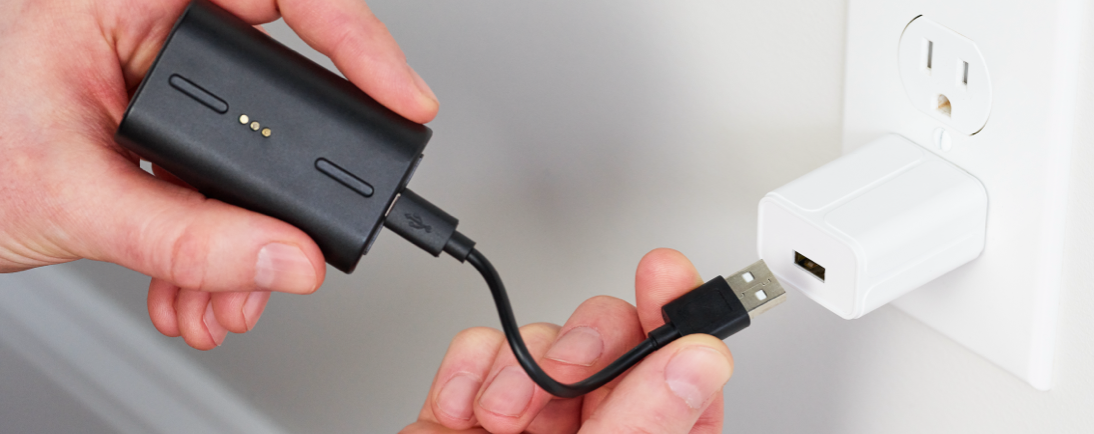
To charge your battery, you’ll need a USB power brick that supports 5V, 1.5A+ (7.5W+) charging. Using the supplied cable, plug the battery into the power brick to charge your battery. To fully charge your battery, it can take up to 6 hours. You’ll know the battery is fully charged once all 3 lights are illuminated and no longer pulsing.
To replace your battery, slide it back into the battery compartment in the Outdoor Camera Series 2 with the 3 gold circles on the battery facing up and the battery’s tab facing outwards. Then, twist the cap back onto the Outdoor Camera Series 2 clockwise until you hear it click.
You’ll know that your Outdoor Camera Series 2 has been assembled properly once it makes a high-pitched chime.
Help Center Article
•
Outdoor Camera Series 2 UK