Conversation List
What is the Difference Between Battery Power and Performance Mode for the Outdoor Security Camera Series 2?
Your Outdoor Security Camera Series 2 comes with a rechargeable battery that lasts up to 3 months, depending on placement or usage. You may also purchase an outdoor power cable to allow your camera to stay awake and active, so that it may enter Performance Mode. This feature allows you to enjoy faster live streams and also begins recording the moment a motion event is observed while AI determines if the event was a person or another object (such as a passing car, a tree blowing in the wind, or an animal).
If you are using SimpliSafe® Active Guard Outdoor Protection, you must plug your Outdoor Camera Series 2 into an outdoor-rated power outlet using the outdoor cable. This is a requirement for the service, as Performance Mode is needed to ensure response times.
Battery Only Mode
Performance Mode
Performance Mode w/SimpliSafe® Active Guard Outdoor Protection
Power Source
Battery (Up to 3 months)
Wired
Wired
Motion Type
User Controlled
(Default: People Only)
User Controlled
(Default: People Only)
Setting Locked
(People Only)
Motion Sensitivity
User Controlled
(Default: High)User Controlled
(Default: High)Setting Locked
(Medium)Night Vision
User Controlled
(Default: On)User Controlled
(Default: On)User Controlled
(Default: On)Spotlight
User Controlled
User Controlled
Setting Locked
(On, Used for Agent Interventions)Video Quality
User Controlled
(Default: 1080p)User Controlled
(Default: 1080p)User Controlled
(Default: 720p)Siren
User Controlled
(Default: On)User Controlled
(Default: On)User Controlled
(Default: On)Mic & Audio
User Controlled
(Default: On)User Controlled
(Default: On)Setting Locked
(On)Status Light
User Controlled
(Default: On)User Controlled
(Default: On)User Controlled
(Default: On. Agent actions and interventions will display status light even when off)Help Center Article
•
Outdoor Cameras
Why are Some Settings Locked for the Outdoor Security Camera Series 2?
If your Outdoor Security Camera Series 2 is enrolled in SimpliSafe® Active Guard Outdoor Protection, some settings will have a “Locked” icon next to them under Camera Settings within the SimpliSafe® Mobile App. This is due to the fact these settings are needed for agent intervention during person on property activity and alarm events.
Which Settings are Locked when SimpliSafe® Active Guard Outdoor Protection is enabled?
Motion Type
Locked to People Only
Motion Sensitivity
Locked to Medium
Mic & Audio
Locked ON (Used for agent intervention)
Help Center Article
•
Outdoor Cameras
How to Rename a SimpliSafe® Camera
There may be a point where you need to rename a camera for your SimpliSafe® System. Renaming a camera can be done easily through the SimpliSafe® Mobile App, but you can also rename a camera using your Web App. You can select a name from the list of prepopulated names within the SimpliSafe® Mobile app, or choose your own custom name. If using a custom name, we recommend avoiding the use of apostrophes within the camera name - as this can impact the ability to download recordings.
The following article will walk you through these steps for each platform so you can pick whichever one is easiest for you.
SimpliSafe® Mobile App:
Open the SimpliSafe® Mobile App on your phone or tablet
Choose My System from the bottom navigation bar
Select Camera Settings
Tap on the Camera you wish to edit
Press the pencil icon next to your Camera to enter the editor
Choose from the list of preset names or select Custom Name to type in your own name
Depending on your device, you may also need to tap SAVE before exiting to save your selections
SimpliSafe® Online Account:
Log into your online account using the browser of your choice
Select your property from the list on the Account Overview page, if applicable
Choose Devices from the left-hand navigation menu
Click on the Camera you wish to edit
A pop-up will appear to the right of your browser
Select the pencil icon next to your Camera’s name
Enter the new name you wish to use in the field
Select the check mark when done
Be sure to click on Save Changes from the bottom of the pop-up before exiting to save your selection
Help Center Article
•
Cameras
What is SimpliSafe® Active Guard Outdoor Protection?
Want to upgrade to SimpliSafe® Active Guard Outdoor Protection?
Call us to learn more and switch your plan at 888-910-1458
SimpliSafe® Active Guard Outdoor Protection builds upon our existing professional monitoring services and is included as part of four new plans: Pro and Pro Plus for residential and business monitoring subscribers. All while being designed to prevent crime before it happens.
With SimpliSafe® Active Guard Outdoor Protection, there are four plan options available, Pro Plus and Pro Plus Business for 24/7 coverage and Pro and Pro Business for coverage from 8pm-6am local time. You must have at least one Outdoor Camera Series 2 in order to use this service. Once the Outdoor Camera Series 2 is activated with SimpliSafe® Active Guard Outdoor Protection, you can also enable your Video Doorbell Pro to keep a lookout for potential threats. This service supports a maximum of 3 cameras, one of which must always be an Outdoor Camera Series 2.
How do you use SimpliSafe® Active Guard Outdoor Protection? When you arm your system to home or away mode, you enable your outdoor cameras to automatically alert our professional monitoring agents when a potential threat is detected outside of your home or business.
When this happens, our expert monitoring agents can see and speak directly to potential intruders using real-time two-way audio and a live feed, while also enabling the camera's siren and spotlight to deter crimes in progress. All of this happens while your outdoor cameras are capturing video evidence of what’s happening.
If necessary, agents will reach out to the Primary Contact for this location and request dispatch of the appropriate emergency authorities to alert them to the alarm event happening.
*SimpliSafe® Active Guard Outdoor Protection is designed for use with an Outdoor Camera Series 2, outside of your home or business. For indoor protection, consider purchasing a Smart Alarm Indoor Camera and enabling Intruder Intervention for agent intervention during burglary/intrusion alarms.
Help Center Article
•
Outdoor Cameras
Enrolling Cameras Into SimpliSafe® Active Guard Outdoor Protection
Once you have signed up for SimpliSafe® Active Guard Outdoor Protection as your new monthly subscription, there are a few steps you need to take to enable the service for your property.
There are two ways to enroll your cameras in SimpliSafe® Active Guard Outdoor Protection. The first is during the setup of your Outdoor Security Camera Series 2. The second is to enroll after setup using either the tile on the Overview tab or under Camera Settings.
Before proceeding, ensure that you are ready for SimpliSafe® Active Guard Outdoor Protection and meet the requirements for service. Specifically, you can only have 3 cameras total enrolled. One of them can be a Video Doorbell Pro so long as you also have at least one Outdoor Camera Series 2 enrolled. You will also need to have your Outdoor Security Camera Series 2 connected to a continuous power source using the outdoor power cable. If you do not have the Outdoor Camera Series 2 connected to power using the outdoor power cable, its enrollment in SimpliSafe® Active Guard Outdoor Protection will fail.
Enrolling During Outdoor Security Camera Series 2 Installation
After you have installed your Outdoor Security Camera Series 2, the app will prompt you to begin the enrollment process for your camera into SimpliSafe® Active Guard Outdoor Protection.
If you choose “Enroll Camera”, the app will save your selection and exit the setup flow. You may choose “Done” to return to the SimpliSafe® Mobile App or ‘Customize Settings’ to change the settings for your Outdoor Camera Series 2.
Enrolling After Installation
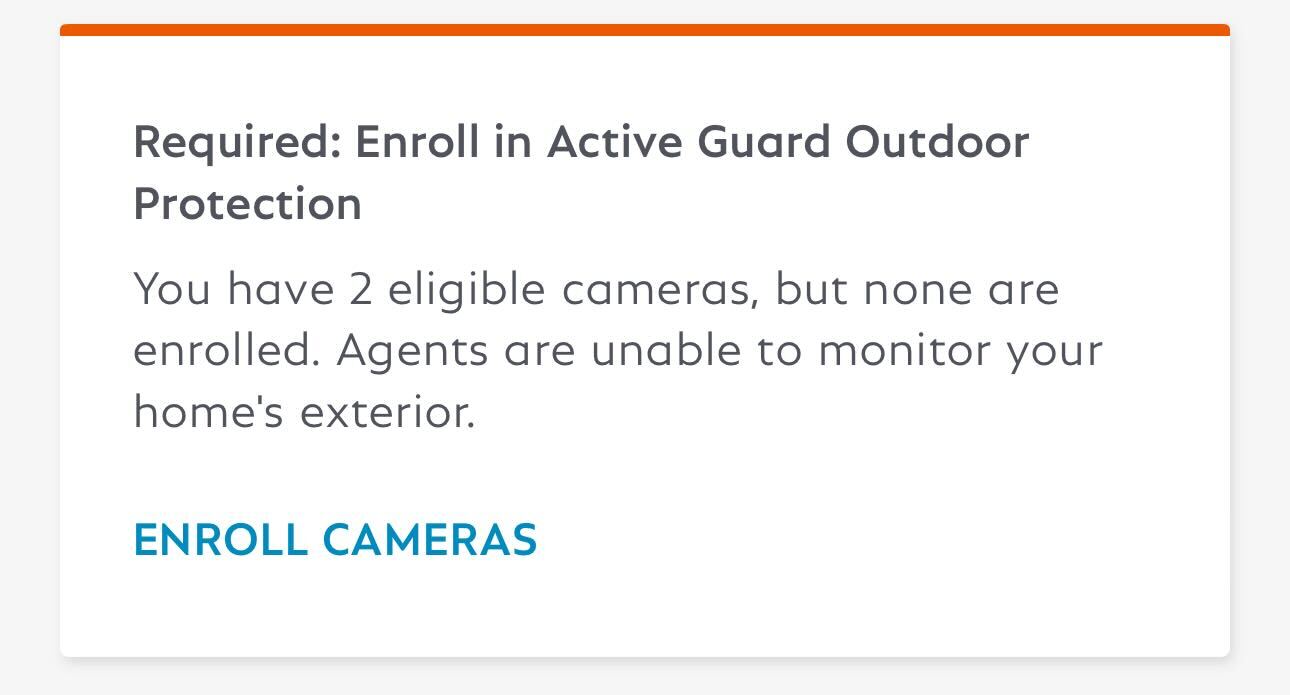
If you choose “Skip Enrollment” during the camera installation process, you’ll have the option to come back to this later. The app will prompt you to enroll from the Overview tab, or you can manually enroll cameras under My System > Camera Settings > Outdoor Protection.
From the Overview Tab
From the Overview Tab in the SimpliSafe® Mobile App, you may have a prompt to Finish Setup to enroll in SimpliSafe® Active Guard Outdoor Protection. To get started, tap on “Finish Setup” then toggle the cameras you want to use SimpliSafe® Active Guard Outdoor Protection. You can choose up to 3 cameras, and one of them can even be a Video Doorbell Pro once at least one Outdoor Security Camera Series 2 is enrolled!
Manually Enrolling Using Camera Settings
You may also enroll manually under the Camera Settings within the SimpliSafe® Mobile App.
Choose My System from the bottom navigation bar
Select Camera Settings
Tap on Outdoor Protection
Toggle on the cameras that you want to be enrolled by SimpliSafe® Active Guard Outdoor Protection
Please note that you will need at least 1 Outdoor Security Camera Series 2 enrolled if you want to use Video Doorbell Pro with this service
Select Save in the upper right corner of the app to save your selections
Please note: users granted access to your system through our Additional User Access functionality cannot enroll cameras into SimpliSafe® Active Guard Outdoor Protection. Only owners on the account have that capability.
Help Center Article
•
Outdoor Cameras
SimpliSafe® Active Guard Outdoor Protection Requirements
SimpliSafe® Active Guard Outdoor Protection is compatible with the Outdoor Security Camera Series 2, as well as Video Doorbell Pro. While Video Doorbell Pro is compatible with this service, it is not intended to be the sole camera for this service.
You can enable up to 3 cameras for Active Guard Outdoor Protection, one of which must be the Outdoor Security Camera Series 2 connected to a continuous power source (i.e. the Outdoor Camera Power Cable). Having the Outdoor Camera Series 2 connected to a continuous power source allows it to enter Performance Mode, leading to faster response and detection.
Once you enroll your camera into SimpliSafe® Active Guard Outdoor Protection, the Mic & Audio setting will be toggled on, along with the spotlight. Your siren setting will also be removed from the camera settings page for Outdoor Camera Series 2 cameras that are enrolled in SimpliSafe® Active Guard Outdoor Protection. These features are a necessity for agent intervention when responding to alarm events at your location, therefore you will not be able to modify them while SimpliSafe® Active Guard Outdoor Protection is enabled for that camera.
Your Outdoor Security Camera Series 2 will also come with a sticker to affix to your SimpliSafe® branded yard signs. To comply with state and federal laws, we recommend that you use the sticker to adequately display that your security cameras may be collecting audio or video data as a part of SimpliSafe® Active Guard Outdoor Protection. If you need to replace your yard signs or purchase a new one, you can visit our online store and select Gen 3, then scroll to the bottom of the page to locate them. You may also contact our support team directly to purchase yard signs for your property.
Finally, SimpliSafe® Active Guard Outdoor Protection is only available for residential use - not commercial use.
Help Center Article
•
Outdoor Cameras
What are Familiar Faces for SimpliSafe® Active Guard Outdoor Protection
Familiar Faces are a way for professional monitoring agents to know who should be allowed on your property. For example, you may want to create a familiar face for an in-law, a neighbor, or maybe a dog walker. Our expert monitoring agents are trained to use familiar faces to identify a match when the system is armed and SimpliSafe® Active Guard Outdoor Protection is active, and will only engage with unknown individuals. You will still receive notifications when people who match a familiar face are on your property.
Before creating a familiar face, you are required to have explicit consent from each person. If you create a familiar face for a minor, you must obtain consent from their parent or guardian. If someone revokes their consent, it is your responsibility to honor that request and delete their familiar face from within the SimpliSafe® Mobile App.
Familiar Faces profiles should be for a singular person and utilize their real name. Do not create generic profiles, such as “Delivery Driver” or “Babysitter” and use different photos of different people. You can find more tips for uploading photos to Familiar Faces on our Help Center.
Familiar faces and Automatic Face Matching are available where permitted by law. Automatic Face Matching is unavailable to customers in Illinois, Texas, and (Portland) Oregon.
Related Articles
Help Center Article
•
Outdoor Cameras