Conversation List
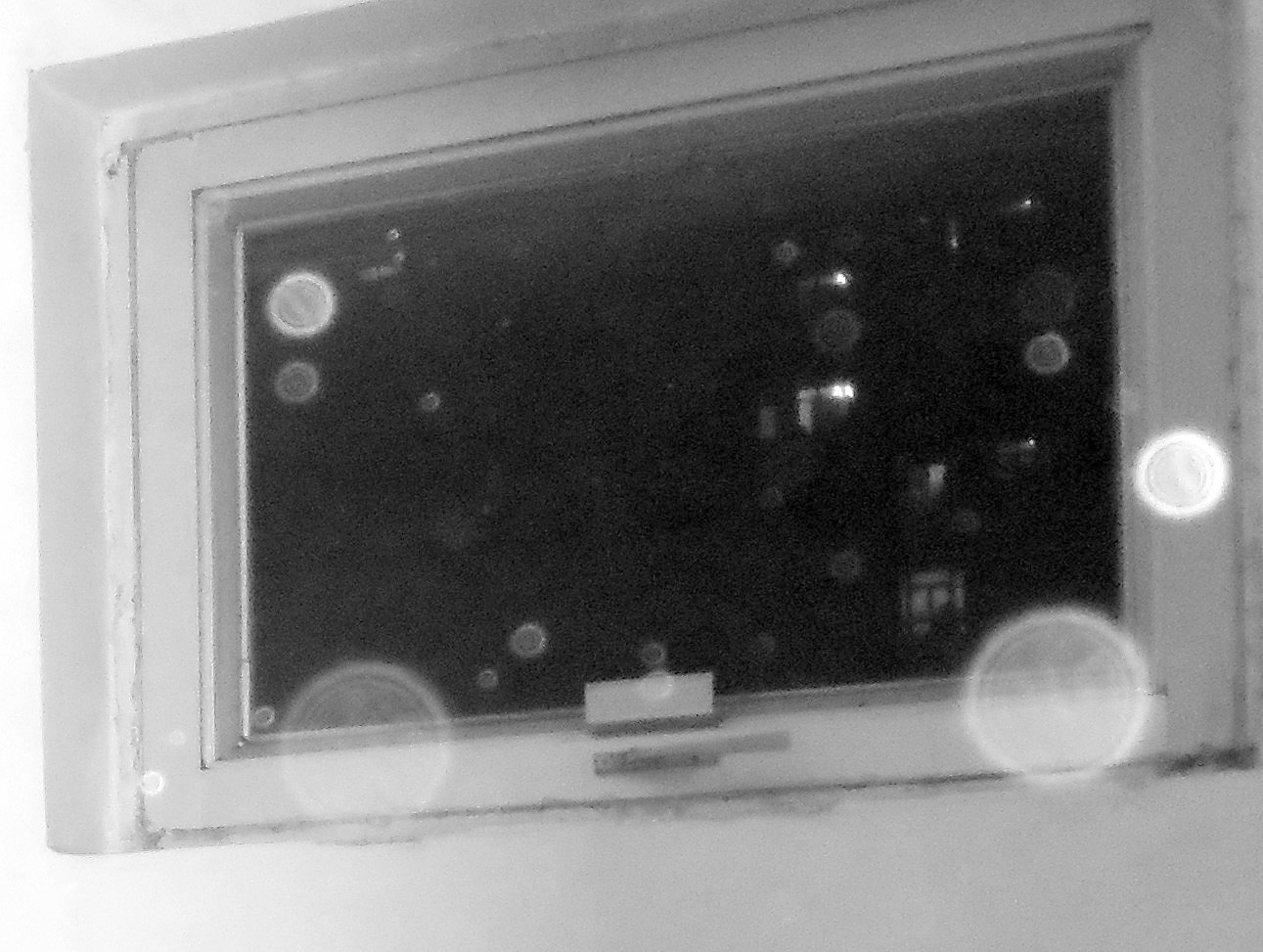
Why Do I See Orbs Or Bubbles When My Camera Is Using Night Vision?
What is it?
When in lowlight settings, your camera may pick up ghost-like "orbs" while recording. Don't worry—there's nothing supernatural going on. These orbs are called backscatter, or near-camera reflection. Backscatter happens when dust, water droplets, or other particles are present on or very close to the lens, causing light to reflect through the unfocused images.
Additionally, a camera facing out a window, using Night Vision, or with a persistent status light can result in lower image quality overall.
If the "orbs" appear to be moving, it is likely dust particles in the air floating by closely to the camera lens. This is a perfectly normal occurrence and there is no way to completely eliminate it. However, you can get rid of stationary or persistent particles by carefully cleaning your lens.
Location Issues
Other times, this interference may be due to issues with the location of the camera. If your camera is near or directed toward a bright light, such as a street light or flood light, this can also cause backscatter to occur in the recording or stream. In this case, you can move or adjust the position of your camera away from the bright lights to improve its view and reduce interference.
If the issue persists, try swapping the camera with another in a different location if you have more than one. Otherwise, please contact support and we'll be happy help!
Doorbell Backscatter
If dust or other particles in the air frequently trigger your Doorbell, you can adjust its motion sensitivity. However, it does have built-in Day and Night Modes based on the light level outside, which will set the motion sensitivity to a lower setting when there is low light (and therefore a greater possibility of detecting those pesky airborne particles).
Help Center Article
•
Cameras
How much internet speed do I need for my camera?
Why does internet speed matter?
The speed required to operate the cameras depends on the resolution quality that the camera is sending. Higher resolutions require faster speeds. This is especially important to consider during alarms when all cameras will record simultaneously and therefore require more speed.
We also have an interactive guide that can walk you through improving upload speeds on our Help Center.
Recommended Speeds
Below is a list of recommended upload speeds per camera. If you have multiple cameras streaming at once, the speed requirements go up accordingly.
Video Resolution
Recommended Upload Speed Minimum
1080p
2 mbps per camera
720p
1.5 mbps per camera
480p
0.75 mbps per camera
Help Center Article
•
Cameras
Outdoor Camera is not Live Streaming
The Outdoor Camera utilizes both Radio Frequency (RF) and Wi-Fi to communicate with your Base Station and SimpliSafe® System.
If your Outdoor Camera is not live streaming, there may be an underlying connection issue that needs to be addressed. It’s important to have a good connection between the Outdoor Camera and your Base Station. Making sure the Base Station is in a good location which can prevent live-streaming issues.
Still Need Help?
If you ruled out the issues above and your Outdoor Camera still won’t record or livestream, we recommend resetting the camera.
Help Center Article
•
Cameras
Outdoor Security Camera Series 2 Flashing Yellow During Setup
A flashing yellow light during the setup of your Outdoor Security Camera Series 2 indicates that the camera has successfully connected to Wi-Fi, but is having trouble reaching the SimpliSafe® servers.
This issue can occur for a variety of reasons, such as:
A firewall setting on your router is blocking access to SimpliSafe®
You may have certain ports blocked on your network that SimpliSafe® uses
Outdoor Camera Series 2 requires port 8890 to be open
A temporary connectivity issue with the SimpliSafe® servers
The best option would be to first diagnose the issue locally on your network, then try setting up your camera again. If you still run into the same problem during setup, first contact your Internet Service Provider (ISP) for additional troubleshooting. If you require additional support after working with your ISP, don’t hesitate to reach out to our support team directly.
Help Center Article
•
Outdoor Cameras
Outdoor Camera Mount Feels Loose or Not Sturdy
When installing your Outdoor Camera, it’s important to ensure that you twist the mounting dome onto the mounting plate until you hear an audible “click”. Continue to twist clockwise by hand until there is an audible “click”. When done properly, the mount will feel stable and secure; it will also require a slight bit of force to remove when turning counterclockwise.
Caution: If the mounting dome is not properly attached, you risk the camera being damaged or injuring someone if it falls.
Help Center Article
•
Outdoor Cameras