Conversation List
Tips for Uploading Photos to the Familiar Faces Feature
Familiar faces help professional monitoring agents determine who should be allowed on your property. For example, you may want to create a familiar face for an in-law, a neighbor, or a dog walker. Our expert monitoring agents are trained to use familiar faces to identify a match when the system is armed and SimpliSafe® Active Guard Outdoor Protection is active and will only engage with unknown individuals.
Quick Tips for Uploading Images to Familiar Faces
Each profile you create should be for a singular person and utilize their real name. Do not create generic profiles, such as “Delivery Driver” or “Babysitter” and use different photos of different people.
Ensure the image is clear or sharp, blurry images may result in a “No Faces Detected” error
Ensure that the photo is taken portrait style, with the subject's head facing straight forward.
If the head is at an angle in any direction, it could result in less accurate matching by AI or our monitoring specialists
Try to avoid using images where the subject is wearing a hat or sunglasses, or has their face obscured in any way
To start, we recommend about 3-5 photos per familiar face to help build a profile of the individual for AI or our monitoring specialists
Help Center Article
•
Outdoor Cameras
Maximizing Battery Life of the Wireless Outdoor Security Camera
When fully charged, the battery is designed to last for up to 3 months. And since the life of the battery is completely dependent on usage and settings, there are several methods that can be used to maximize the battery of your camera and keep your home protected 24/7.
Camera Location
Your camera is activated by a motion sensor for accurate alerts. If your camera is in the vicinity of a high-traffic area, like a busy road or sidewalk, the motion sensor will be triggered more frequently for unnecessary movement, which can cause the battery to drain.
If your camera is in a high-traffic area:
Reposition the camera so that its field of view does not include the busy road or sidewalk. You can also set up Activity Zones to avoid monitoring these areas.
Make sure there are no tree branches or large plants obstructing the camera's view.
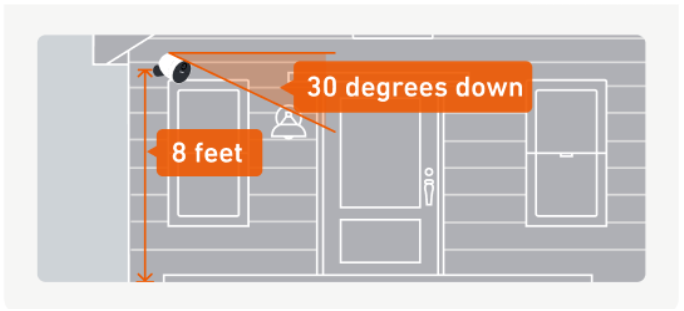
Be sure to mount your camera 6 - 8 feet above the ground, with the lens facing downward at a 30-degree angle.
Camera Settings
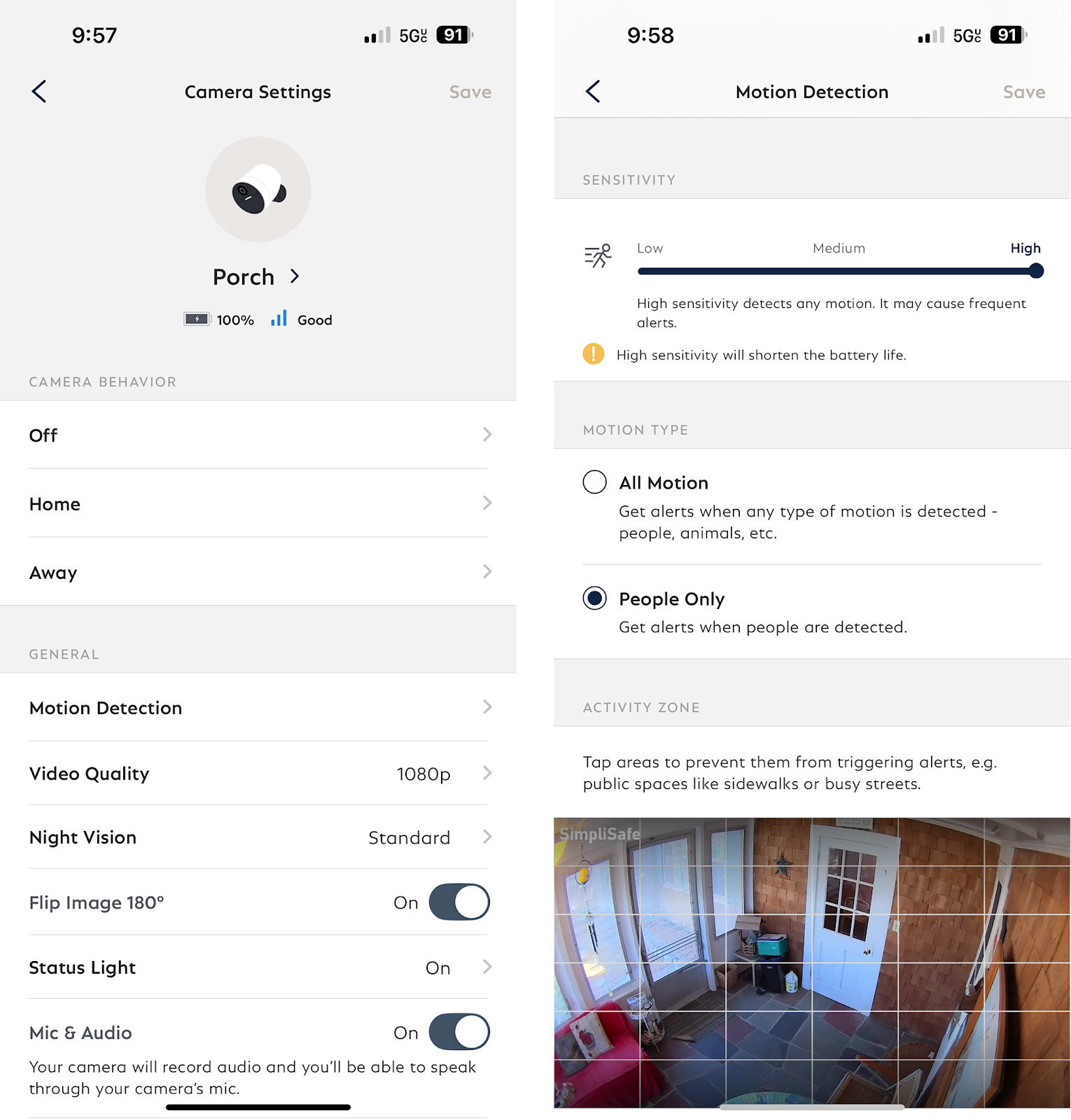
There are multiple settings that can be adjusted to help extend the battery life of your camera. To access these settings in the SimpliSafe® Mobile App:
Choose My System from the bottom navigation bar
Select Camera Settings from the list of menu options
Tap on your Outdoor Camera
Battery-saving settings
Lower your camera’s motion sensitivity setting to Default or Low. This will impact how frequently the camera is triggered.
Enable People-Only Detection to ensure your camera is only capturing humans, and is not unnecessarily triggered by other moving objects or animals.
Set up Activity Zones to control the areas that the camera will monitor. This is helpful if there is a high-traffic zone in the view that you do not need to monitor.
Use Standard Night Vision mode instead of the Spotlight feature.
Charge the Camera’s Battery Fully
Charge it Completely
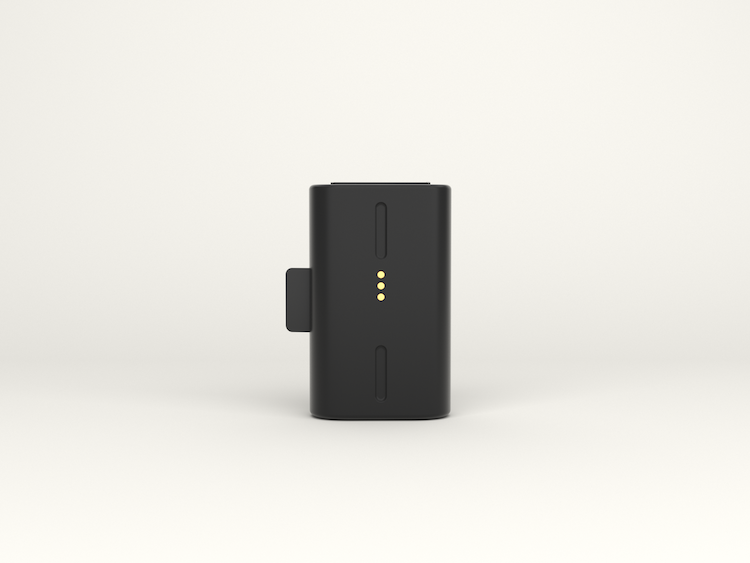
If the Outdoor Camera’s battery is not completely charged, it will give the appearance of draining quickly. The Outdoor Camera’s battery takes up to 6 hours to charge completely. When the battery is charging, you will see a blinking white light. You’ll know the battery is fully charged once all 3 lights are illuminated and no longer blinking.
Use the Correct Power Adapter
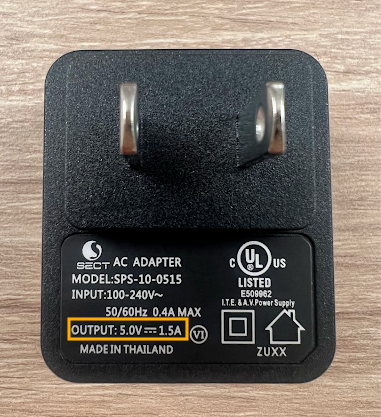
The Outdoor Camera’s battery requires a USB power adapter with an output of 5.0V, 1.5A+. Failure to use the correct power adapter can result in the battery not charging completely.
A list of power adapters that fit this requirement are:
The SimpliCam® Wired Indoor Security Camera’s adapter
The Smart Alarm Wireless Indoor Security Camera’s adapter
Most cell phone power adapters
If you don’t know the output of your power adapter, most models will have it printed on the device itself, as seen in the image below.
If you are using the correct power adapter, make sure that you are plugging it into an outlet directly in a wall. Using a USB power strip or USB power hub may not supply efficient power to charge the battery.
Help Center Article
•
Outdoor Cameras
Why is my camera feed losing audio?
Loss of audio to your camera feed can be caused by a dip in the Wi-Fi connection strength to your home network. When there is a poor connection, our devices will prioritize video over audio to best ensure the safety of your home.
If your camera loses audio frequently, you may want to consider taking some steps to improve the Wi-Fi connection, such as adjusting the position of your camera or installing a Wi-Fi extender near the camera. You can also take a few steps to improve your overall signal strength.
You can also toggle audio recording on and off in the SimpliSafe® mobile app by navigating to:
Choose My System from the bottom navigation bar
Select Camera Settings
Choose your Camera from the list of available cameras
Toggle Mic & Audio ON or OFF, as needed
This setting should be toggled ON by default
If your camera feed continues to lose its audio after taking the above steps, we recommend resetting your camera. You can find the steps to reset each of our SimpliSafe® cameras in the Help Center articles below:
If the issue persists or you need further assistance, please contact customer support. We'll be happy to help!
Help Center Article
•
Cameras
How do I Check the Battery Life of my Camera?
The Outdoor Camera and Smart Alarm Wireless Indoor Security Camera are battery-powered cameras that can help you monitor your home, even when you’re away. Keeping the batteries charged ensures that your cameras will keep a watchful eye inside, and outside of your home.
Checking the Battery Status on the SimpliSafe® App:
Open the SimpliSafe® App on your phone or tablet
Choose My System from the bottom navigation bar
Select Camera Settings
The battery indicator will be displayed to the right of each camera
For iOS users, tap into the camera you wish to see the battery percentage for
Once on your specific camera’s settings page, you’ll see the exact percentage that your battery is charged.
Android users will not be able to see a percentage in the mobile app, however, you can log in to your Online Account with the steps below to see the exact percentage
Checking the Battery Status on the SimpliSafe® Online Account:
Log into your SimpliSafe® Online Account using the browser of your choice
Choose Devices from the left-hand navigation menu
Under Cameras, you’ll be able to see your available Cameras and the percentage that the battery is at
If you are using a solar panel with your Outdoor Camera, the battery will show a charging symbol when it is actively charging.
If you are using a power adapter to leave the Smart Alarm Indoor Camera plugged into an outlet, you will always see a charging symbol on the battery indicator.
TIP: You can maximize your battery life for your cameras by adjusting your camera settings within the SimpliSafe® Mobile App.
Help Center Article
•
Cameras
Camera Does Not Detect People
Our Cameras have a wide field of view to maximize coverage inside and outside of your home. If you find that your camera is not detecting people or motion, there are a few steps you can take to improve its’ functionality.
For the Outdoor Camera, Smart Alarm Wireless Indoor Security Camera, and Video Doorbell Pro, you have three options for controlling motion detection:
Sensitivity for Motion Detection
Motion Type
Activity Zones
To note, SimpliCam Wired Indoor Camera only allows you to control Sensitivity for Motion Detection.
Sensitivity
The sensitivity allows you to control how precise the camera is at detecting motion. We generally recommend setting this to medium for most homes.
Motion Type
This allows you to choose between tracking all motion, and people only. For the Smart Alarm Indoor Camera, we recommend setting this to People Only, especially if you have pets within your home.
Activity Zones
This allows you to configure your camera to track motion within a certain parameter or exclude tracking it for other areas such as a busy street or sidewalk.
To improve motion detection, open the SimpliSafe® Mobile App and follow these steps:
Choose the Cameras tab at the bottom of the app
Tap on the Gear Icon in the upper right corner to go to Camera Settings
Select your Camera
Tap on Motion Detection
On this screen, you’ll be presented with the option to adjust the sensitivity, motion type, and even set activity zones, depending on your camera.
Still Need Help?
If your camera is still not detecting people, we recommend resetting it. You can find the steps to reset each of our SimpliSafe® cameras in the Help Center articles below:
Help Center Article
•
Cameras
Can’t Connect Camera to Wi-Fi After Setup
If your camera had previously been set up but is now failing to connect to your Wi-Fi network, the Connection Check tool in the SimpliSafe® mobile app will tell you if there are any issues between your network and camera.
How to Run a Connection Check:
Open the SimpliSafe® mobile app
Tap on the Cameras tab on the bottom of the screen
Select the gear icon in the upper right corner to get to Camera Settings
Choose your camera
Select Connection Check and follow the on-screen instructions to test your signal strength and upload speeds
Using your results, you can improve your camera’s connection with the tips below.
Camera Wi-Fi Requirements:
Signal strength should be above -55dBm. A lower number means a weaker connection between your camera and Wi-Fi router.
If you have a low signal strength, try troubleshooting your Wi-Fi network
Upload speeds need to be above 2Mpbs
If your upload speed is below 2Mbps, you may need to contact your Internet Service Provider (ISP) to upgrade your Internet package.
If your upload speed is exactly 2Mbps, you should take these steps to improve your upload speed.
Help Center Article
•
Cameras
Incomplete Recordings for Cameras
Incomplete camera recordings can often be a symptom of an underlying network connectivity issue. To rule out any temporary connectivity issues, we recommend rebooting your router - especially if it’s been a while since you’ve done this. To reboot your router, simply unplug it from power for 30-60 seconds, then plug it back in. This will provide a fresh connection for your network devices.
If you’re still having trouble after a router reboot, we’d recommend using the Connection Check Tool found within the SimpliSafe® Mobile App to further analyze your network connectivity.
How to Use the Connection Check Tool
Tap the “Cameras” icon at the bottom of the SimpliSafe® mobile app
Choose the gear icon in the upper right corner to get to Camera Settings
Select your camera
Under “Connection” select “Connection Check”
Tap “Start Connection Check” to find your camera’s connection strength
What do my Results Mean?
Good
A good signal strength or upload speed means that there is a strong connection between your camera and Wi-Fi network.
Fair or Poor Upload Speed
If your upload speed is fair or poor, reduce the camera’s video resolution in its settings in the SimpliSafe® mobile app. To do this:
Select the “Cameras” tab at the bottom of the screen
Tap the gear icon in the top right corner to get to Camera Settings
Under “Camera Settings”, select your camera
Navigate to “Video Quality” and choose 480p
It may also be necessary to upgrade your internet package to improve your upload speed. We recommend reaching out to your internet service provider to learn more about their offerings.
Fair or Poor Signal Strength
If your signal strength is fair or poor, move your camera and Wi-Fi router closer together and then try running the Connection Check tool again. If your signal strength is still the same, we recommend getting a Wi-Fi extender.
It may also help to connect your SimpliSafe® devices to a different Wi-Fi network. We recommend setting up a Guest Network on your Wi-Fi router and only connecting your SimpliSafe® devices to it. To learn more about setting up a Guest Network, reach out to your internet service provider.
Still Need Help?
If your camera is still experiencing issues connecting to your Wi-Fi network, our Support team is here to help you further.
Help Center Article
•
Cameras