Outdoor Cameras
Get the most out of your SimpliSafe system by getting answers to your questions and support for your devices.

Conversation List
Filter by
Performance Mode for Cameras
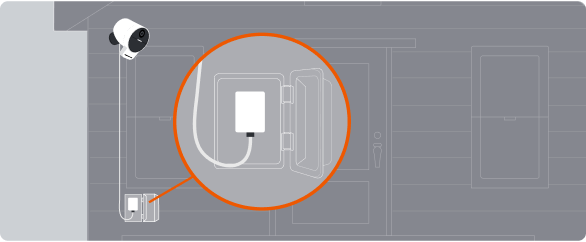
When connected to a continuous power source, the Outdoor Camera and Smart Alarm Wireless Indoor Security Camera can enter performance mode.
When performance mode is enabled for a camera, the camera will remain awake allowing for faster live streams versus battery power. This feature is available to the Outdoor Camera and Smart Alarm Indoor Camera when running firmware version 1.20 or higher, and occurs automatically when the camera is plugged into a power source and it has at least 90% charge. If your camera battery ever drops below 70%, your camera will automatically exit performance mode to conserve battery.
Performance mode also allows the cameras to begin recording while it determines whether or not the observed motion event was a person or another object (such as a passing car, a tree blowing in the wind, or an indoor pet). This allows for more complete recordings of motion events delivered to your timeline in the SimpliSafe® Mobile App.
Help Center Article
•
Cameras
How to Reorder Cameras in the SimpliSafe® App
An exciting feature of the SimpliSafe® App is the ability to reorder your list of cameras in the Cameras tab in the app*. This is helpful if you want to see your cameras in alphabetical order, or organized in any specific way.

To Reorder Your Cameras in the SimpliSafe® App:
Open the SimpliSafe® App on your phone or tablet
Select Cameras from the navigation bar on the bottom of the screen
Tap on the reorder icon on the upper right corner of the screen

Press and hold a camera to drag and reorder it
Follow step 4 again for any other cameras you want to reorder
*Note: This feature is only to reorder your cameras in the SimpliSafe® app. Changing the order of your sensors is currently not supported.
Help Center Article
•
Outdoor Cameras
Too Many Motion Alerts From the Outdoor Security Camera Series 2
If you find that your Outdoor Security Camera Series 2 is detecting motion and you’re receiving too many notifications or alerts, there are some recommended placement and settings changes you can make to reduce the number of notifications.
Adjust the Placement of the Camera
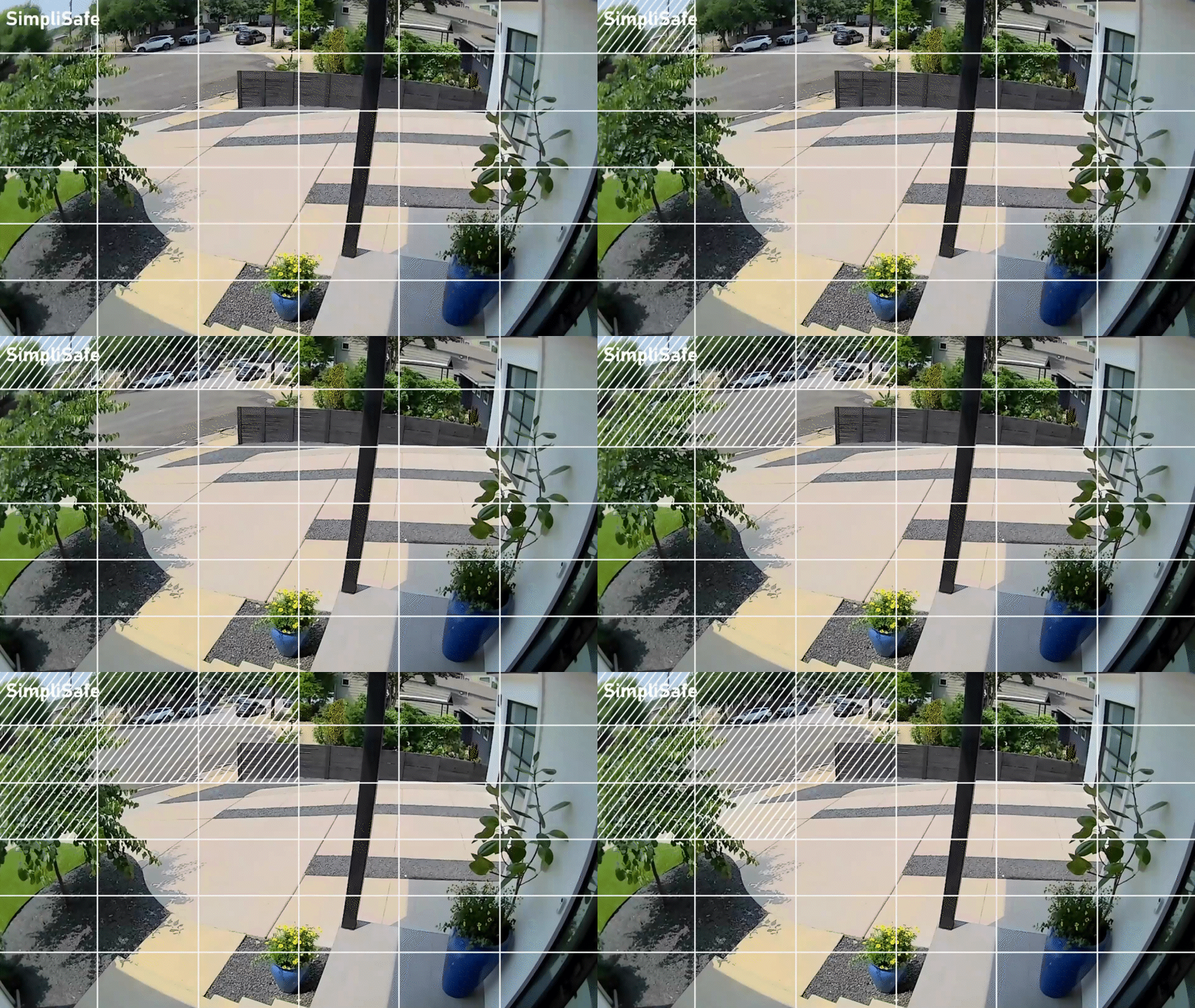
If your Outdoor Camera Series 2 is facing a high-traffic area like a busy street or sidewalk, we recommend angling the camera down to remove this area from its field of view, as seen in the image below.
Change the Camera’s Settings
If you cannot change the angle of the Outdoor Camera, there are settings you can adjust in the SimpliSafe® Mobile App to minimize the amount of motion it detects.
Sensitivity
By default, the Outdoor Camera’s sensitivity is set to High, but you can adjust this setting to Medium or Low to limit the number of motion events you receive.
You can adjust the sensitivity of your Outdoor Camera by taking the following steps:
SimpliSafe® Mobile App:
Open up the SimpliSafe® Mobile App on your mobile device or tablet
Choose My System from the bottom navigation bar
Select Camera Settings from the list of menu options
Choose the Outdoor Camera you’d like to adjust
Tap Motion Detection
Under Sensitivity, move the slider to Low
Tap Save in the top right corner to save this change
SimpliSafe® Online Account:
Log into your SimpliSafe® Online Account using the browser of your choice from a computer
If you manage multiple properties, choose the location you wish to update from the list by clicking on the Base Station Serial Number or Property Address
Select Devices from the navigation bar on the left side of the screen
Select the camera you want to update
A pop up menu will appear on the right hand side of the screen
Scroll down to Motion Sensitivity and move the slider to Low
When you are done, click Save Changes on the bottom of the pop up to save your selections
Motion Detection Type
The Outdoor Camera has two motion detection options: All Motion and People Only. When set to All Motion, the camera will record any motion it senses - which may cause excess motion events. However, if the camera is set to People Only it will only respond to people-shaped objects.
Note: When your Outdoor Camera Series 2 is enrolled in SimpliSafe® Active Guard Outdoor Protection, you will have different Motion Detection setting options available.
To minimize the amount of motion your Outdoor Camera detects, you can change its motion setting to People Only by following these steps:
Open up the SimpliSafe® Mobile App on your mobile device or tablet
Select My System from the bottom navigation bar
Choose Camera Settings
Tap the Outdoor Camera you’d like to adjust
Select Motion Detection
Under Motion Type, select People Only
Tap Save in the top right corner to save this change
Activtiy Zones
By setting up Activity Zones, you can block unnecessary sources of motion from the camera’s view, like tree branches, sidewalks, or busy streets.
To create Activity Zones, take the following steps:
Open up the SimpliSafe® Mobile App on your mobile device or tablet
Choose My System from the bottom navigation bar
Select Camera Settings
Tap the Outdoor Camera you’d like to adjust
Choose Motion Detection
Under Activity Zone, tap the boxes in the frame where you do not want your camera to record
Tap SAVE in the top right corner to save your selections
Additional Troubleshooting
If you’re still getting too many motion alerts when your camera is set to People Only mode, we recommend trying the following tricks:
Change your camera’s motion detection setting to All Motion
Turn your camera’s sensitivity down to Medium or Low
Set up Activity Zones around the perimeter of the camera’s field of view
Help Center Article
•
Outdoor Cameras
How to Download Recordings From Your Camera
Video clips from SimpliSafe® cameras can be downloaded to your mobile device using the SimpliSafe® Mobile App. Recordings are available with select monitoring plans.
Please note that if your camera name contains an apostrophe, this may limit your ability to download recordings. We recommend changing your camera’s name to exclude the use of an apostrophe before attempting to download any recordings.
How to Download Recordings Using the SimpliSafe® App:

In the SimpliSafe® App, tap on Timeline from the bottom navigation bar
Swipe up and down through the Timeline and find the event whose clip you wish to download
Tap on the event and then tap on the video preview within the event
Tap the three-dot icon next to the recording and then choose Download Video
The clip will be saved to your phone
To access saved videos, go to your phone’s camera roll
How to Download Recordings Using the SimpliSafe® Online Account
Log into the SimpliSafe® Online Account using the browser of your choice
Select Timeline from the navigation menu on the left side of the screen
If you do not see the navigation menu, click the three-bar icon on the top left corner of the screen to reveal it
Scroll through the Timeline and find the event with the video clip you wish to download
Tap on the event and then tap on the video on the right side of the screen
Tap the download icon on the bottom right side of the video player
The clip will be saved to your computer
To access saved videos, go to your downloaded files in your computer
Is a Timestamp Included?
When you download a video from your timeline, the date and time that the recording was filmed is found at the end of the file name.
To find the timestamp, take the following steps:
Open your camera roll
Select the recording you downloaded
Tap the i icon on the bottom of the screen to display the video’s file name
This step may vary depending on your mobile device
At the end of the file name, you will see the date and time the recording was filmed
Note: the time stamp will be written in numbers, displayed as MM/DD/YYY_HH/MM/SS. So for a recording filmed on August 21, 2024 at 2:31:21 PM, the timestamp will be displayed as: 08212024_023121PM.

Help Center Article
•
Cameras
Outdoor Camera Motion Detection Troubleshooting
If you’re getting too many motion alerts when your camera is set to People Only mode, we recommend trying the following tricks:
Change your camera’s motion detection setting to All Motion
Turn your camera’s sensitivity down to Medium or Low
If you have Activity Zones set up, adjust them to also block off the zones around the image that the camera is detecting, as seen in the GIF below

How to Change Your Camera’s Settings
You can change your camera’s motion detection settings using either the SimpliSafe® Mobile App or Web App by taking the steps below.
SimpliSafe® Mobile App
Open the SimpliSafe® Mobile App on your phone or tablet
Choose My System from the bottom navigation bar
Select Camera Settings from the list of available menu options
Select the camera you want to update
Adjust your camera’s motion detection settings as needed
When you are done, select Save in the top right corner to save your selections
SimpliSafe® Online Account
Log into your SimpliSafe® account using the browser of your choice on a computer
If you manage multiple properties, choose the location you wish to update from the list by clicking on the Base Station Serial Number or Property Address
Select Devices from the navigation bar on the left side of the screen
Select the camera you want to update
A pop up menu will appear on the right hand side of the screen
Adjust your camera’s motion detection settings as needed
When you are done, click Save Changes on on the bottom of the pop up to save your selections
Help Center Article
•
Outdoor Cameras
How to use SimpliSafe® Active Guard Outdoor Protection
SimpliSafe® Active Guard Outdoor Protection builds upon our existing professional monitoring services and is included as part of two new plans: Pro Plus and Pro monitoring plans for residential and business use. All while being designed to prevent crime before it happens.
The following article will walk you through getting started with it and how to use it on a daily basis. We recommend scrolling through each collapsible section to learn how to get the most out of your service.
The location of your camera impacts motion detection and activity alerts for your SimpliSafe® Active Guard Outdoor Protection service. Below are some recommendations to help get the most out of your Outdoor Camera Series 2.
The Outdoor Camera Series 2 is intended for outdoor use only. Mounting the camera inside is against our Terms of Service for Active Guard Outdoor Protection.
Need indoor coverage? Purchase a Smart Alarm Indoor Camera and enable Intruder Intervention for agent intervention during burglary/intrusion alarms
The Outdoor Camera Series 2 must receive continuous power from the Outdoor Camera Power Cable to enable Active Guard Outdoor Protection, so make sure that the camera is within range of an outdoor-rated power outlet
For optimal performance, mount it at 6 ½ feet
If mounting above 6 ½ feet, utilize the permanent mount to secure your camera
Ensure that the field of view is free from trees/bushes blocking it, which could sway and trigger false motion events
Avoid placing your camera towards high trafficked areas (such as a busy sidewalk or street), and peering into another persons property (e.g. pointing the camera towards a neighbors backyard)
When using SimpliSafe® Active Guard Outdoor Protection, make sure that you are within range of an outdoor-rated power outlet
There are 3 ways to determine if your service is active.
On the Overview Tab of the SimpliSafe® Mobile App
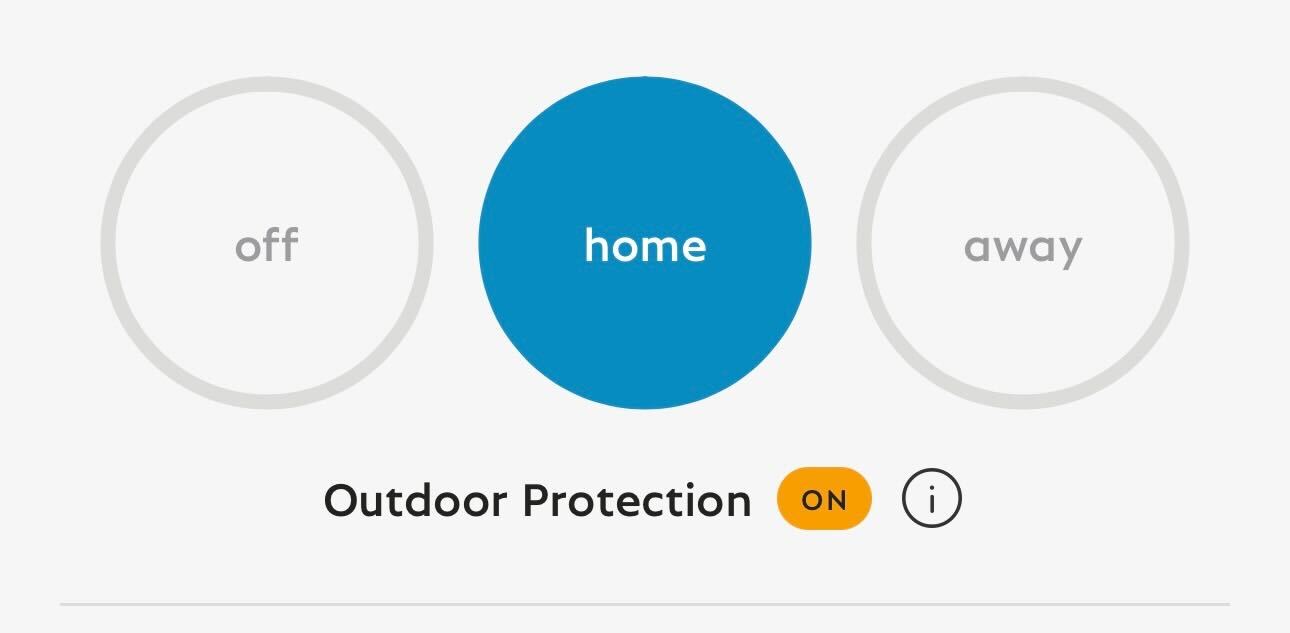
When you are subscribed to Pro Plus or Pro monitoring plans, there will be a status indicator underneath your system's arming state that reads “Outdoor Protection” with an ON or OFF status next to it. This is the fastest way to determine whether or not your service is active. You can click on the (i) icon to the right to see more about your system status.
When your system is disarmed, the status indicator will read OFF. In order for Outdoor Protection to be active (and for it to read as ON) you must have your cameras enrolled in SimpliSafe® Active Guard Outdoor Protection, have your system armed, and be within your monitoring hours according to your plan type (24/7 for Pro Plus Subscribers and 8pm-6am local time for Pro Subscribers).
Checking Your Monitoring Plan
You can also confirm that you are enrolled in Pro Plus or Pro by checking the status of your monitoring plan. To do this:
Open the SimpliSafe® App on your phone or tablet
Navigate to the three-bar menu in the upper left corner of the app
Select Plan & Billing
Next to “Your Plan” you’ll see either Pro Plus or Pro Monitoring
If you need to subscribe to Pro Plus or Pro, you can upgrade your plan at any time within the mobile app.
Checking Camera Enrollment
You can also check which cameras are active within the SimpliSafe® Mobile App.
Open the SimpliSafe® App on your phone or tablet
Choose My System from the bottom navigation bar
Select Camera Settings
Tap on Outdoor Protection
On this screen, you can toggle ON and OFF the cameras you want to use
Note, you can only have 3 cameras total enrolled in this service. Visit our Help Center for a list of requirements.
Then, choose SAVE in the upper right corner to save your selections
Once you have set up your Outdoor Camera Series 2, you can enroll it and up to 3 cameras from your system. The only compatible cameras are Outdoor Camera Series 2 and Video Doorbell Pro. You must enroll at least one Outdoor Camera Series 2 to enable SimpliSafe® Active Guard Outdoor Protection for your Video Doorbell Pro.
There are two ways to enroll your cameras in SimpliSafe® Active Guard Outdoor Protection. The first is during the setup of your Outdoor Camera Series 2. The second is to enroll after setup using either the tile on the Overview tab or under Camera Settings.
SimpliSafe® Active Guard Outdoor Protection provides an extra layer of security outside of your home during your monitoring hours, based on your subscription. Pro subscribers will have access to SimpliSafe® Active Guard Outdoor Protection from 8pm-6am (local time), while Pro Plus subscribers have access to this service 24/7, so long as their system is armed.
When you’re ready to use SimpliSafe® Active Guard Outdoor Protection, simply arm your system to HOME or AWAY. HOME mode should be used when you are home and plan on staying inside for the day or night. While AWAY mode is designed to be used when you are away from your home. For example, you might arm your system to HOME when going to bed for the night, or you would choose to arm your system to AWAY if leaving for work, or going on a vacation.
SimpliSafe® Active Guard Outdoor Protection is designed to monitor outdoor spaces where human activity is a sign of a potential concern. Outdoor cameras enrolled in SimpliSafe® Active Guard Outdoor Protection should not be directed toward areas that have frequent household activity while the system is armed in either Home or Away mode. For example, customers shouldn't aim their camera directly at a busy sidewalk, an active parking area, a construction zone, or any outdoor living space that is in use while the system is armed.
Once your system is armed and you’re within your monitoring hours (24/7 for Pro Plus Subscribers and 8pm-6am local time for Pro Subscribers) SimpliSafe® Active Guard Outdoor Protection will be active and your camera(s) will work to detect possible threats outside of your home. If an individual is identified, the AI will try to determine a match between the person and a familiar face. If a match is made, no action will be taken by the agent. If a match cannot be made, an agent will determine if the person matches the familiar faces saved to your system, and engage if necessary.
The “Familiar Face” feature is a great way for professional monitoring agents to know who should be allowed on your property. For example, you might want to create a familiar face for an in-law, neighbor, or maybe a dog walker.
If a person is detected on your property, the service will use automatic face matching* to assist our agents in determining if the person matches any of your saved familiar faces. If the person on the property is unrecognizable, an expert SimpliSafe® monitoring agent will jump into action to assess the situation and behavior of the individual(s). If needed, they’ll initiate recorded two-way audio communication with the individual(s) via the camera to deter possible threats. When needed, the agent will use a siren, flash the spotlight, contact the homeowner, or request dispatch from emergency responders.
*Automatic face matching is available where permitted by law.
You can create a familiar face within the SimpliSafe® Mobile App either by using face clips from a motion event, or using the Add Familiar Face option and uploading an existing photo of an individual to create a familiar face.
Using Face Clips from a Motion Event to Create a Familiar Face:
Choose the Timeline tab at the bottom navigation bar
Select a Motion Event where face clips were detected
We recommend that you pick a motion event where the individual’s face is highly visible. Blurry or obstructed images make it difficult for our agents to make a face match
Tap on the video to enter the detection log
Tap on the profile icon with a plus sign in front of it next to a face detected within the timeline of the video footage
Follow the on-screen prompts to create a familiar face or add it to an existing one
Create a Familiar Face using the Add Familiar Face button and Uploading a Photo:
Choose My System from the bottom navigation bar
Select Familiar Faces
Tap Add Familiar Face
Enter the person’s real name
Do not enter a nickname or a description of the person in this field
Tap the plus button under “Uploaded Photos”
Allow access to your photos for SimpliSafe® when the pop-up on your device prompts you to do so
Choose a photo to upload that features a single person’s face
Do not upload a photo that has multiple faces in it
Do not upload a photo that does not have any faces
Do not upload a photo that is of low quality/grainy
Preview the photo and tap Add to Familiar Face
Your photo is now added to the familiar face, and you can exit and return to the menu
If your Outdoor Camera Series 2 is facing a high-traffic area like a busy street or sidewalk, we recommend angling the camera down at a 30-degree angle to ensure that you’re only capturing the area you want to protect. This can help combat excessive motion alerts, as well as prevent false alarms with SimpliSafe® Active Guard Outdoor Protection.
We recommend setting up Activity Zones to block unnecessary sources of motion, such as tree branches, sidewalks, or busy streets. Please note that this service is designed for residential use, and is not intended to cover busy parking lots, playgrounds, or other high-traffic areas. For more information on usage, please check out our Terms of Service.
To create Activity Zones, take the following steps:
Open up the SimpliSafe® Mobile App on your mobile device or tablet
Tap Cameras on the navigation bar at the bottom of the screen
Select the gear icon in the top right corner to open Camera Settings
Choose the Outdoor Camera you’d like to adjust
Tap Motion Detection
Under Activity Zone, tap the boxes in the frame where you do not want your camera to record
Tap Save in the top right corner to save this change

If you cannot change the angle of the Outdoor Camera, there are settings you can adjust in the SimpliSafe® Mobile App to minimize the amount of motion it detects.
Sensitivity
By default, the Outdoor Camera’s sensitivity is set to High, but you can adjust this setting to Medium or Low to limit the number of motion events you receive.
You can adjust the sensitivity of your Outdoor Camera by taking the following steps within the SimpliSafe® Mobile App:
Open up the SimpliSafe® Mobile App on your mobile device or tablet
Tap Cameras on the navigation bar at the bottom of the screen
Select the gear icon in the top right corner to open Camera Settings
Choose the Outdoor Camera you’d like to adjust
Tap Motion Detection
Under Sensitivity, move the slider to Low
Tap Save in the top right corner to save this change
Motion Detection Type
The Outdoor Camera has two motion detection options: All Motion and People Only. When set to All Motion, the camera will record any motion it senses - which may cause excess motion events. However, if the camera is set to People Only it will only respond to people-shaped objects.
Note: When your Outdoor Camera Series 2 is enrolled in SimpliSafe® Active Guard Outdoor Protection, you will have different Motion Detection setting options available.
To minimize the amount of motion your Outdoor Camera detects, you can change its motion setting to People Only by following these steps:
Open up the SimpliSafe® Mobile App on your mobile device or tablet
Tap Cameras on the navigation bar at the bottom of the screen
Select the gear icon in the top right corner to open Camera Settings
Choose the Outdoor Camera you’d like to adjust
Tap Motion Detection
Under Motion Type, select People Only
Tap Save in the top right corner to save this change
SimpliSafe® Active Guard Outdoor Protection notifications are push notifications you will receive after an event has been reviewed by one of our expert monitoring agents. You can decide which SimpliSafe® verified outdoor events should trigger push notifications - such as Common Activity events or Person on Property events.
There is a difference between Camera Motion Notifications and SimpliSafe® Active Guard Outdoor Protection Notifications. Turning on Camera Motion Notifications allows the SimpliSafe® Mobile App to notify you when your camera detects motion. SimpliSafe® Active Guard Outdoor Protection Notifications are push notifications you receive after an event has been reviewed by one of our expert monitoring agents or our advanced AI. With SimpliSafe® Active Guard Outdoor Protection, you can refine when you would like to receive motion notifications, on a per-camera basis.
Help Center Article
•
Outdoor Cameras
How to Find the MAC Address of a SimpliSafe® Device
In some instances you may need to add the MAC Address of a SimpliSafe® product to your network’s allow list or firewall in order for it to connect to Wi-Fi. A MAC Address is a unique, 12-character alphanumeric attribute that is used to identify individual electronic devices on a network.
Only the Base Station and the Cameras will provide a MAC Address, as they connect to Wi-Fi. Other SimpliSafe® products connect to the Base Station using Radio Frequency (RF).
Note: If you have MAC Address filtering enabled on your network, you may need to temporarily disable it while setting up your camera, to allow it to connect. You’ll be able to determine the MAC Address to add to your allow list once the device is connected.
Base Station
For the Base Station, you will need to use your Keypad to locate its MAC Address.
Press Menu on your Keypad
Enter your Master PIN
Using the Keypad’s arrow keys, select System Settings
Then choose Diagnostics
Press the Keypad screen to the right to toggle to the Wi-Fi screen, where the MAC Address will be listed
Cameras
You can locate the MAC Address of a SimpliSafe® Camera using the SimpliSafe® Mobile App.
Open the SimpliSafe® Mobile App on your phone or tablet
Choose My System from the bottom navigation bar
Select Camera Settings from the list of available menu options
Tap on the Camera you wish to manage
Scroll to the bottom of this screen. Your Cameras MAC Address will be listed in the MAC Address field.
Help Center Article
•
Cameras