Conversation List
Incomplete Recordings for Cameras
Incomplete camera recordings can often be a symptom of an underlying network connectivity issue. To rule out any temporary connectivity issues, we recommend rebooting your router - especially if it’s been a while since you’ve done this. To reboot your router, simply unplug it from power for 30-60 seconds, then plug it back in. This will provide a fresh connection for your network devices.
If you’re still having trouble after a router reboot, we’d recommend using the Connection Check Tool found within the SimpliSafe® Mobile App to further analyze your network connectivity.
How to Use the Connection Check Tool
Tap the “Cameras” icon at the bottom of the SimpliSafe® mobile app
Choose the gear icon in the upper right corner to get to Camera Settings
Select your camera
Under “Connection” select “Connection Check”
Tap “Start Connection Check” to find your camera’s connection strength
What do my Results Mean?
Good
A good signal strength or upload speed means that there is a strong connection between your camera and Wi-Fi network.
Fair or Poor Upload Speed
If your upload speed is fair or poor, reduce the camera’s video resolution in its settings in the SimpliSafe® mobile app. To do this:
Select the “Cameras” tab at the bottom of the screen
Tap the gear icon in the top right corner to get to Camera Settings
Under “Camera Settings”, select your camera
Navigate to “Video Quality” and choose 480p
It may also be necessary to upgrade your internet package to improve your upload speed. We recommend reaching out to your internet service provider to learn more about their offerings.
Fair or Poor Signal Strength
If your signal strength is fair or poor, move your camera and Wi-Fi router closer together and then try running the Connection Check tool again. If your signal strength is still the same, we recommend getting a Wi-Fi extender.
It may also help to connect your SimpliSafe® devices to a different Wi-Fi network. We recommend setting up a Guest Network on your Wi-Fi router and only connecting your SimpliSafe® devices to it. To learn more about setting up a Guest Network, reach out to your internet service provider.
Still Need Help?
If your camera is still experiencing issues connecting to your Wi-Fi network, our Support team is here to help you further.
Help Center Article
•
Cameras
Night Vision Troubleshooting for Cameras
Night Vision is a feature that allows your camera to use infrared technology to see in low-light conditions. The setting for this feature can be found in the SimpliSafe® App by navigating to camera settings:
Open the SimpliSafe® App on your phone or tablet
Choose My System from the bottom navigation bar
Select Camera Settings
Tap on the desired camera
Select Night Vision
When On, the camera will always revert to using night vision regardless of the amount of light in the room. When set to Auto, the camera will intelligently switch between Night Vision and not depending on the amount of light in the room. In Off mode, the camera will only use available light to capture video and may result in dark video.
The Outdoor Camera does not have an Auto setting, but it does have Spotlight. When turned on, this allows the camera to record in color at night.
If the video quality is poor at night, we recommend trying the following steps:
Verify the camera's Night Vision setting in the SimpliSafe® Mobile App and set it to On or Auto
If you have an Outdoor Camera, verify that its Night Vision setting is set to Standard or Spotlight
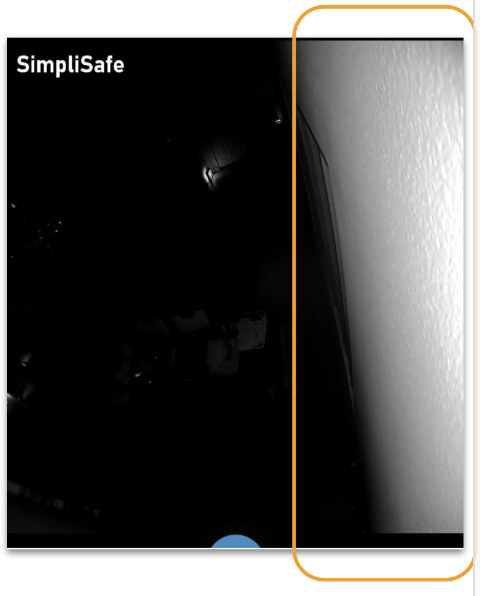
Ensure the camera is not pointed near a wall, ceiling, or a flat surface underneath. Large surfaces like this will reflect the IR light and wash out the remaining video. We recommend repositioning the camera in these scenarios. (see image below)
If the camera is on a shelf, place it near the edge to avoid any obstructions
Make sure that the camera is not directly facing a wall or looking out a window
Confirm that the protective film on the face of the camera has been removed
[Outdoor Camera Only] Turn on the Spotlight to help illuminate areas around the camera
If the above steps do not resolve the issue, we recommend testing the camera in a second location. If the issue disappears, try taking the above steps again in the camera’s desired location.
Still Need Help?
If the issue persists, try resetting the camera by following the directions below. Note: resetting the camera will erase any videos that you have captured as well as all camera settings. Instructions on how to download any camera recordings first before resetting.
Once the camera has been reset, begin the setup process over again using your camera’s installation guide.
Help Center Article
•
Cameras
Too Many Motion Alerts From the Smart Alarm Wireless Indoor Security Camera
The Smart Alarm Wireless Indoor Security Camera comes equipped with a passive infrared (PIR) sensor that allows it to sense contrasting temperature changes in its field of view, while also using Vision AI technology to determine if it should send you a motion alert.
If you are receiving too many motion alerts from your Smart Alarm Indoor Camera, there are placement, camera settings, and camera behavior changes you can make to decrease the amount of motion it captures.
Placement
We do not recommend placing your Smart Alarm Indoor Camera in an area where it faces a stairwell, window, or door, as it can pick up on excess motion. If your camera is facing any of those areas in your home, slightly adjust its placement so they are no longer in its field of view.
If you have any pets that the Smart Alarm Indoor Camera could pick up on, try moving the camera to a surface that’s at least 4 feet off the ground, angled straight out.
Camera Settings
There are additional settings you can change for your Smart Alarm Indoor Camera to help it detect fewer motion events.
Camera Behavior
You can configure your Smart Alarm to detect motion in each of the SimpliSafe® system’s armed modes: Off, Home, and Away. If your camera is consistently alerting you of motion in an armed state that you would not like it to, check to see if motion detection is turned on for your camera in that armed mode by taking the following steps:
Open up the SimpliSafe® App on your mobile device or tablet
Tap Cameras on the navigation bar at the bottom of the screen
Select the gear icon in the top right corner to open Camera Settings
Choose the Smart Alarm Indoor Camera you’d like to adjust
Under Camera Behavior, select the system’s armed mode that you do not want the Smart Alarm to detect motion in
Toggle Motion Detection off
Help Center Article
•
Smart Alarm Indoor Camera
Too Many Motion Alerts From the Wireless Outdoor Security Camera
If you find that your Wireless Outdoor Security Camera is detecting too much motion, there are some recommended placement and settings changes you can make to minimize the amount of motion it detects.
Adjust the Placement of the Camera
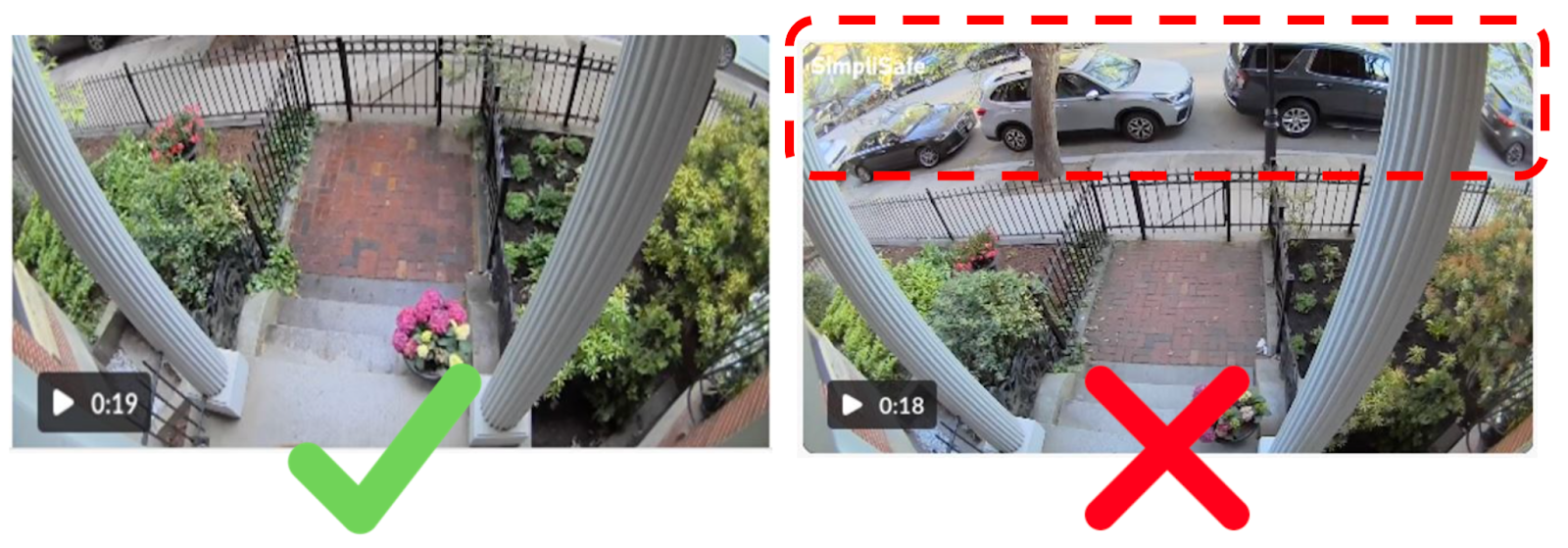
If your Outdoor Camera is facing a high traffic area like a busy street or sidewalk, we recommend angling the camera down to remove this area from its field of view, as seen in the image below.
Change the Camera’s Settings
If you cannot change the angle of the Outdoor Camera, there are settings you can adjust in the SimpliSafe® Mobile App to minimize the amount of motion it detects.
Sensitivity
By default, the Outdoor Camera’s sensitivity is set to Medium, but you can adjust this setting to Low to limit the amount of motion events you receive.
You can adjust the sensitivity of your Outdoor Camera by taking the following steps:
SimpliSafe® Mobile App
Open up the SimpliSafe® Mobile App on your mobile device or tablet
Choose My System from the bottom navigation bar
Select Camera Settings from the list of available menu options
Choose the Outdoor Camera you’d like to adjust
Tap Motion Detection
Under Sensitivity, move the slider to Low
Tap Save in the top right corner to save this change
SimpliSafe® Online Account
Login to the SimpliSafe® Online Account using the browser of your choice
If you manage multiple properties, choose the location you wish to update from the list by clicking on the Base Station Serial Number or Property Address
Select Devices from the navigation bar on the left side of the screen
Select the camera you want to update
A pop up menu will appear on the right hand side of the screen
Scroll down to Motion Sensitivity and move the slider to Low
When you are done, click Save Changes on the bottom of the pop up to save your selections
Motion Detection Type
The Outdoor Camera has two motion detection options: All Motion and People Only. When set to All Motion, the camera will record any motion it senses - which may cause excess motion events. However, if the camera is set to People Only it will only respond to people-shaped objects.
To minimize the amount of motion your Outdoor Camera detects, you can change its motion setting to People Only by following these steps:
Open up the SimpliSafe® Mobile App on your mobile device or tablet
Choose My System from the bottom navigation bar
Select Camera Settings
Tap the Outdoor Camera you’d like to adjust
Choose Motion Detection
Under Motion Type, select People Only
Tap Save in the top right corner to save this change
Activity Zones
By setting up Activity Zones, you can block unnecessary sources of motion from the camera’s view, like tree branches, sidewalks, or busy streets.
To create Activity Zones, take the following steps:
Open up the SimpliSafe® Mobile App on your mobile device or tablet
Choose My System from the bottom navigation bar
Select Camera Settings
Tap the Outdoor Camera you’d like to adjust
Choose Motion Detection
Under Activity Zone, tap the boxes in the frame where you do not want your camera to record
Tap Save in the top right corner to save this change
Additional Troubleshooting
If you’re still getting too many motion alerts when your camera is set to People Only mode, we recommend trying the following tricks:
Change your camera’s motion detection setting to All Motion
Turn your camera’s sensitivity down to Medium or Low
Set up Activity Zones around the perimeter of the camera’s field of view
Help Center Article
•
Outdoor Cameras
Error: Unfinished Setup for Cameras

This error can occur within the SimpliSafe® Mobile App when the camera has been partially removed from the Base Station but failed to fully remove itself from the mobile app.
As a first step, we recommend tapping on Finish Setup and see if it allows that camera to connect. If that step fails, the best path forward would be to remove the camera from your system using the Keypad.
Using the Keypad
Press the Menu button on your Keypad
Enter your Primary PIN
Scroll to devices and press Open on the right
Scroll down and locate the camera in question
Select your camera by pressing the arrow to the right
Choose Remove by pressing the arrow to the right to delete this camera from your system
Once the camera has been removed from the Keypad, you’ll need to refresh the SimpliSafe® Mobile App. To do this, open the mobile app on your phone or tablet and pull down from the top of the Camera’s tab to refresh the information presented. You can also force close the app on your phone or tablet, and relaunch it to refresh the app.
Help Center Article
•
Cameras
Not Receiving Push Notifications for my Camera
This article will troubleshoot not receiving push notifications for your cameras only. If you are not receiving system push notifications, please see our Not Receiving Push Notifications on my Smartphone for SimpliSafe® article.
Push notifications for your camera are a great way to know when there is motion detected, or when someone rings your Video Doorbell Pro. To ensure that you will always receive push notifications for your camera(s), you’ll want to make sure that critical alarm notifications are enabled on your device so SimpliSafe® can deliver notifications even if your phone is on silent. Finally, if you have a work profile or focus mode enabled, push notifications may not work. You’ll want to consult with your phone’s manual for further configuration details in these modes.
Confirm that you are logged into the SimpliSafe® app
You will only receive push notifications if you are logged into the SimpliSafe® app. Open the app on your phone and log into your account if you are not already.
Enable Push Notifications for SimpliSafe® on your Smartphone
On iOS:
Go to “Settings”
Click “Notifications”
Find the SimpliSafe® Mobile App, and make sure notifications are turned on
On Android*:
Tap Apps > Settings > MORE
Tap Application Manager > DOWNLOADED
Tap on the SimpliSafe® Mobile App
Select or clear the check box next to Show Notifications to enable or disable push notifications
Steps may vary depending on your Android device. Please refer to your phone’s manual to identify where App Notifications may exist.
*Note: enabling Android Private Space for the SimpliSafe® Mobile App can prevent you from receiving push notifications. If you want to receive push notifications about your SimpliSafe® system, do not enable Android Private Space.
Ensure camera notifications are turned on
Open the SimpliSafe® app on your phone or tablet
Choose the My System tab on the bottom navigation bar
Choose Camera Setting, then the camera you wish to enable alerts for
Tap into Motion Detection to adjust your motion event notifications
Please note that the SimpliCam® and Smart Alarm Indoor Camera will only receive motion alerts when your camera has its privacy shutter open
Make sure your phone is not on Do Not Disturb
If your phone is set to Do Not Disturb, you will not be notified of any activity regarding your SimpliSafe® system. If you do want to receive notifications for your system when your phone is set to Do Not Disturb, take the following steps.
On iOS:
Open your phone’s Settings
Select Focus
This can be found in the second cluster of settings
Click through each of the Focus Modes to check if notifications are silenced
Click through each of the Focus Modes to add the SimpliSafe® Mobile App as an Allowed Notification
On Android:
Open your phone’s Settings
Select Modes and Routines
Check to see if an existing Mode or Routine is on
Add the SimpliSafe® Mobile App to allow notifications during Do Not Disturb
These steps may vary depending on the model of your device. If you have any questions regarding the steps to take, please refer to your devices owner’s manual.
Situations where you will not receive push notifications
Even if push notifications are enabled properly, there are two situations where you will not be notified of camera motion events.
If the SimpliSafe® Mobile App is open on your smartphone or running in the background
Push notifications, by design, alert smartphone users to look at an app by tapping into the notification. Due to this, if the SimpliSafe® Mobile App is active on your device, push notifications for camera motion detection will not be sent.
If there was a previous motion detection less than a minute ago
To prevent you from receiving too many notifications, all SimpliSafe® cameras have a quiet period. After a camera detects motion, you will not receive any other motion notifications from your camera for one minute.
During this quiet period all of your cameras will still detect motion and record as usual, and each motion detection event can still be seen in your timeline.
Further troubleshooting
If your notifications are set up correctly, then try closing the app and re-opening it.
If you still are not receiving notifications, try deleting the app and re-installing it.
Help Center Article
•
Cameras
Delayed Live Streaming for the Wireless Outdoor Security Camera
Live stream delays can occur for a variety of reasons, most commonly stemming due to the camera’s “deep sleep” state it enters when not in use. When a live stream is initiated, the camera must first wake up and then connect to Wi-Fi to start the stream. This process can take up to 10 seconds.
If you are concerned about this delay or are experiencing a delay longer than 10 to 15 seconds, you can try the below steps to troubleshoot your camera’s Wi-Fi and system connectivity
Move the Base Station closer to the camera
Ensure your Base Station is connected to Wi-Fi
Plug your camera into a continuous power source using the Outdoor Camera Power Cable. Doing this will enable performance mode, allowing your camera to remain awake and responsive
Bring the camera and your internet router close together
If the Camera works in this position, there may have been too great a distance between the devices and you will need to install the camera closer to your internet router
You can also purchase a Wi-Fi extender to extend the range of your Wi-Fi
If the camera still does not connect when it is right next to your router, you may be experiencing Wi-Fi connectivity issues; in this case, you can try to troubleshoot your Wi-Fi connection.
Help Center Article
•
Outdoor Cameras