Conversation List
Too Many Motion Alerts From the Outdoor Security Camera Series 2
If you find that your Outdoor Security Camera Series 2 is detecting motion and you’re receiving too many notifications or alerts, there are some recommended placement and settings changes you can make to reduce the number of notifications.
Adjust the Placement of the Camera
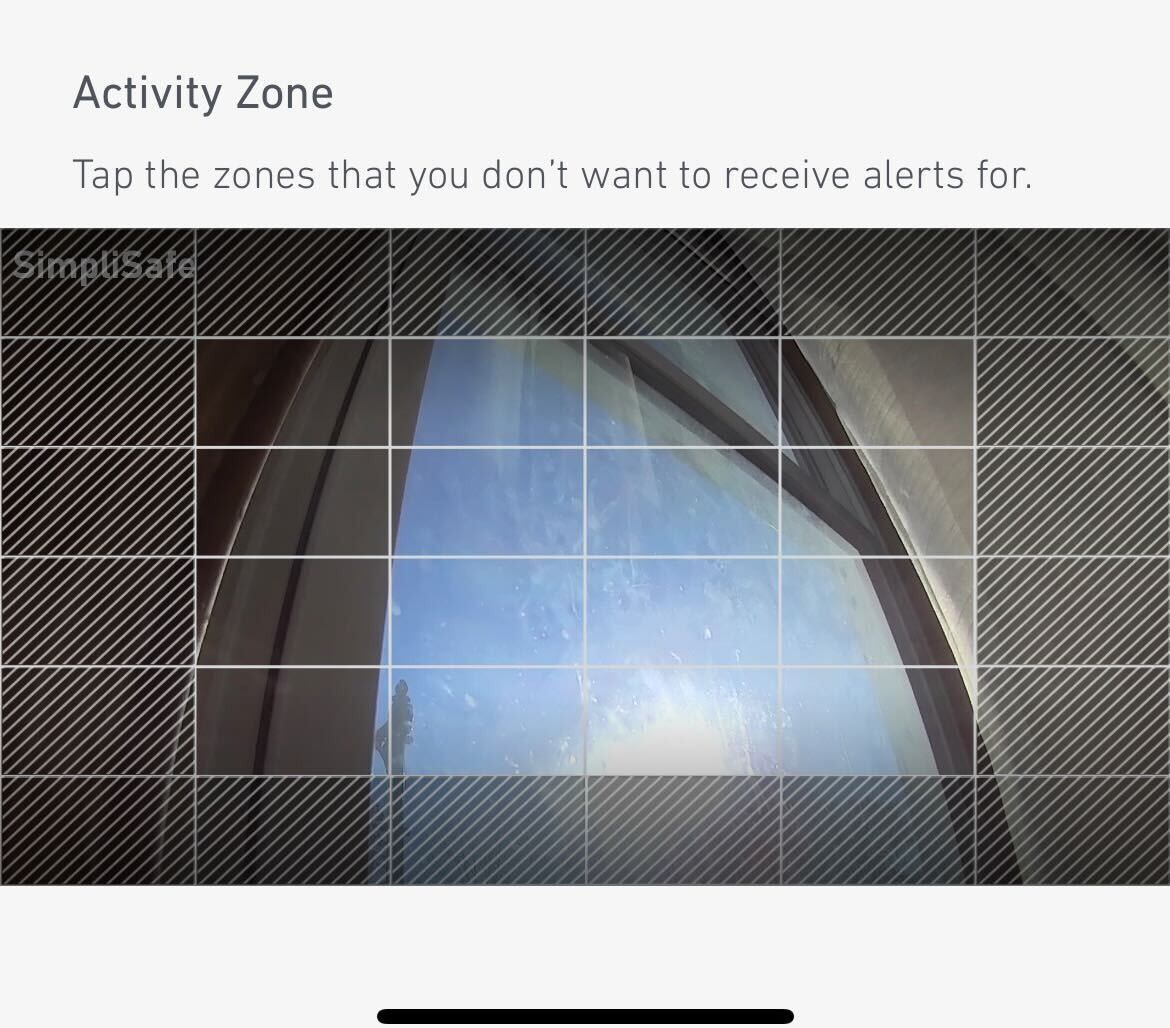
If your Outdoor Camera Series 2 is facing a high-traffic area like a busy street or pavement, we recommend angling the camera down to remove this area from its field of view, as seen in the image below.

Change the Camera’s Settings
If you cannot change the angle of the Outdoor Camera, there are settings you can adjust in the SimpliSafe® Mobile App to minimise the amount of motion it detects.
Sensitivity
By default, the Outdoor Camera’s sensitivity is set to High, but you can adjust this setting to Medium or Low to limit the number of motion events you receive.
You can adjust the sensitivity of your Outdoor Camera by taking the following steps:
SimpliSafe® Mobile App:
Open up the SimpliSafe® Mobile App on your mobile device or tablet
Tap Cameras on the navigation bar at the bottom of the screen
Select the gear icon in the top right corner to open Camera Settings
Choose the Outdoor Camera you’d like to adjust
Tap Motion Detection
Under Sensitivity, move the slider to Low
Tap Save in the top right corner to save this change
SimpliSafe® Online Account:
Log into your SimpliSafe® Online Account using the browser of your choice
If you manage multiple properties, choose the location you wish to update from the list by clicking on the Base Station Serial Number or Property Address
Select Devices from the navigation bar on the left side of the screen
Select the camera you want to update
A pop up menu will appear on the right hand side of the screen
Scroll down to Motion Sensitivity and move the slider to Low
When you are done, click Save Changes on the bottom of the pop up to save your selections
Motion Detection Type
The Outdoor Camera has two motion detection options: All Motion and People Only. When set to All Motion, the camera will record any motion it senses - which may cause excess motion events. However, if the camera is set to People Only it will only respond to people-shaped objects.
To minimize the amount of motion your Outdoor Camera detects, you can change its motion setting to People Only by following these steps:
Open up the SimpliSafe® Mobile App on your mobile device or tablet
Tap Cameras on the navigation bar at the bottom of the screen
Select the gear icon in the top right corner to open Camera Settings
Choose the Outdoor Camera you’d like to adjust
Tap Motion Detection
Under Motion Type, select People Only
Tap Save in the top right corner to save this change
Activtiy Zones
By setting up Activity Zones, you can block unnecessary sources of motion from the camera’s view, like tree branches, sidewalks, or busy streets.
To create Activity Zones, take the following steps:
Open up the SimpliSafe® Mobile App on your mobile device or tablet
Tap Cameras on the navigation bar at the bottom of the screen
Select the gear icon in the top right corner to open Camera Settings
Choose the Outdoor Camera you’d like to adjust
Tap Motion Detection
Under Activity Zone, tap the boxes in the frame where you do not want your camera to record
Tap Save in the top right corner to save this change
Additional Troubleshooting
If you’re still getting too many motion alerts when your camera is set to People Only mode, we recommend trying the following tricks:
Change your camera’s motion detection setting to All Motion
Turn your camera’s sensitivity down to Medium or Low
Set up Activity Zones around the perimeter of the camera’s field of view, as seen in the image below
Still Need Help?
If you’ve taken the steps above and your Outdoor Camera is still detecting excess motion, we recommend contacting our support team for further assistance.
Help Center Article
•
Outdoor Camera Series 2 UK
How to Download Recordings From Your Camera
Video clips from SimpliSafe® cameras can be downloaded to your mobile device using the SimpliSafe® Mobile App. Recordings are available with select monitoring plans.
Please note that if your camera name contains an apostrophe, this may limit your ability to download recordings. We recommend changing your camera’s name to exclude the use of an apostrophe before attempting to download any recordings.
How to Download
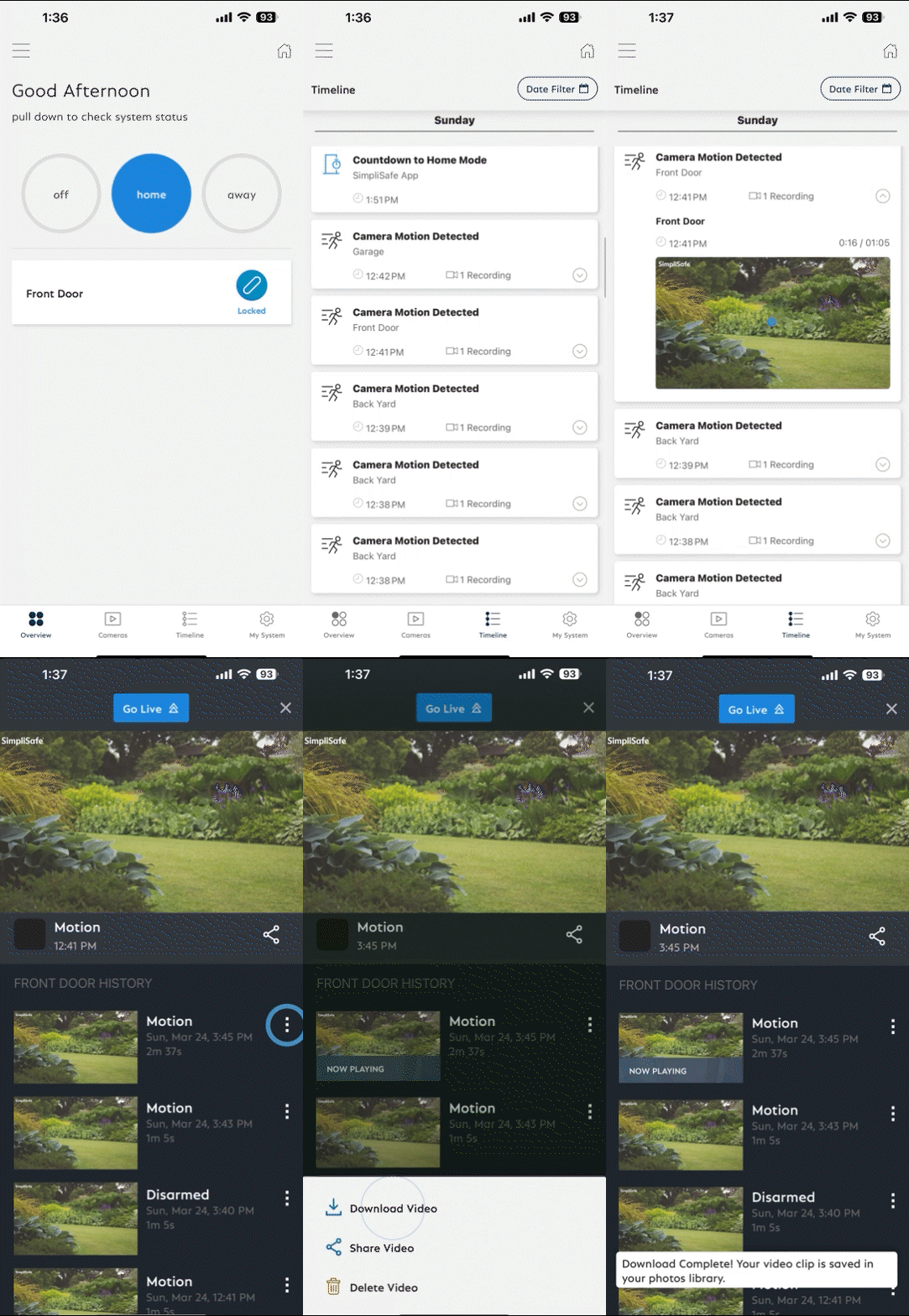
In the SimpliSafe® App, tap on Timeline from the bottom navigation bar
Swipe up and down through the Timeline and find the event whose clip you wish to download
Tap on the event and then tap on the video preview within the event
Tap the three-dot icon next to the recording and then choose Download Video
The clip will be saved to your phone
To access saved videos, go to your phone’s camera roll
How to Download Recordings Using the SimpliSafe® Online Account
Log into the SimpliSafe® Online Account using the browser of your choice
Select Timeline from the navigation menu on the left side of the screen
If you do not see the navigation menu, click the three-bar icon on the top left corner of the screen to reveal it
Scroll through the Timeline and find the event with the video clip you wish to download
Tap on the event and then tap on the video on the right side of the screen
Tap the download icon on the bottom right side of the video player
The clip will be saved to your computer
To access saved videos, go to your downloaded files in your computer
Is a Timestamp Included?
When you download a video from your timeline, the date and time that the recording was filmed is found at the end of the file name.
To find the timestamp, take the following steps:
Open your camera roll
Select the recording you downloaded
Tap the i icon on the bottom of the screen to display the video’s file name
This step may vary depending on your mobile device
At the end of the file name, you will see the date and time the recording was filmed
Note: the time stamp will be written in numbers, displayed as MM/DD/YYY_HH/MM/SS. So for a recording filmed on August 21, 2024 at 2:31:21 PM, the timestamp will be displayed as: 08212024_023121PM.


Help Center Article
•
Cameras
Outdoor Camera Motion Detection Troubleshooting
If you’re getting too many motion alerts when your camera is set to People Only mode, we recommend trying the following tricks:
Change your camera’s motion detection setting to All Motion
Turn your camera’s sensitivity down to Medium or Low
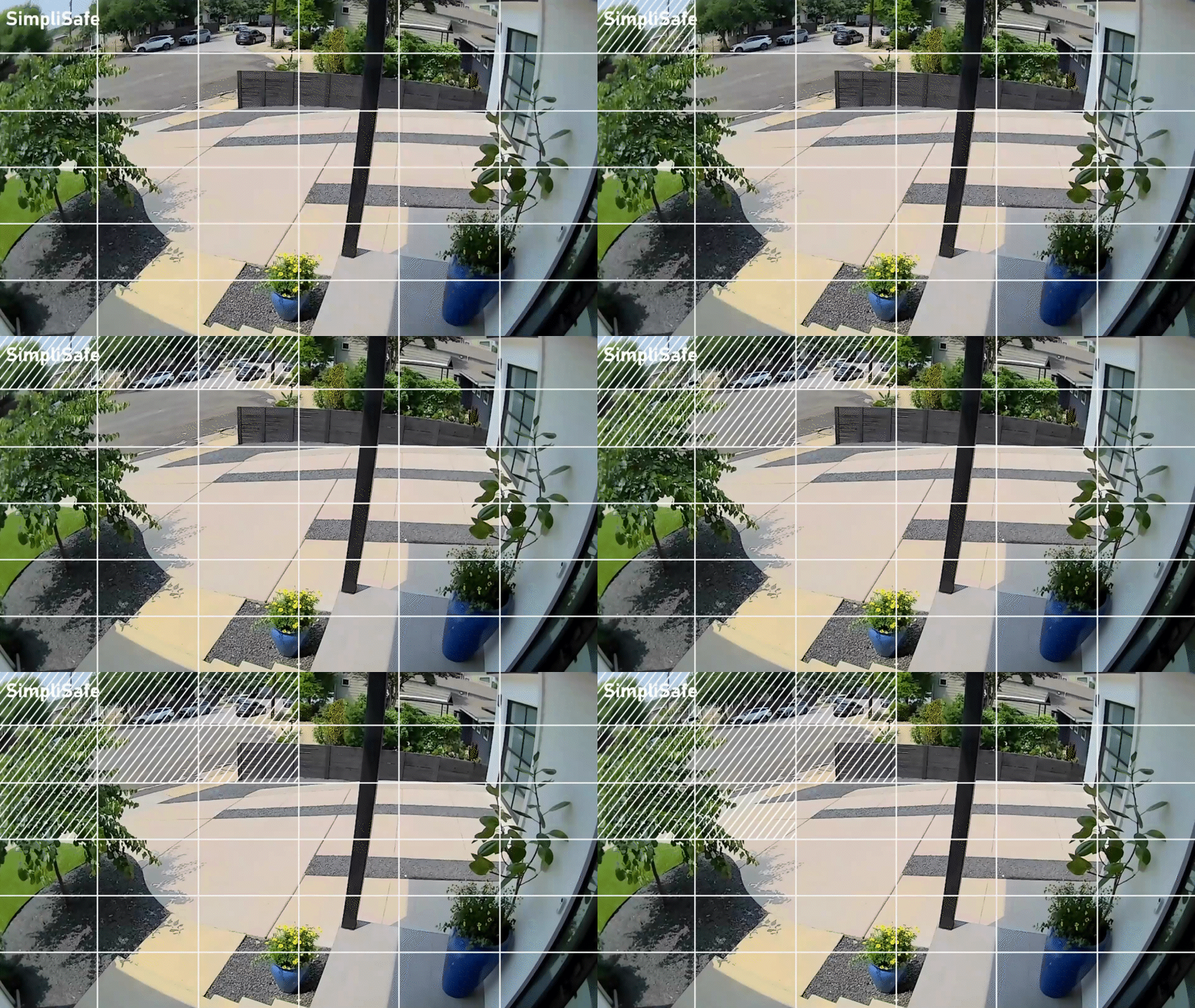
If you have Activity Zones set up, adjust them to also block off the zones around the image that the camera is detecting, as seen in the GIF below
How to Change Your Camera’s Settings
You can change your camera’s motion detection settings using either the SimpliSafe® Mobile App or Web App by taking the steps below.
SimpliSafe® Mobile App
Open the SimpliSafe® Mobile App on your phone or tablet
Select the Cameras tab from the navigation bar at the bottom of the screen
Tap on the gear icon to open up Camera Settings in the top right corner of the app
Select the camera you want to update
Adjust your camera’s motion detection settings as needed
When you are done, select Save in the top right corner to save your selections
SimpliSafe® Web App
Log into your SimpliSafe® account using the Web App on a computer
If you manage multiple properties, choose the location you wish to update from the list by clicking on the Base Station Serial Number or Property Address
Select Devices from the navigation bar on the left side of the screen
Select the camera you want to update
A pop up menu will appear on the right hand side of the screen
Adjust your camera’s motion detection settings as needed
When you are done, click Save Changes on on the bottom of the pop up to save your selections
If you run into any additional issues with your Wireless Outdoor Security Camera's motion detection, the following guided flow can walk you through some steps and best practices for using your camera.
Help Center Article
•
Outdoor Cameras
How to Find the MAC Address of a SimpliSafe® Device
In some instances, you may need to add the MAC Address of a SimpliSafe® product to your network’s allow list or firewall in order for it to connect to Wi-Fi. A MAC Address is a unique, 12-character alphanumeric attribute that is used to identify individual electronic devices on a network.
Only the Base Station and the Cameras will provide a MAC Address, as they connect to Wi-Fi. Other SimpliSafe® products connect to the Base Station using Radio Frequency (RF).
Note: If you have MAC Address filtering enabled on your network, you may need to temporarily disable it while setting up your camera, to allow it to connect. You’ll be able to determine the MAC Address to add to your allow list once the device is connected.
Base Station
For the Base Station, you will need to use your Keypad to locate its MAC Address.
Press Menu on your Keypad
Enter your Primary PIN
Using the arrow keys, select System Settings
Then choose Diagnostics
Use the right arrow and toggle to the Wi-Fi screen, where the MAC Address will be listed
Cameras
You can locate the MAC Address of a SimpliSafe® Camera using the SimpliSafe® Mobile App.
Open the SimpliSafe® Mobile App on your phone or tablet
Choose My System from the bottom navigation bar
Select Camera Settings
Tap on the Camera you wish to find the MAC Address for
Scroll to the bottom of this screen. Your Cameras MAC Address will be listed in the MAC Address field.
Help Center Article
•
Cameras
Can't Initiate Live Stream From Within the SimpliSafe® App
If you are unable to initiate a live stream from within the SimpliSafe® Mobile App or Online Account, there are a few steps you can take to try and get things running again.
Using the Connection Check Tool
The Connection Check Tool for Cameras is a great way to better understand your signal strength and upload speed from the router to where your camera is located.
To use the Connection Check Tool:
Open the SimpliSafe® Mobile App on your phone or tablet
Choose My System from the bottom navigation bar
Select Camera Settings
Choose your camera from the list of available cameras
Under “Connection” select “Connection Check”
Tap “Start Connection Check” to find your camera’s connection strength
What do my Results Mean?
A good signal strength and/or upload speed means that there is a strong connection between your camera and Wi-Fi network.
A fair or poor upload speed means that you’ll want to reduce your camera’s video resolution. You can do this within the Camera Settings page for your camera in the SimpliSafe® Mobile App.
Open the SimpliSafe® Mobile App on your phone or tablet
Choose My System from the bottom navigation bar
Select Camera Settings
Choose your camera from the list of available cameras
Tap on Video Quality
Choose a lower resolution
Select SAVE in the upper right corner to save your selections
It may also be necessary to upgrade your Internet package with your Internet Service Provider (ISP) to improve upload speeds. We recommend reaching out to your ISP to learn more about their offerings.
A fair or poor signal strength means your camera may be too far away from your Wi-Fi router. We recommend moving them closer, if possible. If not, you can opt to install a Wi-Fi extender to help bridge the network connectivity gap between the two. You can also move SimpliSafe® to a dedicated network or guest network to alleviate congestion. To learn more about setting up a dedicated or guest network, contact your Internet Service Provider (ISP) or consult with your router’s manual.
Still Need Help?
Don't hesitate to contact our support team for additional troubleshooting or assistance. We're here to help!
Help Center Article
•
Cameras
Wireless Outdoor Security Camera Settings & Customisations
The Wireless Outdoor Security Camera has a variety of settings that can be customised, such as Night Vision, Motion Detection, Picture Quality, and more, all within the SimpliSafe® Mobile App or Web App.
Using the SimpliSafe® Mobile App
Open the SimpliSafe® Mobile App on your phone or tablet
Choose My System from the bottom navigation bar
Select Camera Settings
Choose your Wireless Outdoor Security Camera from the list of available cameras
Camera Behavior
You can customise your Outdoor Camera by changing the motion detection to coincide with your system’s arming state. For example, if you don’t want your system to record when the system is set to OFF but you do want it to record when it’s set to AWAY, you can now control these settings.
To change these settings, tap into either OFF, HOME, or AWAY and make the adjustments to Motion Detection and Motion Notifications. Then, choose SAVE in the upper right corner of the app to save your selections.
Motion Detection
Motion Detection settings control how your camera will respond to motion events, such as someone walking in its view or a car driving by. In this menu, you can use the slider to adjust sensitivity, as well as change the Motion Type to detect All Motion or People Only. You’ll also be able to filter motion detection further by creating Activity Zones, which allow you to exclude certain areas from motion events. This is great if you live near a busy sidewalk or street!
Video Quality
Video Quality manages what quality your streams and recordings will be at. For the Wireless Outdoor Security Camera you can adjust this to 1080p, 720p, or 480p. The higher the stream, the more bandwidth it will use on your network. So if you’re having trouble streaming at 1080p, you can try lowering the quality as a troubleshooting step on your end.
Flip Image 180
This option is available should you mount your Outdoor Camera upside down, such as on an eave. When mounting your camera upside down, you will actively decrease the distance that it picks up motion in half. Specifically, an upside down Outdoor Camera will pick up motion within 15 feet, as opposed to 30 when in a normal orientation.
Mic & Audio
The Mic & Audio setting allows you to hear audio from your camera, and also allows you to initiate two-way communication when viewing live streams.
Siren
Your camera has a built-in siren that will relay the siren from your system in the event of an alarm so that neighbors or nearby passersby know that you may need help.
Status Light
The status light for your camera will show you that the camera is online and functioning, at a glance.
Help Center Article
•
Outdoor Cameras
Wireless Outdoor Security Camera Error Messages
CONNECTION ERROR
WHAT IT MEANS
If your Outdoor Camera is not responding, it’s likely due to either a low or dead battery or the camera is unable to connect to Wi-Fi. Please note that SimpliSafe systems and cameras require 2.4GHz Wi-Fi networks.
HOW TO FIX IT
Remove the battery from the camera and charge it with the usb charging cord that came included with your camera to ensure your battery is fully charged.
Confirm that your camera is connected to the correct network and that the name and password for the network have been entered correctly. You can do this my accessing the camera's settings in the SimpliSafe mobile app.
Try bringing the camera and your internet router closer together, as too far a distance can weaken the internet connection to the device.
Restart your router and/or mesh access points and extenders.
Try bringing the camera and Base Station closer together, as too far of a distance between them can weaken the Outdoor Camera’s connection to your system and cause this error.
If this error persists, you may need to contact your Internet Service Provider to inquire about service availability and interruptions, and about upgrading your internet package and/or router.
You can click here to learn more about improving your upload speed, and click here to learn more about improving Wi-Fi signal strength. Please note that SimpliSafe systems and cameras require 2.4GHz Wi-Fi networks.
WE’VE DETECTED AN ISSUE WITH THIS CAMERA
WHAT IT MEANS
A hardware issue was detected on your camera.
HOW TO FIX IT
Contact Customer Support for assistance resolving this issue.
UNABLE TO CONNECT TO SIMPLISAFE
WHAT IT MEANS
SimpliSafe® is experiencing an issue, but there’s nothing wrong with your system.
HOW TO FIX IT
The issue should be resolved shortly, so please try again later. If you continue to experience the issue, please contact Customer Support.
Update Software
WHAT IT MEANS
The Wireless Outdoor Security Camera requires a Gen 3 Base Station with the latest firmware updates to run smoothly.
HOW TO FIX IT
Before setting up the camera, you will need to update the Base Station firmware via the Keypad.
Unable to Stream to Your Device
WHAT IT MEANS
Some Android devices are unable to support the video playback on our Outdoor camera due to their hardware configuration.
HOW TO FIX IT
While we review the issue internally, please attempt to update your mobile devices operating system to the latest version. If that does not resolve the issue, please try using a newer Android device or the SimpliSafe® Online Account.
Help Center Article
•
Outdoor Cameras