Conversation List
Performance Mode for Cameras
When connected to a continuous power source, the Outdoor Camera and Smart Alarm Wireless Indoor Security Camera can enter performance mode.
When performance mode is enabled for a camera, the camera will remain awake allowing for faster live streams versus battery power. This feature is available to the Outdoor Camera and Smart Alarm Indoor Camera when running firmware version 1.20 or higher, and occurs automatically when the camera is plugged into a power source and it has at least 90% charge. If your camera battery ever drops below 70%, your camera will automatically exit performance mode to conserve battery.
Performance mode also allows the cameras to begin recording while it determines whether or not the observed motion event was a person or another object (such as a passing car, a tree blowing in the wind, or an indoor pet). This allows for more complete recordings of motion events delivered to your timeline in the SimpliSafe® Mobile App.
Help Center Article
•
Cameras
How to Reorder Cameras in the SimpliSafe® App
An exciting feature of the SimpliSafe® App is the ability to reorder your list of cameras in the Cameras tab in the app*. This is helpful if you want to see your cameras in alphabetical order, or organized in any specific way.

To Reorder Your Cameras in the SimpliSafe® App:
Open the SimpliSafe® App on your phone or tablet
Select Cameras from the navigation bar on the bottom of the screen
Tap on the reorder icon on the upper right corner of the screen

Press and hold a camera to drag and reorder it
Follow step 4 again for any other cameras you want to reorder
*Note: This feature is only to reorder your cameras in the SimpliSafe® app. Changing the order of your sensors is currently not supported.
Help Center Article
•
Outdoor Cameras
Too Many Motion Alerts From the Outdoor Security Camera Series 2
If you find that your Outdoor Security Camera Series 2 is detecting motion and you’re receiving too many notifications or alerts, there are some recommended placement and settings changes you can make to reduce the number of notifications.
Adjust the Placement of the Camera
If your Outdoor Camera Series 2 is facing a high-traffic area like a busy street or sidewalk, we recommend angling the camera down to remove this area from its field of view, as seen in the image below.
Change the Camera’s Settings
If you cannot change the angle of the Outdoor Camera, there are settings you can adjust in the SimpliSafe® Mobile App to minimize the amount of motion it detects.
Sensitivity
By default, the Outdoor Camera’s sensitivity is set to High, but you can adjust this setting to Medium or Low to limit the number of motion events you receive.
You can adjust the sensitivity of your Outdoor Camera by taking the following steps:
SimpliSafe® Mobile App:
Open up the SimpliSafe® Mobile App on your mobile device or tablet
Choose My System from the bottom navigation bar
Select Camera Settings from the list of menu options
Choose the Outdoor Camera you’d like to adjust
Tap Motion Detection
Under Sensitivity, move the slider to Low
Tap Save in the top right corner to save this change
SimpliSafe® Online Account:
Log into your SimpliSafe® Online Account using the browser of your choice from a computer
If you manage multiple properties, choose the location you wish to update from the list by clicking on the Base Station Serial Number or Property Address
Select Devices from the navigation bar on the left side of the screen
Select the camera you want to update
A pop up menu will appear on the right hand side of the screen
Scroll down to Motion Sensitivity and move the slider to Low
When you are done, click Save Changes on the bottom of the pop up to save your selections
Motion Detection Type
The Outdoor Camera has two motion detection options: All Motion and People Only. When set to All Motion, the camera will record any motion it senses - which may cause excess motion events. However, if the camera is set to People Only it will only respond to people-shaped objects.
Note: When your Outdoor Camera Series 2 is enrolled in SimpliSafe® Active Guard Outdoor Protection, you will have different Motion Detection setting options available.
To minimize the amount of motion your Outdoor Camera detects, you can change its motion setting to People Only by following these steps:
Open up the SimpliSafe® Mobile App on your mobile device or tablet
Select My System from the bottom navigation bar
Choose Camera Settings
Tap the Outdoor Camera you’d like to adjust
Select Motion Detection
Under Motion Type, select People Only
Tap Save in the top right corner to save this change
Activtiy Zones
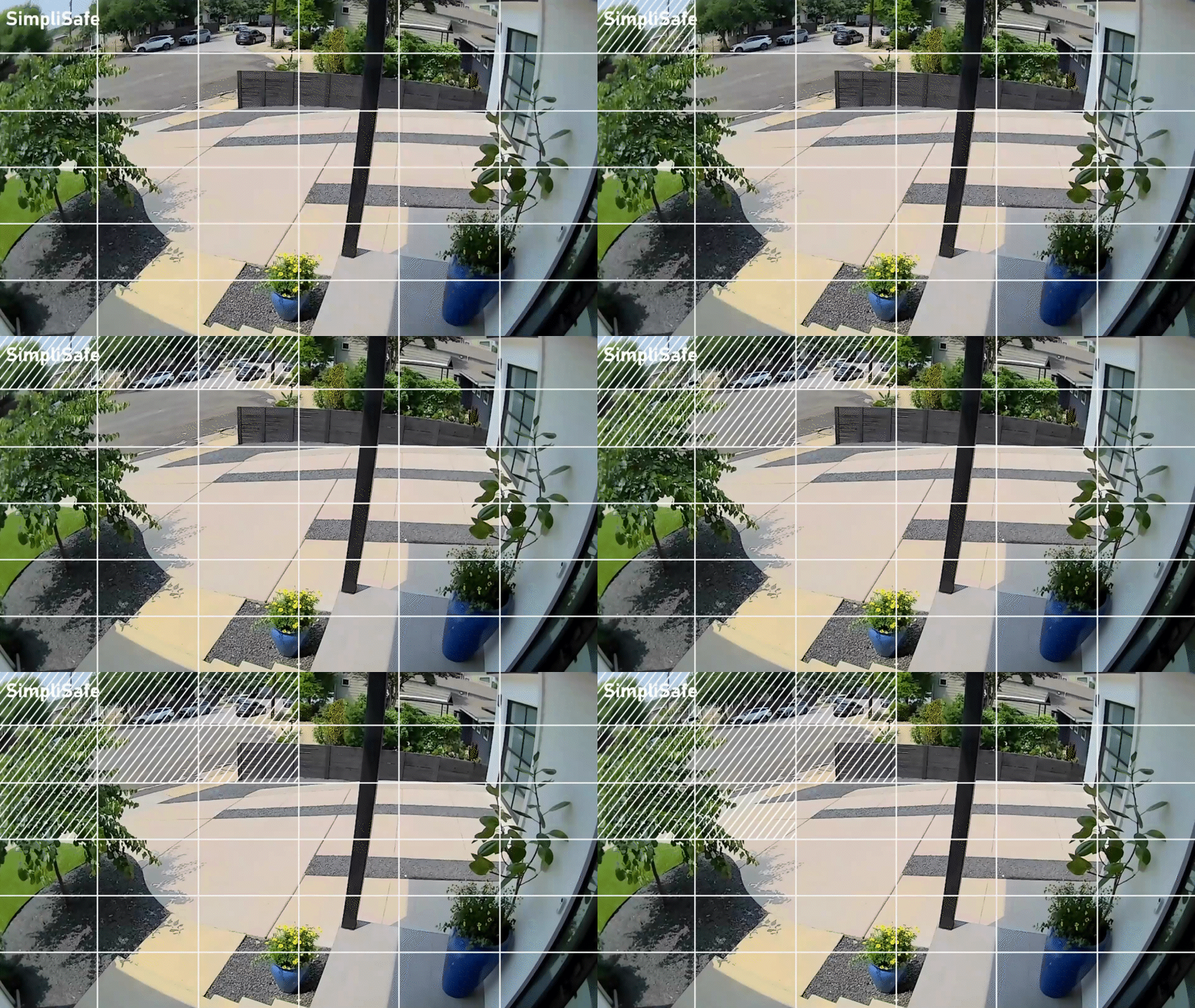
By setting up Activity Zones, you can block unnecessary sources of motion from the camera’s view, like tree branches, sidewalks, or busy streets.
To create Activity Zones, take the following steps:
Open up the SimpliSafe® Mobile App on your mobile device or tablet
Choose My System from the bottom navigation bar
Select Camera Settings
Tap the Outdoor Camera you’d like to adjust
Choose Motion Detection
Under Activity Zone, tap the boxes in the frame where you do not want your camera to record
Tap SAVE in the top right corner to save your selections
Additional Troubleshooting
If you’re still getting too many motion alerts when your camera is set to People Only mode, we recommend trying the following tricks:
Change your camera’s motion detection setting to All Motion
Turn your camera’s sensitivity down to Medium or Low
Set up Activity Zones around the perimeter of the camera’s field of view
Help Center Article
•
Outdoor Cameras
Where Should I Place My Smart Alarm Wireless Indoor Security Camera?
Placement of your Smart Alarm Wireless Indoor Security Camera can vary from home to home. To get the most out of your camera, we recommend placing it in a spot that covers a significant portion of a room.
Here are some tips to keep in mind when finding the right location to install your camera:
Place the camera in a room or area where subjects are likely to spend time in if there is an alarm
The motion detector is most sensitive to side-to-side motion with its 125-degree field of view
Do not position the camera so that only a doorway is in frame
Do not position the camera to look outside through a window or doorway
The following is an example of a floor plan and how we would recommend placing the Smart Alarm Indoor Camera within this home.
Help Center Article
•
Smart Alarm Indoor Camera
Video Doorbell Pro Motion Detection
All SimpliSafe® Video Doorbell Pros use both video analytics and passive infrared (PIR) to detect motion in its field of view. Our granular motion detection options allow you to better control the quantity and types of notifications you get by customizing your activity zones, motion types, and sensitivities. The camera has a 120 degree field of view and a motion detection zone of 90 degrees from left to right, downward, and straight out.
When motion is detected, the doorbell will issue a notification to alert you. If you are subscribed to a monitoring plan that includes video recordings, the Video Doorbell Pro will also record the event. If you are not subscribed to either of those plans, you will still be able to live stream the event through your Video Doorbell Pro.
Activity Zones
During the daytime, your Video Doorbell Pro can ignore parts of its view that you don’t want to be notified about, like busy streets or sidewalks.

Motion Type
You can set your Video Doorbell Pro to one of two different motion settings, All Motion or People Only.
When set to All Motion, the Video Doorbell Pro will notify you when it senses any motion moving across its field of view. But when set to People Only mode, the Video Doorbell Pro will only notify you when it detects people-shaped objects.
Sensitivity
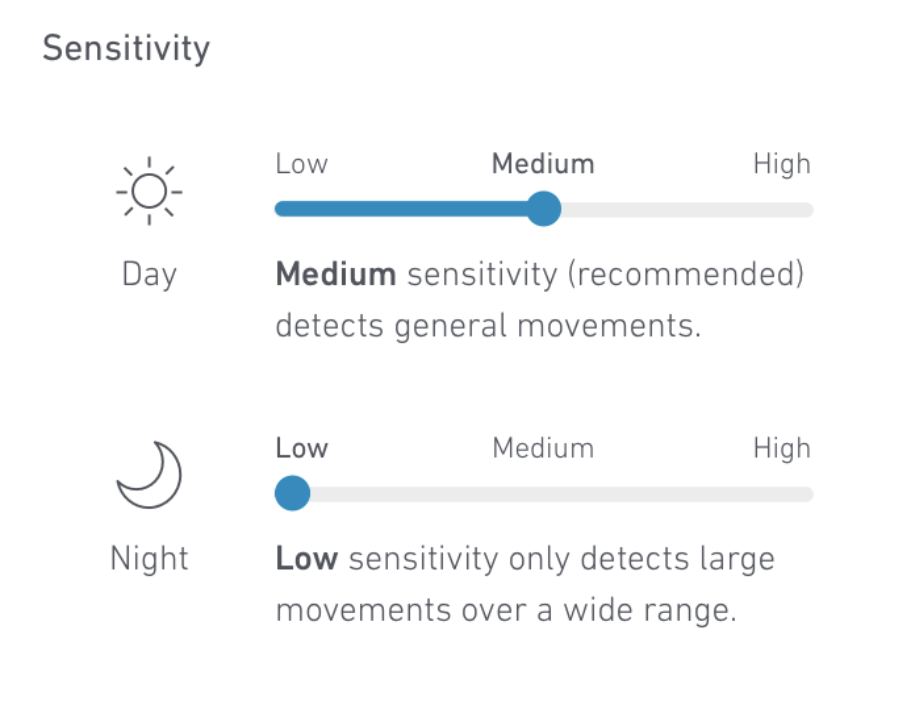
You can separately set daytime and nighttime sensitivity for more granular control using the options below:
High: High Sensitivity detects any motion, which may cause frequent alerts
Medium (recommended): Detects general movements
Low: Only detects large movements over a wide range
How to Enable These Features
Open the SimpliSafe® Mobile App on your smartphone or tablet
Select My System from the navigation bar at the bottom of the screen
Choose Camera Settings
Select the Video Doorbell Pro that you would like to change the settings for
Choose Motion Detection
You can learn more about changing your Video Doorbell Pro’s motion detection settings here.
Need More Help?
If your Video Doorbell Pro is powered up, but has stopped detecting motion or recording, see the Video Doorbell Pro Stopped Working article for more information. If you are receiving too many notifications from your Video Doorbell Pro, please visit our Too Many Motion Alerts From Video Doorbell Pro article.
Help Center Article
•
Video Doorbell Pro
How to Download Recordings From Your Camera
Video clips from SimpliSafe® cameras can be downloaded to your mobile device using the SimpliSafe® Mobile App. Recordings are available with select monitoring plans.
Please note that if your camera name contains an apostrophe, this may limit your ability to download recordings. We recommend changing your camera’s name to exclude the use of an apostrophe before attempting to download any recordings.
How to Download Recordings Using the SimpliSafe® App:

In the SimpliSafe® App, tap on Timeline from the bottom navigation bar
Swipe up and down through the Timeline and find the event whose clip you wish to download
Tap on the event and then tap on the video preview within the event
Tap the three-dot icon next to the recording and then choose Download Video
The clip will be saved to your phone
To access saved videos, go to your phone’s camera roll
How to Download Recordings Using the SimpliSafe® Online Account
Log into the SimpliSafe® Online Account using the browser of your choice
Select Timeline from the navigation menu on the left side of the screen
If you do not see the navigation menu, click the three-bar icon on the top left corner of the screen to reveal it
Scroll through the Timeline and find the event with the video clip you wish to download
Tap on the event and then tap on the video on the right side of the screen
Tap the download icon on the bottom right side of the video player
The clip will be saved to your computer
To access saved videos, go to your downloaded files in your computer
Is a Timestamp Included?
When you download a video from your timeline, the date and time that the recording was filmed is found at the end of the file name.
To find the timestamp, take the following steps:
Open your camera roll
Select the recording you downloaded
Tap the i icon on the bottom of the screen to display the video’s file name
This step may vary depending on your mobile device
At the end of the file name, you will see the date and time the recording was filmed
Note: the time stamp will be written in numbers, displayed as MM/DD/YYY_HH/MM/SS. So for a recording filmed on August 21, 2024 at 2:31:21 PM, the timestamp will be displayed as: 08212024_023121PM.


Help Center Article
•
Cameras
Outdoor Camera Motion Detection Troubleshooting
If you’re getting too many motion alerts when your camera is set to People Only mode, we recommend trying the following tricks:
Change your camera’s motion detection setting to All Motion
Turn your camera’s sensitivity down to Medium or Low
If you have Activity Zones set up, adjust them to also block off the zones around the image that the camera is detecting, as seen in the GIF below
How to Change Your Camera’s Settings
You can change your camera’s motion detection settings using either the SimpliSafe® Mobile App or Web App by taking the steps below.
SimpliSafe® Mobile App
Open the SimpliSafe® Mobile App on your phone or tablet
Choose My System from the bottom navigation bar
Select Camera Settings from the list of available menu options
Select the camera you want to update
Adjust your camera’s motion detection settings as needed
When you are done, select Save in the top right corner to save your selections
SimpliSafe® Online Account
Log into your SimpliSafe® account using the browser of your choice on a computer
If you manage multiple properties, choose the location you wish to update from the list by clicking on the Base Station Serial Number or Property Address
Select Devices from the navigation bar on the left side of the screen
Select the camera you want to update
A pop up menu will appear on the right hand side of the screen
Adjust your camera’s motion detection settings as needed
When you are done, click Save Changes on on the bottom of the pop up to save your selections
Help Center Article
•
Outdoor Cameras