Conversation List
How to use SimpliSafe® Active Guard Outdoor Protection
SimpliSafe® Active Guard Outdoor Protection builds upon our existing professional monitoring services and is included as part of two new plans: Pro Plus and Pro monitoring plans for residential and business use. All while being designed to prevent crime before it happens.
The following article will walk you through getting started with it and how to use it on a daily basis. We recommend scrolling through each collapsible section to learn how to get the most out of your service.
Help Center Article
•
Outdoor Cameras
How to Find the MAC Address of a SimpliSafe® Device
In some instances you may need to add the MAC Address of a SimpliSafe® product to your network’s allow list or firewall in order for it to connect to Wi-Fi. A MAC Address is a unique, 12-character alphanumeric attribute that is used to identify individual electronic devices on a network.
Only the Base Station and the Cameras will provide a MAC Address, as they connect to Wi-Fi. Other SimpliSafe® products connect to the Base Station using Radio Frequency (RF).
Note: If you have MAC Address filtering enabled on your network, you may need to temporarily disable it while setting up your camera, to allow it to connect. You’ll be able to determine the MAC Address to add to your allow list once the device is connected.
Base Station
For the Base Station, you will need to use your Keypad to locate its MAC Address.
Press Menu on your Keypad
Enter your Master PIN
Using the Keypad’s arrow keys, select System Settings
Then choose Diagnostics
Press the Keypad screen to the right to toggle to the Wi-Fi screen, where the MAC Address will be listed
Cameras
You can locate the MAC Address of a SimpliSafe® Camera using the SimpliSafe® Mobile App.
Open the SimpliSafe® Mobile App on your phone or tablet
Choose My System from the bottom navigation bar
Select Camera Settings from the list of available menu options
Tap on the Camera you wish to manage
Scroll to the bottom of this screen. Your Cameras MAC Address will be listed in the MAC Address field.
Help Center Article
•
Cameras
Why Can’t I Initiate a Live Stream of my Video Doorbell From the SimpliSafe® App?
The Video Doorbell Pro utilizes Wi-Fi to communicate with your SimpliSafe® system. If your Video Doorbell Pro is not livestreaming, there may be an underlying connection issue that needs to be addressed.
Use the Connection Check in the SimpliSafe® App
The Video Doorbell Pro has the ability to run a connection check between it and your network to see if there are any improvements that can be made to its Wi-Fi connection.
How to Run a Connection Check:
Open the SimpliSafe® app
Tap My System from the navigation menu on the bottom of the screen
Select Camera Settings
Choose your Video Doorbell
Select Connection Check and follow the on-screen instructions to test your signal strength and upload speeds
Using your results, you can improve your Video Doorbell Pro’s connection with the tips below.
Camera Requirements:
Signal strength should be above -55dBm. A lower number means a greater connection between your camera and router.
If you have a low signal strength, you can try to troubleshoot your Wi-Fi network and improve your signal strength.
Upload speed needs to be above 2Mbps for 720p video
If your upload speed is below 2Mbps, you may need to contact your Internet Service Provider (ISP) to upgrade your internet package.
Check Your Phone or Tablet’s Connection
Sometimes if the device you are trying to view a livestream on has a weak Wi-Fi or cellular connection, that can lead to issues loading a livestream. Check your device’s connection, and if it is weak try loading the live stream from another device or on the SimpliSafe® Online Account.
Help Center Article
•
Video Doorbell Pro
Can't Initiate Live Stream From Within the SimpliSafe® App
If you are unable to initiate a live stream from within the SimpliSafe® Mobile App or Online Account, there are a few steps you can take to try and get things running again.
Using the Connection Check Tool
The Connection Check Tool for Cameras is a great way to better understand your signal strength and upload speed from the router to where your camera is located.
To use the Connection Check Tool:
Open the SimpliSafe® Mobile App on your phone or tablet
Choose My System from the bottom navigation bar
Select Camera Settings
Choose your camera from the list of available cameras
Under “Connection” select “Connection Check”
Tap “Start Connection Check” to find your camera’s connection strength
What do my Results Mean?
A good signal strength and/or upload speed means that there is a strong connection between your camera and Wi-Fi network.
A fair or poor upload speed means that you’ll want to reduce your camera’s video resolution. You can do this within the Camera Settings page for your camera in the SimpliSafe® Mobile App.
Open the SimpliSafe® Mobile App on your phone or tablet
Choose My System from the bottom navigation bar
Select Camera Settings
Choose your camera from the list of available cameras
Tap on Video Quality
Choose a lower resolution
Select SAVE in the upper right corner to save your selections
It may also be necessary to upload your Internet package with your Internet Service Provider (ISP) to improve upload speeds. We recommend reaching out to your ISP to learn more about their offerings.
A fair or poor signal strength means your camera may be too far away from your Wi-Fi router. We recommend moving them closer, if possible. If not, you can opt to install a Wi-Fi extender to help bridge the network connectivity gap between the two. You can also move SimpliSafe® to a dedicated network or guest network to alleviate congestion. To learn more about setting up a dedicated or guest network, contact your Internet Service Provider (ISP) or consult with your router’s manual.
Still Need Help?
Don't hesitate to contact our support team for additional troubleshooting or assistance. We're here to help!
Help Center Article
•
Cameras
SimpliCam® Wired Indoor Camera Settings & Customizations
The SimpliCam® Wired Indoor Security Camera has a variety of settings that can be customized, like Camera Behavior, Video Quality, Night Vision, and more! You can make adjustments to the camera’s settings in the SimpliSafe® Mobile App.
Using the SimpliSafe® Mobile App
Open the SimpliSafe® Mobile App on your phone or tablet
Choose My System from the navigation bar at the bottom of the screen
Select Camera Settings
Choose your SimpliCam® from the list of cameras
Camera Behavior
You can control your camera’s built-in privacy shutter by changing the motion detection depending on your system’s arming state. This means that you can adjust when your camera records as it is tied to your system’s arming state.
For example, if you don’t want your camera to record when the system is in Off Mode, but you do want it to record when it is in Away Mode, you can control these settings.
Motion Detection
Motion Detection settings control how your camera responds to motion events, such as someone walking in its view.
In this menu, you can use the slider to choose the sensitivity of motion detection. We typically recommend setting this to medium.
Here, you can also toggle Motion Events on and off to dictate if you would like your camera to detect motion or not, and Motion Notifications turn push notifications on or off.
Video Quality
Video Quality manages the quality of your recordings and livestreams. This can be adjusted to 1080p, 720p, or 480p. When a livestream is set to a higher quality, it will use more bandwidth on your network. So, if you’re having trouble streaming at 1080p, you can try lowering the quality to troubleshoot on your end.
Night Vision
The Night Vision setting allows you to see potential intruders in the dark, by using infrared to capture video. This setting can be toggled to Auto, On, or Off. We recommend using Auto for the most optimal experience, but if your camera is in a persistently dark room, you may want to set Night Vision to On for better results.
Status Light
The Status Light will show you when your camera is recording or livestreaming. Toggling this setting off will disable the light on the front of the camera. Within the Status Light setting in the app, you can also see the different light patterns your SimpliCam® can produce and what they mean.
Mic & Audio
The Mic & Audio setting allows you to record audio with camera footage and lets you speak through the camera’s microphone when utilizing 2-way audio.
Help Center Article
•
SimpliCam
Wireless Outdoor Security Camera Settings & Customizations
The Wireless Outdoor Security Camera has a variety of settings that can be customized, such as Motion Detection, Night Vision, Video Quality, and more! You can adjust these settings at any time using the SimpliSafe® Mobile App.
Using the SimpliSafe® Mobile App
Open the SimpliSafe® Mobile App on your phone or tablet
Choose My System from the bottom navigation bar
Select Camera Settings
Choose your Wireless Outdoor Security Camera from the list of available cameras
Camera Behavior
You can customize your Outdoor Camera by changing the motion detection to coincide with your system’s arming state. For example, if you don’t want your system to record when the system is set to OFF but you do want it to record when it’s set to AWAY, you can now control these settings.
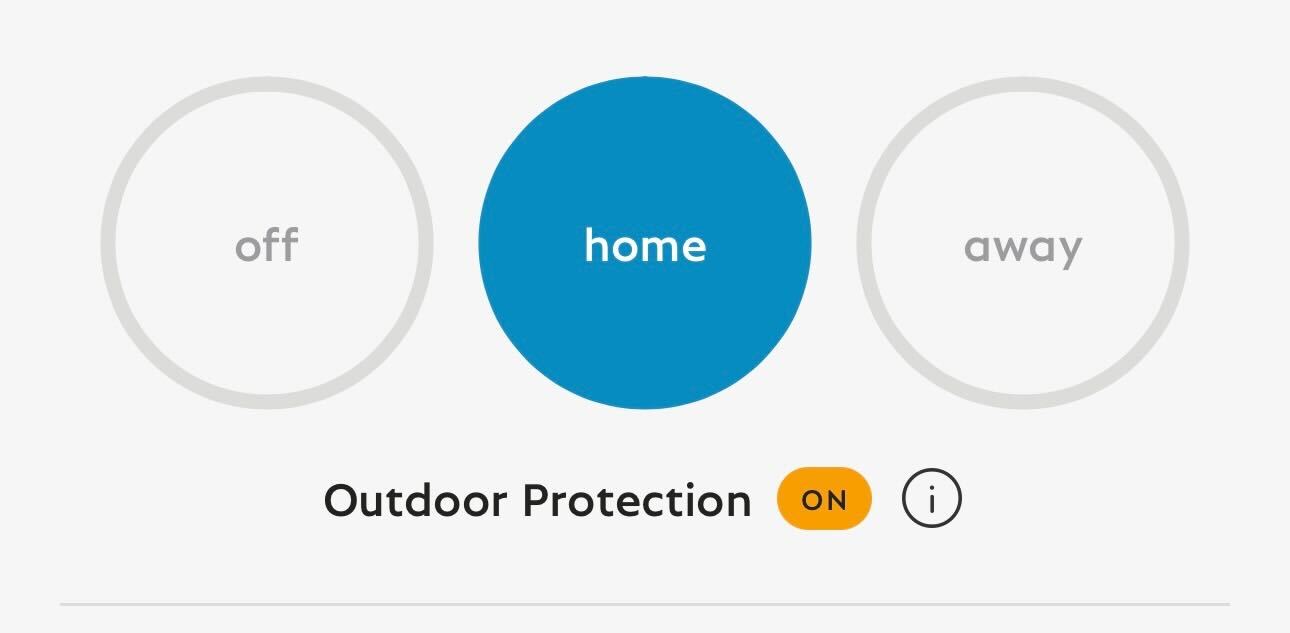
To change these settings, tap into either OFF, HOME, or AWAY and make the adjustments to Motion Detection and Motion Notifications. Then, choose SAVE in the upper right corner of the app to save your selections.
Motion Detection
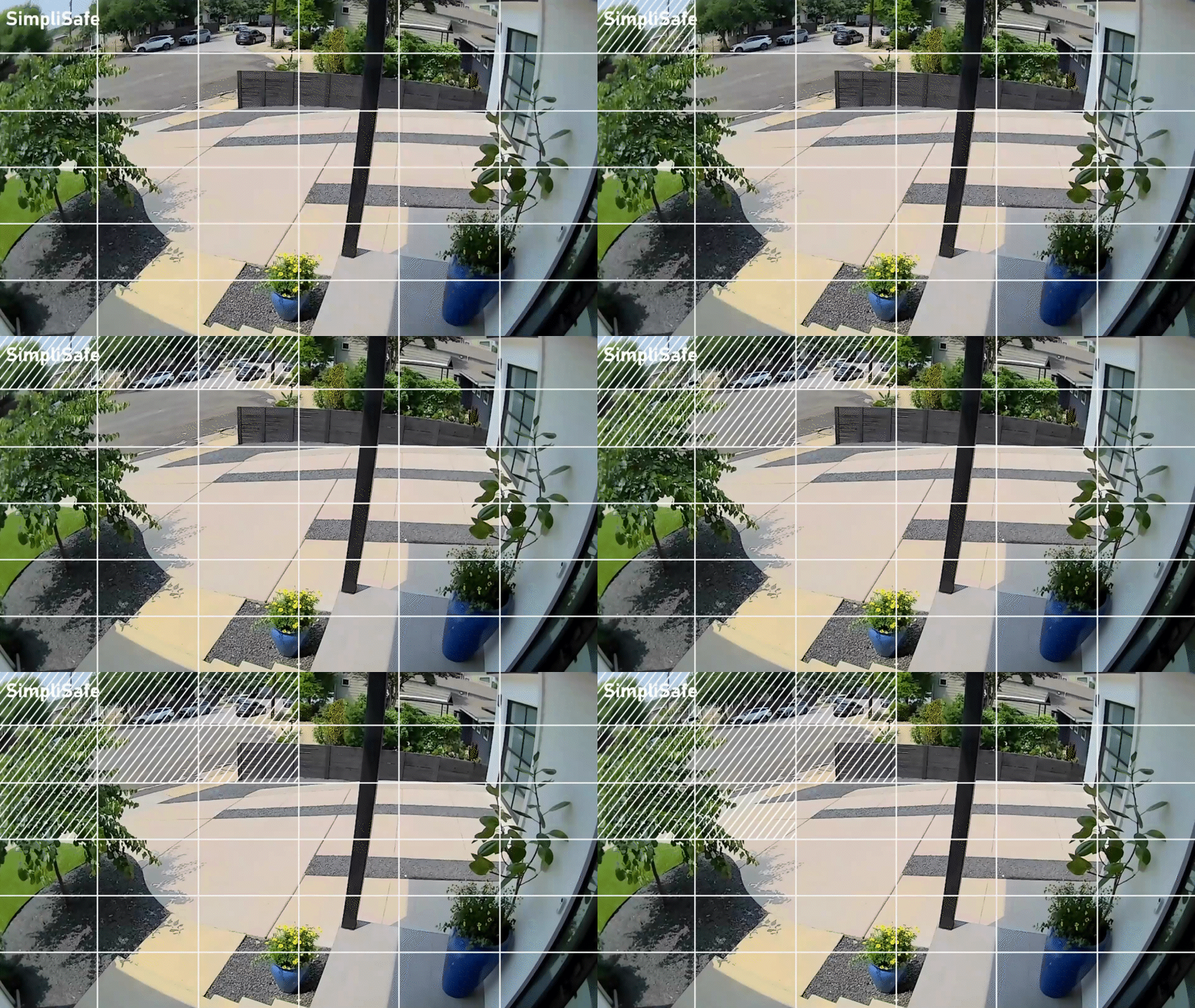
Motion Detection settings control how your camera will respond to motion events, such as someone walking in its view or a car driving by. In this menu, you can use the slider to adjust sensitivity, as well as change the Motion Type to detect All Motion or People Only. You’ll also be able to filter motion detection further by creating Activity Zones, which allow you to exclude certain areas from motion events. This is great if you live near a busy sidewalk or street!
Video Quality
Video Quality manages what quality your streams and recordings will be at. For the Wireless Outdoor Security Camera you can adjust this to 1080p, 720p, or 480p. The higher the stream, the more bandwidth it will use on your network. So if you’re having trouble streaming at 1080p, you can try lowering the quality as a troubleshooting step on your end.
Flip Image 180
This option is available should you mount your Outdoor Camera upside down, such as on an eave. When mounting your camera upside down, you will actively decrease the distance that it picks up motion in half. Specifically, an upside down Outdoor Camera will pick up motion within 15 feet, as opposed to 30 when in a normal orientation.
Mic & Audio
The Mic & Audio setting allows you to hear audio from your camera, and also allows you to initiate two-way communication when viewing live streams.
Siren
Your camera has a built-in siren that will relay the siren from your system in the event of an alarm so that neighbors or nearby passersby know that you may need help.
Status Light
The Status Light for your camera will show you that the camera is online and functioning, at a glance.
Help Center Article
•
Outdoor Cameras
Wireless Outdoor Security Camera Error Messages
CONNECTION ERROR
WHAT IT MEANS
If your Outdoor Camera is not responding, it’s likely due to either a low or dead battery or the camera is unable to connect to Wi-Fi. Please note that SimpliSafe® systems and cameras require 2.4GHz Wi-Fi networks.
HOW TO FIX IT
Remove the battery from the camera and charge it with the usb charging cord that came included with your camera to ensure your battery is fully charged.
Confirm that your camera is connected to the correct network and that the name and password for the network have been entered correctly. You can do this my accessing the camera's settings in the SimpliSafe® mobile app.
Try bringing the camera and your internet router closer together, as too far a distance can weaken the internet connection to the device.
Restart your router and/or mesh access points and extenders.
Try bringing the camera and Base Station closer together, as too far of a distance between them can weaken the Outdoor Camera’s connection to your system and cause this error.
If this error persists, you may need to contact your Internet Service Provider to inquire about service availability and interruptions, and about upgrading your internet package and/or router.
Learn more about improving your upload speed and improving Wi-Fi signal strength. Please note that SimpliSafe® systems and cameras require 2.4GHz Wi-Fi networks.
WE’VE DETECTED AN ISSUE WITH THIS CAMERA
WHAT IT MEANS
A hardware issue was detected on your camera.
HOW TO FIX IT
Contact Customer Support for assistance resolving this issue.
UNABLE TO CONNECT TO SIMPLISAFE®
WHAT IT MEANS
SimpliSafe® is experiencing an issue, but there’s nothing wrong with your system.
HOW TO FIX IT
The issue should be resolved shortly, so please try again later. If you continue to experience the issue, please contact Customer Support.
Update Software
WHAT IT MEANS
The Wireless Outdoor Security Camera requires a Gen 3 Base Station with the latest firmware updates to run smoothly.
HOW TO FIX IT
Before setting up the camera, you will need to update the Base Station firmware via the Keypad.
If you have an Original SimpliSafe® system, upgrade to our latest generation today and receive a 50% discount on all your new devices. Upgrade here!
Unable to Stream to Your Device
WHAT IT MEANS
Some Android devices are unable to support the video playback on our Outdoor camera due to their hardware configuration.
HOW TO FIX IT
While we review the issue internally, please attempt to update your mobile devices operating system to the latest version. If that does not resolve the issue, please try using a newer Android device or the SimpliSafe® Online Account.
Help Center Article
•
Outdoor Cameras