Conversation List
What Does Common Activity Event, Person on Property, and Emergency Event Mean?
Common Activity Event, Person on Property, and Emergency Event are new terms used within the SimpliSafe® Mobile App when SimpliSafe® Active Guard Outdoor Protection is enabled. This is to let you know what occurred on your cameras after our system and expert monitoring agents have verified your events.
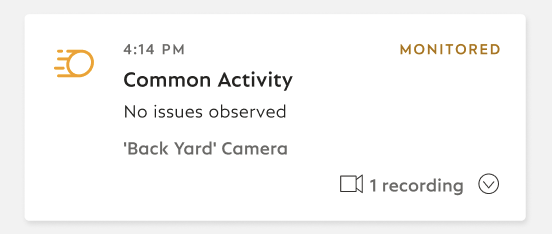
A Common Activity Event is an outdoor monitored event that contains everyday motion. Everyday motion could include passersby, vehicles, animals, weather, moving trees, etc.
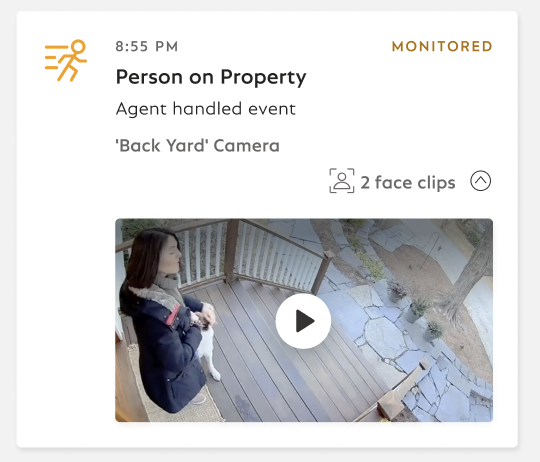
A Person on Property Event is an outdoor monitored event type where an agent has seen a person on your property. While the event is occurring, you’ll see a timeline event labeled “Agent Verifying”. Agents will use your saved familiar faces to identify who is allowed to be on your property. If an agent is not able to identify a lingering person on your property, they will attempt to engage with the individual via two-way communication or when necessary, use deterrence methods on your outdoor camera(s) such as sounding the siren and flashing the spotlight. Once the agent has been able to assess an event, they’ll send a push notification and/or email to you with details about the event. The timeline event within the SimpliSafe® Mobile App will also inform you of the agent's actions with an “Agent Handled” status.
An Emergency Event is an event that is urgent in nature (such as suspicious activity, medical emergency, or violence/burglary). If our expert monitoring agents report an Emergency Event on your property, you’ll immediately be notified via push notifications and Alarm Texts. Depending on what is observed, our highly trained team of security specialists will either escalate and request dispatch or call your primary contact to determine the next steps.
You can learn more about what happens during an alarm on our Help Center.
Help Center Article
•
Outdoor Cameras
What is Automatic Face Matching for SimpliSafe® Active Guard Outdoor Protection?
Automatic Face Matching is a form of AI that looks at the clips saved in your familiar faces library and determines whether the person in the camera’s view is a match. With SimpliSafe® Active Guard Outdoor Protection enabled, you will begin to see persons and faces detected on the Timeline tab of the SimpliSafe® Mobile App.
If a face is detected during a motion event and the system detects a match with a familiar face that you’ve set up, the face will be automatically labeled with the name of that individual. Matches are reviewed by an expert monitoring agent and if confirmed, they may not engage with the individual. If an agent is not able to identify a lingering person on your property, they will attempt to engage with the individual via two-way communication or when necessary, use deterrence methods on your outdoor camera(s) such as sounding the siren and flashing the spotlight.
A general exception to this is for deliveries to your property, where the agent will monitor the person making a delivery across your enrolled cameras when SimpliSafe® Active Guard Outdoor Protection is enabled. The monitoring agents will not typically engage unless additional action is necessary.
If you live in restricted areas (Texas, Illinois, and (Portland) Oregon) you are still able to take advantage of SimpliSafe® Active Guard Outdoor Protection services. Face matching will be automatically disabled to comply with local laws, however, agents can manually review motion events in these regions to determine if a person matches a familiar face or not.
Help Center Article
•
Outdoor Cameras
How can I Tell if an Agent is Viewing a Camera Feed for SimpliSafe® Active Guard Outdoor Protection?
SimpliSafe® Active Guard Outdoor Protection includes agent intervention when an unknown person is on your property. If an expert monitoring agent is actively viewing a camera event, you’ll see the event status read Agent Verifying in the Timeline. Additionally, your Outdoor Security Camera Series 2 will flash amber, signifying that an agent is actively viewing the feed or engaging with an unknown individual.
Once the event has been resolved by the agent, you’ll see a note in that same spot that reads Agent Handled if the event was deemed by the agent to be a Person on Property event, or No Issues Observed if the event was a Common Activity Event. You may receive push notifications sent by the SimpliSafe® Mobile App, emails, or phone calls depending on the type of event that occurs and what agent intervention is needed with it.
Help Center Article
•
Outdoor Cameras
How to Temporarily Turn Off SimpliSafe® Active Guard Outdoor Protection on a Specific Camera
If you are subscribed to a residential or business Pro Plus or Pro monitoring plan, you'll have additional options to manage your camera settings for SimpliSafe® Active Guard Outdoor Protection within the SimpliSafe® App.
If you wish to temporarily turn off or disable Active Guard Outdoor Protection for a specific camera on your system, you can do this anytime from within the SimpliSafe® App.
Open the SimpliSafe® App on your phone or tablet
Choose My System from the bottom navigation bar
Select Camera Settings
Tap on Outdoor Protection
Toggle the camera(s) off, as needed
Tap SAVE in the upper right corner of the app to save your selections
Help Center Article
•
Outdoor Cameras
Avoiding False Alarms With SimpliSafe® Active Guard Outdoor Protection
Our expert monitoring agents are trained to understand the difference between a visitor and a potential intruder - monitoring for any unknown persons when a motion event occurs. Where permitted, agents can also use automatic face matching during an event to avoid false interventions.
You can create familiar faces for people you know within the SimpliSafe® Mobile App. After obtaining the individual's consent, you may tap and hold on to the thumbnail labeled “Face” within an event on your timeline to create a new familiar face or add the image to an existing one. It’s important to note that if you are creating a familiar face for a minor, you must have consent from their parent or guardian before proceeding.
Creating more familiar faces will help our agents distinguish between known and unknown visitors, and reduce false alarms or excess notifications to the Primary Contact.
Help Center Article
•
Outdoor Cameras
How to Delete Facial Recognition History From SimpliSafe® Active Guard Outdoor Protection
If you choose to opt out of Automatic Face Matching, you can delete your facial recognition history from within the SimpliSafe® Mobile App:
Open the SimpliSafe® Mobile App on your phone or tablet
Choose My System from the bottom navigation bar
Select Location Settings
Scroll to the bottom and tap ‘Automatic Matching’
Turn off Automatic Matching and tap on SAVE to save your selections
Go back to Location Settings, you will now see an option to “Delete History”
Note, this option is only available once Automatic Matching is turned off
Tap the trash icon to delete your facial recognition history
Help Center Article
•
Outdoor Cameras
How to Create, Delete, or Modify a Familiar Face within the SimpliSafe® Mobile App
The Familiar Faces feature is a great way for professional monitoring agents to know who should be allowed on your property. For example, you might want to create a familiar face for an in-law, neighbor, or maybe a dog walker. Our expert monitoring agents are trained to use familiar faces to identify a match when your system is armed and SimpliSafe® Active Guard Outdoor Protection is active - and will only engage with unknown people or familiar faces that are not allowed on your property.
Before creating a familiar face, you are required to have explicit consent from each person. If you create a familiar face for a minor, you must obtain consent from their parent or guardian. If someone revokes their consent, it is your responsibility to honor that request and delete their familiar face from within the SimpliSafe® Mobile App.
Familiar Faces profiles should be for a singular person and utilize their real name. Do not create generic profiles, such as “Delivery Driver” or “Babysitter” and use different photos of different people. You can find more tips for uploading photos to Familiar Faces on our Help Center.
The following article will walk you through the process of creating a Familiar Face, deleting one, and modifying it.
Creating a Familiar Face
You can create a familiar face within the SimpliSafe® Mobile App either by using footage from a motion event, or using the Add Familiar Face option and uploading an existing photo of an individual to create a familiar face.
Using Footage from a Motion Event to Create a Familiar Face:
Choose the Timeline tab at the bottom navigation bar
Select a Motion Event where face clips were detected
Tap on the video to enter the detection log
Tap on the profile icon with a plus sign in front of it next to a face detected within the timeline of the video footage
Follow the on-screen prompts to create a familiar face or add it to an existing one
Create a Familiar Face using the Add Familiar Face button and Uploading a Photo:
Choose My System from the bottom navigation bar, then select and tap Familiar Faces
Enter the person’s real name
Do not enter a nickname or a description of the person in this field
Tap the plus button under “Uploaded Photos”
Allow access to your photos for SimpliSafe® when the pop-up on your device prompts you to do so
Choose a photo to upload that features a single person’s face
Do not upload a photo that has multiple people in it
Do not upload a photo that does not have any faces
Do not upload a photo that is of low quality/grainy
Preview the photo and tap Add to Familiar Face
Your photo is now added to the familiar face, and you can exit and return to the menu
Deleting a Familiar Face
You can delete a profile for an individual if you no longer wish to grant them access to your property, or if the person should choose to revoke their consent for SimpliSafe® Active Guard Outdoor Protection’s Automatic Matching
To Delete a Familiar Face:
Choose My System from the bottom navigation bar
Select Familiar Faces
Tap on the person’s profile that you wish to edit
Click on Edit in the upper right corner of the app
Scroll down to the bottom and choose Remove Familiar Face from Address
Confirm this selection by choosing Delete Familiar Face
Modifying a Familiar Face
You may need to modify an existing familiar face for one reason or another, such as if Automatic Face Matching assigns a face to the wrong person. You can easily change this at any time within the familiar faces section of the SimpliSafe® Mobile App.
Choose My System from the bottom navigation bar
Select Familiar Faces
Tap on the person’s profile that you wish to edit
Tap the X icon on a photo you wish to delete
Choose Save in the upper right corner of the app to save your changes
Next, go to the Timeline tab and choose the Motion Event where the individual was detected
Tap the profile icon with a plus sign in front of it to enter the familiar faces creation screen
Follow the on-screen prompts to either create a new familiar face or add it to an existing one
Related Articles
Help Center Article
•
Outdoor Cameras