

Conversation List
Error: Unfinished Setup for Cameras

This error can occur within the SimpliSafe® Mobile App when the camera has been partially removed from the Base Station but failed to fully remove itself from the mobile app.
As a first step, we recommend tapping on Finish Setup and see if it allows that camera to connect. If that step fails, the best path forward would be to remove the camera from your system using the Keypad.
Using the Keypad
Press the Menu button on your Keypad
Enter your Primary PIN
Scroll to devices and press Open on the right
Scroll down and locate the camera in question
Select your camera by pressing the arrow to the right
Choose Remove by pressing the arrow to the right to delete this camera from your system
Once the camera has been removed from the Keypad, you’ll need to refresh the SimpliSafe® Mobile App. To do this, open the mobile app on your phone or tablet and pull down from the top of the Camera’s tab to refresh the information presented. You can also force close the app on your phone or tablet, and relaunch it to refresh the app.
Help Center Article
•
Cameras
Not Receiving Push Notifications for my Camera
This article will troubleshoot not receiving push notifications for your cameras only. If you are not receiving system push notifications, please see our Not Receiving Push Notifications on my Smartphone for SimpliSafe® article.
Push notifications for your camera are a great way to know when there is motion detected, or when someone rings your Video Doorbell Pro. To ensure that you will always receive push notifications for your camera(s), you’ll want to make sure that critical alarm notifications are enabled on your device so SimpliSafe® can deliver notifications even if your phone is on silent. Finally, if you have a work profile or focus mode enabled, push notifications may not work. You’ll want to consult with your phone’s manual for further configuration details in these modes.
Confirm that you are logged into the SimpliSafe® app
You will only receive push notifications if you are logged into the SimpliSafe® app. Open the app on your phone and log into your account if you are not already.
Enable Push Notifications for SimpliSafe® on your Smartphone
On iOS:
Go to “Settings”
Click “Notifications”
Find the SimpliSafe® Mobile App, and make sure notifications are turned on
On Android*:
Tap Apps > Settings > MORE
Tap Application Manager > DOWNLOADED
Tap on the SimpliSafe® Mobile App
Select or clear the check box next to Show Notifications to enable or disable push notifications
Steps may vary depending on your Android device. Please refer to your phone’s manual to identify where App Notifications may exist.
*Note: enabling Android Private Space for the SimpliSafe® Mobile App can prevent you from receiving push notifications. If you want to receive push notifications about your SimpliSafe® system, do not enable Android Private Space.
Ensure camera notifications are turned on
Open the SimpliSafe® app on your phone or tablet
Choose the My System tab on the bottom navigation bar
Choose Camera Setting, then the camera you wish to enable alerts for
Tap into Motion Detection to adjust your motion event notifications
Please note that the SimpliCam® and Smart Alarm Indoor Camera will only receive motion alerts when your camera has its privacy shutter open
Make sure your phone is not on Do Not Disturb
If your phone is set to Do Not Disturb, you will not be notified of any activity regarding your SimpliSafe® system. If you do want to receive notifications for your system when your phone is set to Do Not Disturb, take the following steps.
On iOS:
Open your phone’s Settings
Select Focus
This can be found in the second cluster of settings
Click through each of the Focus Modes to check if notifications are silenced
Click through each of the Focus Modes to add the SimpliSafe® Mobile App as an Allowed Notification
On Android:
Open your phone’s Settings
Select Modes and Routines
Check to see if an existing Mode or Routine is on
Add the SimpliSafe® Mobile App to allow notifications during Do Not Disturb
These steps may vary depending on the model of your device. If you have any questions regarding the steps to take, please refer to your devices owner’s manual.
Situations where you will not receive push notifications
Even if push notifications are enabled properly, there are two situations where you will not be notified of camera motion events.
If the SimpliSafe® Mobile App is open on your smartphone or running in the background
Push notifications, by design, alert smartphone users to look at an app by tapping into the notification. Due to this, if the SimpliSafe® Mobile App is active on your device, push notifications for camera motion detection will not be sent.
If there was a previous motion detection less than a minute ago
To prevent you from receiving too many notifications, all SimpliSafe® cameras have a quiet period. After a camera detects motion, you will not receive any other motion notifications from your camera for one minute.
During this quiet period all of your cameras will still detect motion and record as usual, and each motion detection event can still be seen in your timeline.
Further troubleshooting
If your notifications are set up correctly, then try closing the app and re-opening it.
If you still are not receiving notifications, try deleting the app and re-installing it.
Help Center Article
•
Cameras
What does “Unable to Stream Video” mean?
What it Means
An "Unable to Stream Video" error means that the app was unable to download and display the streamable video. As this is likely an issue on the app end, our team is notified of these errors and investigates promptly to ensure your video is back up for streaming as soon as possible. You can try streaming this video again later.
Is There Anything I Can Do?
As mentioned above, this is likely due to an error on our end. In the meantime, you can also check your Wi-Fi connectivity strength and speed as that can affect your camera's ability to stream and record video. You can learn more about improving your connectivity speeds on our Help Center.
Help Center Article
•
Cameras
How to Reset the Outdoor Security Camera Series 2
If your Outdoor Security Camera Series 2 ever encounters an error that can’t be fixed through normal troubleshooting, performing a factory reset* of the camera may be necessary.
*Please note that you cannot reset the Outdoor Camera remotely. You must be physically at the location of your system and with your camera to reset it.
First, you’ll need to remove the Outdoor Camera from the SimpliSafe® Mobile App.
To remove the camera:
Open the SimpliSafe® Mobile App on your phone or tablet
Choose the My System from the bottom navigation bar
Select Camera Settings
Tap the Outdoor Camera you wish to remove
Scroll to the bottom and select Remove Camera
To factory reset your Outdoor Camera:
Ensure the camera is within 30 feet of the Base Station
Locate the pairing button on the back of your Outdoor Camera
This is the smaller, circular button on the back of the camera
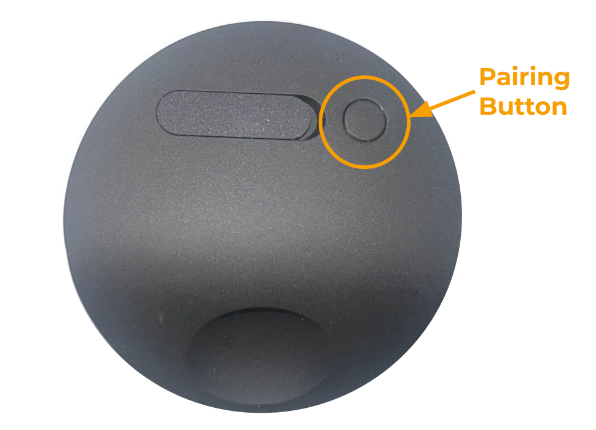
Press and hold the pairing button firmly, using both thumbs if possible, for 30 seconds - or until the camera chimes. You will hear the BS announce “Camera removed”
If the camera does not chime at any point during the 30 seconds of pressing the button, let go and press and hold the button again for another 30 seconds
When you release the button, the camera should reboot and begin to flash white
For some cameras you may also notice it make a sound
Once the factory reset is complete, you will need to add it to your system again using our Installation Guide.
Help Center Article
•
Outdoor Cameras
Outdoor Security Camera Series 2 Settings & Customizations
The Outdoor Security Camera Series 2 has a variety of settings that can be customized, such as Night Vision, Motion Detection, Video Quality, and more! If you are enrolled in SimpliSafe® Active Guard Outdoor Protection, some settings may not be adjustable within the SimpliSafe® Mobile App.
Using the SimpliSafe® Mobile App:
Open the SimpliSafe® Mobile App on your phone or tablet
Choose My System from the bottom navigation bar
Select Camera Settings
Choose your Outdoor Security Camera Series 2 from the list of available cameras
Why are some settings locked?
Enabling SimpliSafe® Active Guard Outdoor Protection requires certain settings to be enabled. These settings get toggled to ON and will have a locked icon appear next to them to ensure our professional monitoring specialists always have the tools they need to deter potential intruders.
Motion Detection
Motion Detection settings control how your camera will respond to motion events, such as someone walking in its view, or a car driving by.
In this menu, you can toggle motion events and notifications on and off. You can also use the slider to choose the sensitivity of motion detection. We typically recommend setting this to medium. You can also set it to People Only or All Motion to better filter motion events.
Activity Zones allow you to exclude certain areas from motion events, which is good if you live near a busy sidewalk or street.
Video Quality
Video Quality manages what quality of your streams and recordings will be at. For the Outdoor Camera Series 2, you can adjust this to 1080p, 720p, or 480p. The higher the stream, the more bandwidth it will use on your network. So if you’re having trouble streaming at 1080p, you can try lowering the quality to troubleshoot on your end.
Night Vision
The Night Vision setting allows you to see potential intruders or threats in the dark, by using infrared to capture video. You can also opt to use the Spotlight feature, which shines a light to capture video in color rather than night vision’s black-and-white scheme.
Flip Image 180
This option is available should you mount your Outdoor Security Camera Series 2 upside down. Please note that if you are using your camera with SimpliSafe® Active Guard Outdoor Protection, we do not recommend mounting it upside down. Mounting your camera upside down will decrease the distance that it picks up motion by halving it. Specifically, upside down Outdoor Cameras will be able to pick up motion within 15 feet of the camera, as opposed to 30 feet when mounted in a normal orientation.
Mic & Audio
The Mic & Audio setting allows you to hear audio from your camera and also allows you to initiate two-way communication when viewing live streams.
Siren
The Outdoor Camera Series 2 comes with a whopping 90dB built-in siren to relay active alarms across your system.
Status Light
The Status Light for your camera will show you that the camera is online and functioning, at a quick glance.
Please note that if you turn this off but are enrolled in Active Guard Outdoor Protecton, the status LED will still light up amber for agent actions and interventions.
Help Center Article
•
Outdoor Cameras
Two-Way Audio Troubleshooting for Cameras
Two-Way Audio is a great feature to have and use with our cameras, and can help deter potential intruders or bad actors. If you find your Two-Way Audio isn’t working, there are a few steps you can take to troubleshoot it.
Please keep in mind that Two-Way Audio works differently for some cameras when you are viewing a live stream. For the SimpliCam® and Video Doorbell Pro, you will hold down the speaker button when you want to talk and let go of it when you want to listen. For Outdoor Cameras and Smart Alarm Indoor Camera, simply tap the mic icon once to begin talking.
Please note: If you use Two-Way Audio through your Outdoor Camera or Smart Alarm Indoor Camera while it is recording, the audio will be included in the video. If you use Two-Way Audio through your SimpliCam® or Video Doorbell Pro while it is recording, the video will only include audio detected through the camera, not what was said through the SimpliSafe® Mobile App.
Step 1: Ensure the Microphone is Enabled for your Device
You will need to go into your phone or tablet’s settings for SimpliSafe® and ensure that the Microphone is enabled.
Using iOS:
Open your phone’s Settings app
Scroll down and select SimpliSafe®
Toggle Microphone ON
Using Android:
Open your phone’s Settings app
Click on Apps and scroll down to find SimpliSafe®
Select Permissions > Microphone
Set Microphone access for this app to “Allow only while using the app”
*Please note that steps may vary depending on your Android device.
Step 2: Ensure you Have the Volume Turned up on your Device
Ensure that you have the phone or tablet volume turned up when viewing a live stream or watching a video recording
Step 3: Clean your Camera of any Dust and/or Debris
Dust or debris can cause the microphone or speakers to become clogged on the camera, especially on Outdoor Cameras where they are subjected to the elements. To clean the lens of your camera products, use a microfiber lens cloth or lens cleaner. If you notice larger debris, gently blow away the larger particles or use a soft brush before wiping clean.
Step 4: Make Sure That Mic & Audio is Enabled within the SimpliSafe® Mobile App
You’ll need to review your camera's settings and ensure that Mic & Audio is enabled within the SimpliSafe® Mobile App.
Open the SimpliSafe® Mobile App on your phone or tablet
Choose My System from the bottom navigation bar
Select Camera Settings
Tap on the camera you wish to manage
Scroll down to General
Toggle Mic & Audio ON
Select SAVE in the upper right corner of the app to save your selections
Step 5: Test your Camera’s Connection
The Connection Check Tool for Cameras is a great way to better understand your signal strength and upload speed from the router to where your camera is located.
To use the Connection Check Tool:
Open the SimpliSafe® Mobile App on your phone or tablet
Choose My System from the bottom navigation bar
Select Camera Settings
Choose your camera from the list of available cameras
Under “Connection” select “Connection Check”
Tap “Start Connection Check” to find your camera’s connection strength
What do my Results Mean?
A good signal strength and/or upload speed means that there is a strong connection between your camera and Wi-Fi network.
A fair or poor upload speed means that you’ll want to reduce your camera’s video resolution. You can do this within the Camera Settings page for your camera in the SimpliSafe® Mobile App.
Open the SimpliSafe® Mobile App on your phone or tablet
Choose My System from the bottom navigation bar
Select Camera Settings
Choose your camera from the list of available cameras
Tap on Video Quality
Choose a lower resolution
Select SAVE in the upper right corner to save your selections
It may also be necessary to upload your Internet package with your Internet Service Provider (ISP) to improve upload speeds. We recommend reaching out to your ISP to learn more about their offerings.
A fair or poor signal strength means your camera may be too far away from your Wi-Fi router. We recommend moving them closer, if possible. If not, you can opt to install a Wi-Fi extender to help bridge the network connectivity gap between the two. You can also move SimpliSafe® to a dedicated network or guest network to alleviate congestion. To learn more about setting up a dedicated or guest network, contact your Internet Service Provider (ISP) or consult with your router’s manual.
Still Need Help?
If you still need help with your camera, don’t hesitate to contact our support team for additional troubleshooting or assistance.
Help Center Article
•
Cameras
Poor Audio Quality From The Outdoor Camera
The audio from the Outdoor Camera is designed to come in clearly through the SimpliSafe® Mobile App when reviewing timeline events or watching a live stream. If you find that the audio sounds muffled, dampened, or echo-like, there are a few steps you can take to try and improve your audio experience.
Ensure the Volume is Turned Up on Your Phone
An easy first step is to check the volume on your phone. If the volume on your phone is low or silenced, you may not hear the audio coming out of the Outdoor Camera’s feed when watching a recording or live stream.
Enable the Mic & Audio Settings for your Outdoor Camera
Another quick step to take is to ensure that Mic & Audio are enabled in the Outdoor Camera’s settings.
You can do this at any time from within the SimpliSafe® Mobile App:
Open the SimpliSafe® Mobile App on your phone or tablet
Navigate to the Cameras tab from the bottom of the app
Select the Gear Icon for Camera Settings in the upper right corner of the app
Choose your Outdoor Camera
Ensure that Mic & Audio is toggled ON
If it is not, tap the toggle to enable it
Then, click Save to update your selection
Rule out Echo Cancellation
Echo Cancellation issues can occur when your phone is located too close to the camera when recording or live-streaming video.
To rule this out, we recommend placing the camera and your phone at least 50 feet away from one another, then try live streaming again.
Clean the Outdoor Camera of Dust or Debris
Occasionally the Outdoor Camera might have dust or debris build up on it. To clean the lens of your camera, use a microfiber lens cloth or a lens cleaner. If you notice larger debris, gently blow away the larger particles or use a soft brush before wiping clean.
Using Outdoor Camera’s Connection Check Tool
Your wireless connection directly impacts the stream and sound quality of your camera. If you have a poor connection, you can encounter pixelation or audio drop outs when viewing recordings or initiating a live stream.
Your Outdoor Camera can run a connection check between it and the Base Station to determine if any improvements can be made to the Wi-Fi connection.
During the test, the Outdoor Camera will check the upload speed and the signal strength to paint a better picture of what the overall connectivity looks like. If you receive a fair or poor signal in any category, the app will walk you through some steps you can take to improve upon that connection. This could be steps as simple as moving the Base Station and testing the connection again, or more involved steps such as setting up a separate network for your SimpliSafe® System.
Still Need Help?
If you are still experiencing poor audio quality after taking these steps, or hearing a crackling or buzzing sound on your live streams or recordings, don’t hesitate to contact our support team for further troubleshooting.
Help Center Article
•
Cameras