Conversation List
What is the Difference Between SimpliSafe® Active Guard Outdoor Protection and Intruder Intervention?
Subscribers to the residential or business Pro Plus, Pro, or Core plans with a Smart Alarm Indoor Camera have the benefit of professional monitoring intervention when break-ins happen inside the home. This technology, known as intruder intervention, allows SimpliSafe® professional monitoring agents to see and speak to intruders, stopping them in their tracks within your home.
SimpliSafe® Active Guard Outdoor Protection builds upon intruder intervention, working to deter intruders outside of your home by allowing professional monitoring agents to use your Outdoor Camera Series 2 to see and speak with unknown individuals. This is designed to deter potential intruders and prevent crime before it happens.
Help Center Article
•
Outdoor Cameras
How is my Privacy Protected When Using SimpliSafe® Active Guard Outdoor Protection?
We are committed to protecting our customers' privacy and sensitive data just as vigilantly as their homes. First, you control what cameras and when live agents monitor your location. Agents only have access to outdoor-enabled cameras during a motion event that occurs during your subscription service hours when your system is armed. In addition, we use industry-standard physical, technical, and administrative controls to protect the confidentiality and security of biometric information which includes requiring agents to pass extensive background checks and work in a secured location.
Learn more about our privacy and data policies:
Help Center Article
•
Outdoor Cameras
What are SimpliSafe® Active Guard Outdoor Protection Notifications?
SimpliSafe® Active Guard Outdoor Protection notifications are push notifications you will receive after an event has been reviewed by one of our expert monitoring agents. You can decide which SimpliSafe® verified outdoor events should trigger push notifications - such as Common Activity events or Person on Property events.
There is a difference between Camera Motion Notifications and SimpliSafe® Active Guard Outdoor Protection Notifications. Turning on Camera Motion Notifications allows the SimpliSafe® Mobile App to notify you when your camera detects motion. SimpliSafe® Active Guard Outdoor Protection Notifications are push notifications you receive after an event has been reviewed by one of our expert monitoring agents or our advanced AI. With SimpliSafe® Active Guard Outdoor Protection, you can refine when you would like to receive motion notifications, on a per-camera basis.
Camera Motion Notifications for SimpliSafe® Active Guard Outdoor Protection
When you enable SimpliSafe® Active Guard Outdoor Protection for the Outdoor Security Camera Series 2 or a Video Doorbell Pro you’ll have a new set of Motion Detection settings available to you.
You can access this in the SimpliSafe® Mobile App by navigating to My System > Camera Settings > and choosing your camera that’s enrolled in SimpliSafe® Active Guard Outdoor Protection.
Motion Detection Settings for Cameras Enrolled in SimpliSafe® Active Guard Outdoor Protection:
Always on
This will alert you when people are detected via motion events for this camera
Only while unmonitored
This will alert you when people are detected via motion on this camera, only when your system is not armed or when you are not within your monitoring window (overnight plans via Pro subscription)
Off
This turns off camera motion push notifications for this camera, so you will not receive any notifications for motion events
Setting up Push Notifications for SimpliSafe® Active Guard Outdoor Protection
To set up Push Notifications for your SimpliSafe® Active Guard Outdoor Protection service:
Open the SimpliSafe® Mobile App on your phone or tablet
Choose My System from the bottom navigation bar
Choose Push Notifications
Scroll down to Outdoor Protection
Toggle the settings ON or OFF as needed
Select SAVE in the upper right corner of the app to save your selections
Note: You must be logged into the SimpliSafe® app in order to receive push notifications on your device
Setting up Email Notifications for SimpliSafe® Active Guard Outdoor Protection
To set up Email Alerts for your SimpliSafe® Active Guard Outdoor Protection service:
Open the SimpliSafe® Mobile App on your phone or tablet
Choose My System from the bottom navigation bar
Under ‘Other Alerts’ select Email Notifications
Tap on Customize Outdoor Monitoring Emails
Toggle the settings ON or OFF as needed
Select SAVE in the upper right corner of the app to save your selections
Note: Email alerts for SimpliSafe® Active Guard Outdoor Protection will only go to the email address of the primary account holder.
Help Center Article
•
Outdoor Cameras
Tips for Uploading Photos to the Familiar Faces Feature
Familiar faces help professional monitoring agents determine who should be allowed on your property. For example, you may want to create a familiar face for an in-law, a neighbor, or a dog walker. Our expert monitoring agents are trained to use familiar faces to identify a match when the system is armed and SimpliSafe® Active Guard Outdoor Protection is active and will only engage with unknown individuals.
Quick Tips for Uploading Images to Familiar Faces
Each profile you create should be for a singular person and utilize their real name. Do not create generic profiles, such as “Delivery Driver” or “Babysitter” and use different photos of different people.
Ensure the image is clear or sharp, blurry images may result in a “No Faces Detected” error
Ensure that the photo is taken portrait style, with the subject's head facing straight forward.
If the head is at an angle in any direction, it could result in less accurate matching by AI or our monitoring specialists
Try to avoid using images where the subject is wearing a hat or sunglasses, or has their face obscured in any way
To start, we recommend about 3-5 photos per familiar face to help build a profile of the individual for AI or our monitoring specialists
Help Center Article
•
Outdoor Cameras
How do I Check the Battery Life of my Camera?
The Outdoor Camera and Smart Alarm Wireless Indoor Security Camera are battery-powered cameras that can help you monitor your home, even when you’re away. Keeping the batteries charged ensures that your cameras will keep a watchful eye inside, and outside of your home.
Checking the Battery Status on the SimpliSafe® App:
Open the SimpliSafe® App on your phone or tablet
Choose My System from the bottom navigation bar
Select Camera Settings
The battery indicator will be displayed to the right of each camera
For iOS users, tap into the camera you wish to see the battery percentage for
Once on your specific camera’s settings page, you’ll see the exact percentage that your battery is charged.
Android users will not be able to see a percentage in the mobile app, however, you can log in to your Online Account with the steps below to see the exact percentage
Checking the Battery Status on the SimpliSafe® Online Account:
Log into your SimpliSafe® Online Account using the browser of your choice
Choose Devices from the left-hand navigation menu
Under Cameras, you’ll be able to see your available Cameras and the percentage that the battery is at
If you are using a solar panel with your Outdoor Camera, the battery will show a charging symbol when it is actively charging.
If you are using a power adapter to leave the Smart Alarm Indoor Camera plugged into an outlet, you will always see a charging symbol on the battery indicator.
TIP: You can maximize your battery life for your cameras by adjusting your camera settings within the SimpliSafe® Mobile App.
Help Center Article
•
Cameras
Incomplete Recordings for Cameras
Incomplete camera recordings can often be a symptom of an underlying network connectivity issue. To rule out any temporary connectivity issues, we recommend rebooting your router - especially if it’s been a while since you’ve done this. To reboot your router, simply unplug it from power for 30-60 seconds, then plug it back in. This will provide a fresh connection for your network devices.
If you’re still having trouble after a router reboot, we’d recommend using the Connection Check Tool found within the SimpliSafe® Mobile App to further analyze your network connectivity.
How to Use the Connection Check Tool
Tap the “Cameras” icon at the bottom of the SimpliSafe® mobile app
Choose the gear icon in the upper right corner to get to Camera Settings
Select your camera
Under “Connection” select “Connection Check”
Tap “Start Connection Check” to find your camera’s connection strength
What do my Results Mean?
Good
A good signal strength or upload speed means that there is a strong connection between your camera and Wi-Fi network.
Fair or Poor Upload Speed
If your upload speed is fair or poor, reduce the camera’s video resolution in its settings in the SimpliSafe® mobile app. To do this:
Select the “Cameras” tab at the bottom of the screen
Tap the gear icon in the top right corner to get to Camera Settings
Under “Camera Settings”, select your camera
Navigate to “Video Quality” and choose 480p
It may also be necessary to upgrade your internet package to improve your upload speed. We recommend reaching out to your internet service provider to learn more about their offerings.
Fair or Poor Signal Strength
If your signal strength is fair or poor, move your camera and Wi-Fi router closer together and then try running the Connection Check tool again. If your signal strength is still the same, we recommend getting a Wi-Fi extender.
It may also help to connect your SimpliSafe® devices to a different Wi-Fi network. We recommend setting up a Guest Network on your Wi-Fi router and only connecting your SimpliSafe® devices to it. To learn more about setting up a Guest Network, reach out to your internet service provider.
Still Need Help?
If your camera is still experiencing issues connecting to your Wi-Fi network, our Support team is here to help you further.
Help Center Article
•
Cameras
Night Vision Troubleshooting for Cameras
Night Vision is a feature that allows your camera to use infrared technology to see in low-light conditions. The setting for this feature can be found in the SimpliSafe® App by navigating to camera settings:
Open the SimpliSafe® App on your phone or tablet
Choose My System from the bottom navigation bar
Select Camera Settings
Tap on the desired camera
Select Night Vision
When On, the camera will always revert to using night vision regardless of the amount of light in the room. When set to Auto, the camera will intelligently switch between Night Vision and not depending on the amount of light in the room. In Off mode, the camera will only use available light to capture video and may result in dark video.
The Outdoor Camera does not have an Auto setting, but it does have Spotlight. When turned on, this allows the camera to record in color at night.
If the video quality is poor at night, we recommend trying the following steps:
Verify the camera's Night Vision setting in the SimpliSafe® Mobile App and set it to On or Auto
If you have an Outdoor Camera, verify that its Night Vision setting is set to Standard or Spotlight
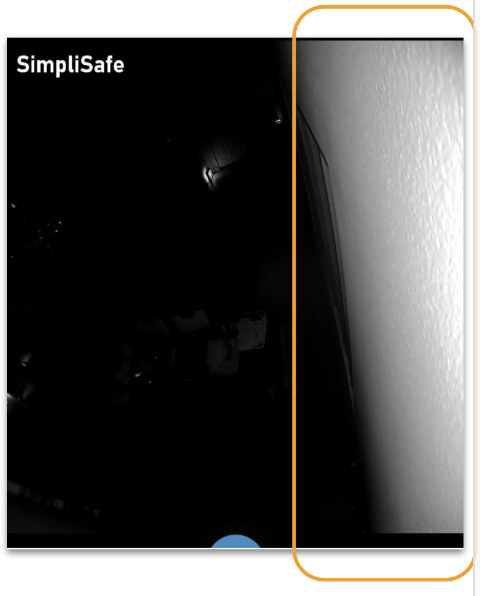
Ensure the camera is not pointed near a wall, ceiling, or a flat surface underneath. Large surfaces like this will reflect the IR light and wash out the remaining video. We recommend repositioning the camera in these scenarios. (see image below)
If the camera is on a shelf, place it near the edge to avoid any obstructions
Make sure that the camera is not directly facing a wall or looking out a window
Confirm that the protective film on the face of the camera has been removed
[Outdoor Camera Only] Turn on the Spotlight to help illuminate areas around the camera
If the above steps do not resolve the issue, we recommend testing the camera in a second location. If the issue disappears, try taking the above steps again in the camera’s desired location.
Still Need Help?
If the issue persists, try resetting the camera by following the directions below. Note: resetting the camera will erase any videos that you have captured as well as all camera settings. Instructions on how to download any camera recordings first before resetting.
Once the camera has been reset, begin the setup process over again using your camera’s installation guide.
Help Center Article
•
Cameras